
Google Sites is one of the easiest ways to get a website online. It’s free, it works with the Google account you already have, and you can build a clean site in an afternoon. But sooner or later most people hit a wall: “Why can’t I add a blog?”, “Why does my chat button only show inside a box?”, “Where do I set the meta description?”
This guide lists the main limitations of Google Sites, the workaround for each one, and the signs that it’s time to move to another website builder. Many gaps can be filled with an embedded widget; a few can’t, and it’s better to know that before you build your whole business on it.
In this guide
- Google Sites limitations at a glance
- 1. You can’t add code to every page at once
- 2. Embeds are boxed in and don’t resize themselves
- 3. There’s no blog
- 4. You can’t sell online
- 5. No reviews, testimonials or social feeds
- 6. Forms only through Google Forms
- 7. No floating chat bubble
- 8. Design options are limited
- 9. SEO settings are minimal
- 10. No password protection or multi-language support
- Things Google Sites already does well
- When to switch to another website builder
- Frequently asked questions
- Get more out of Google Sites
Google Sites limitations at a glance
| Limitation | Workaround |
|---|---|
| No site-wide code (head, header or footer scripts) | Add embeds page by page; use the built-in Analytics setting |
| Embeds are boxed in and don’t resize themselves | Size the box by hand; use inline versions of floating widgets |
| No blog | Blog widget, or one page per article |
| No online store or payments | Pricing table plus payment links on buttons |
| No reviews, testimonials or social feeds | Google reviews, testimonial and feed widgets |
| Forms only through Google Forms | Google Forms, or a styled form widget |
| No chat bubble | Inline WhatsApp or click-to-call button |
| No custom CSS | Custom theme colors and fonts; styled widgets |
| No per-page meta description or title tag | Clear page names and strong opening paragraphs |
| No password protection | Publish to specific people only |
| No multi-language support | Separate pages or sections per language |
1. You can’t add code to every page at once
Most website builders let you paste code into the site’s <head> or footer so it loads on every page. That’s how chat bubbles, cookie banners, tracking pixels and verification tags are usually installed. Google Sites has no such setting. The only way to add code is Insert › Embed › Embed code, one embed on one page at a time.
Workarounds:
- Analytics: you don’t need code. Go to Settings › Analytics and enter your Google Analytics property ID.
- Search Console: the HTML-tag method needs head access, so verify with a DNS record on your custom domain, or through Google Analytics.
- Widgets you want everywhere (a contact button, a review badge): add the same embed code to each page. Changes you make in the widget builder still update every copy at once.
2. Embeds are boxed in and don’t resize themselves
Google Sites shows embedded code inside its own isolated frame. That’s safe, but it has two side effects. First, a widget can’t reach outside its box, so floating widgets such as chat bubbles, popups and back-to-top buttons only appear inside the embed area instead of floating over the page. Second, the box doesn’t grow with its content: you set its size by dragging the handles in the editor.
- Choose inline versions. A WhatsApp chat widget can be set to an inline “embed bubble” button instead of a floating one, which fits Google Sites perfectly.
- Size generously and check mobile. A review carousel or feed is often taller on a phone. Preview the published site on your phone and drag the box taller if the widget gets cut off.
- Try the iframe version. If a script widget won’t load, some widgets offer an iframe embed, such as the Google reviews iframe and Instagram feed iframe.
Step-by-step instructions are in how to add widgets to Google Sites.
3. There’s no blog
Google Sites has pages, but no posts, categories, dates, author pages or RSS feed. You have two options:
- A blog widget. The blog widget for Google Sites gives you a proper post list with authors, images and video, and you can draft posts yourself or with AI. It’s the fastest way to get a news or updates section.
- One page per article. Create a “Blog” page and add each article as a subpage. It’s more manual, but each article gets its own URL.
Which to choose: if you want articles to rank in Google search, use one page per article. Content inside an embedded widget is unlikely to be treated as a page of your own site. For company news, event updates or a class newsletter, the widget is simpler and looks better.
4. You can’t sell online
There is no shopping cart, checkout or payment feature. For a few products or services, a simple setup works well:
- Show your packages with a pricing table widget.
- Create a payment link in a service such as Stripe or PayPal. If you take PayPal, a PayPal button widget can replace this step and the next one.
- Add a Google Sites button (Insert › Button) that points to the payment link.
For services that need a time slot, an appointment booking widget lets customers pick a time that syncs with your Google Calendar. If you need inventory, shipping, discount codes or dozens of products, Google Sites isn’t the right tool; see “When to switch” below.
5. No reviews, testimonials or social feeds
Google Sites can embed YouTube videos, but not your Google reviews, Instagram posts or LinkedIn updates. These are where widgets shine, and each of these has a Google Sites guide:
- Google reviews on Google Sites: your Business Profile reviews in a carousel or grid.
- Instagram feed on Google Sites: your latest posts, updated automatically.
- Social feed on Google Sites: several networks in one stream.
- LinkedIn feed on Google Sites: company updates for B2B sites.
- Testimonials slider: quotes you collect yourself, with names and photos.
For ideas on what to show and where, see 9 ways to show reviews and testimonials on your website.
6. Forms only through Google Forms
Google Sites has no form element of its own; you embed a Google Form. For many sites that’s enough: it’s free, responses land in a Google Sheet, and it embeds natively. If you want a form that matches your site’s design, a contact form widget or form builder gives you more control over the look and layout.
7. No floating chat bubble
Because embeds can’t float over the page (see limitation 2), the usual corner chat bubble won’t work as intended. Instead, place an inline WhatsApp chat button or a click-to-call button where people look for contact details: the top of your Contact page and the end of your service pages. Not sure which channel fits? Read WhatsApp vs Messenger vs live chat.
8. Design options are limited
You choose from a set of themes and can customize the colors, fonts, logo and banner image, but there’s no custom CSS. You can’t change spacing, add hover effects or build a layout the editor doesn’t offer.
Workarounds: create a custom theme with your brand colors and fonts, and use widgets for the elements that need to look polished, such as a pricing table, photo gallery or countdown timer. Each widget has its own styling options, independent of your theme.
9. SEO settings are minimal
Google Sites pages can rank in Google, but you have few levers to pull:
- No per-page meta description or custom title tag. The page name becomes the title. Write descriptive page names (“Wedding Photography in Leeds”, not “Services 2”) and a strong first paragraph, which Google often uses for the snippet.
- Noindex is all or nothing. You can ask search engines not to show the whole public site, but you can’t hide a single page from search. Hiding a page from the navigation menu doesn’t hide it from Google.
- No redirect settings. If you rename a page and its URL changes, old links break. Choose page URLs carefully and avoid renaming them later.
- Use a custom domain. A site at
yourbusiness.comlooks more trustworthy than a longsites.google.comaddress and is easier to remember. Connect it under Settings › Custom domains; you verify ownership with a DNS record, and you can connect up to five domains to one site.
10. No password protection or multi-language support
You can’t put a password on a page. You can, however, publish the whole site to specific people or groups only (or, with a work or school account, to your organization). Visitors then sign in with their Google account. That works well for team intranets and class sites, less well for a members’ area for customers.
There’s also no built-in way to offer the site in several languages. The simplest workaround is a separate set of pages per language (for example /en/ and /es/ sections) with a link between them in the header.
Things Google Sites already does well
Before adding a widget, check whether a built-in feature already covers it:
- Announcement banner (in Settings) for news, holiday hours or a promotion across the top of every page.
- Buttons, image carousels and collapsible text for FAQs and calls to action.
- Native embeds for YouTube, Google Maps, Calendar, Docs, Sheets, Slides, Forms and Charts.
- Site search, version history, and the option to hide pages from the navigation.
- Generous limits: up to 10,000 pages and 15,000 images per site, far more than a small business needs.
When to switch to another website builder
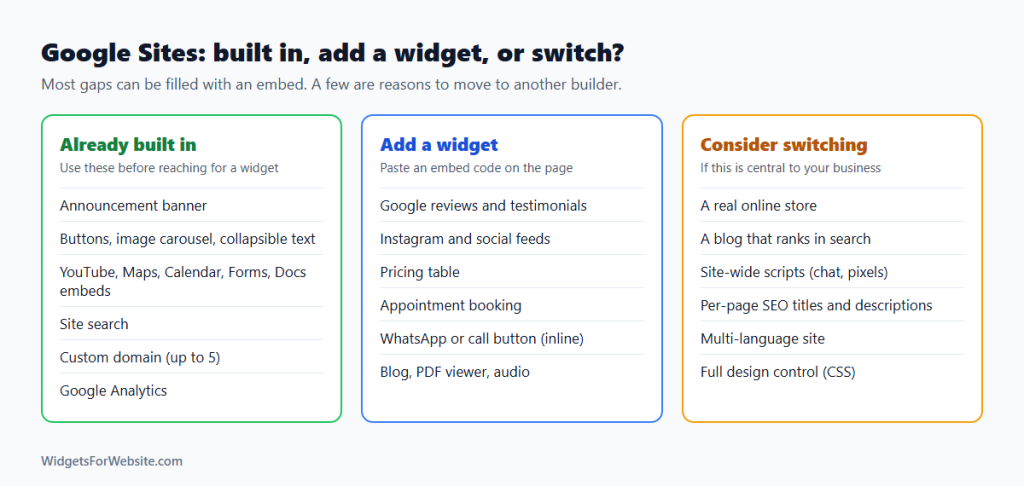
Widgets cover most gaps, but not all. Consider moving if one of these is central to your business:
- You sell many products online and need a cart, stock and shipping: look at Shopify, Wix or Squarespace.
- Blogging and search traffic are your main channel and you need per-page SEO settings: WordPress is the usual choice.
- You need site-wide scripts, such as a floating chat, a cookie consent tool or advertising pixels.
- You need a multi-language site or full design control.
The widgets you’ve set up come with you: the same embed code works on Wix, Squarespace, Shopify, Webflow and WordPress. Our guide on how to add embed code to any website builder shows where to paste it on each, and you can browse the best widgets for Wix and Squarespace.
Frequently asked questions
Can you add custom HTML or JavaScript to Google Sites?
Yes, with the Embed element (Insert › Embed › Embed code). The code runs inside its own frame on that page only. You can’t add code to the site’s head or to every page at once, and embedded code can’t change the rest of the page.
Why does my chat widget or popup only show inside a box?
Google Sites keeps every embed inside its own frame, so floating elements can’t move outside it. Use an inline version of the widget, such as an inline WhatsApp button, and place it where visitors will see it.
Is Google Sites good for SEO?
It’s fine for a small site that needs to be found by name, such as a local business, a club or a portfolio. It’s weak for sites that rely on search traffic, because you can’t set per-page titles, meta descriptions, redirects or page-level noindex.
Can I use my own domain name with Google Sites?
Yes. Google Sites itself is free; you only pay for the domain from a registrar. Connect it under Settings › Custom domains and verify ownership with a DNS record. Only the site’s owner can connect a domain, and up to five domains can point to one site.
Can I password-protect a Google Sites page?
No. You can restrict the whole published site to specific people or groups, who then sign in with their Google account, but there’s no password option and no way to protect a single page.
Get more out of Google Sites
Most of what Google Sites is missing can be added in minutes. Start with our list of essential widgets for Google Sites, or browse all 90+ free HTML widgets.
Build your first widget for free
Pick a template, customize it in your browser and paste the code into your website. The free plan covers one widget with up to 200 views a month.
Browse all 85 widgets