
A chat button turns “I’ll look into it later” into a question asked right now, and a question answered is often a sale. But which chat? A WhatsApp button, a Messenger bubble, a live chat window, or an AI chatbot all look similar in the corner of your site. They work very differently once a visitor clicks.
This guide compares the four options side by side: where the conversation happens, what the visitor needs, who has to answer, and what it costs. At the end, you’ll find a two-question way to choose.
In this guide
- The short answer
- Side-by-side comparison
- WhatsApp chat widget
- Facebook Messenger chat widget
- Live chat
- AI chatbot
- Can’t choose? Offer more than one
- How to choose in two questions
- Setup tips for any chat widget
- How to add a chat widget to your website
- Frequently asked questions
- Add your chat button today
The short answer
- WhatsApp if you’re a local or service business and your customers already use WhatsApp every day.
- Messenger if your customers find you through Facebook and you already answer messages on your Page.
- Live chat if you run an online shop or software product and someone can watch the chat during business hours.
- AI chatbot if nobody can answer quickly, or most questions are the same ten questions.
Side-by-side comparison
| Messenger | Live chat | AI chatbot | ||
|---|---|---|---|---|
| Where the chat happens | WhatsApp app or WhatsApp Web | Messenger app or messenger.com | A window on your website | A window on your website |
| Visitor needs | A WhatsApp account | A Facebook/Messenger account | Nothing | Nothing |
| You answer from | Your phone or WhatsApp Web | Messenger or Meta Business Suite | A live chat dashboard or app | The bot answers; you review |
| Chat continues after they leave | Yes | Yes | Only if you collect an email | Only if you collect an email |
| Works when you’re away | Messages wait; auto-reply possible | Messages wait; auto-reply possible | Falls back to an offline form | Yes, 24/7 |
| Best for | Local services, shops, travel, restaurants | Facebook-first audiences | Online stores, SaaS, high-intent pages | Repetitive questions, after-hours |
WhatsApp chat widget
A WhatsApp chat widget shows a floating bubble (or an inline button) on your site. When a visitor clicks it, a chat with your business number opens in WhatsApp on their phone, or in WhatsApp Web or the desktop app on a computer. You reply from the WhatsApp you already use.
Why it works: In much of Europe, Latin America, Africa, the Middle East, and South and Southeast Asia, WhatsApp is the default way people message anyone, businesses included. The conversation lives in the customer’s own chat list, so they see your reply even after they’ve closed your site, and you can send photos, voice notes, locations, and documents.
Watch out for: visitors need a WhatsApp account, and your phone number becomes visible to them. If several people answer, one shared phone gets messy quickly. In the US, where many people prefer text messages, WhatsApp is less universal.
Tips: use the free WhatsApp Business app instead of a personal number. It adds a business profile, greeting and away messages, and quick replies. In the widget, set your opening hours so the bubble shows when you’re available, and write a welcome message that says how fast you usually reply.
Platform guides: WhatsApp on Wix, Squarespace, Shopify and WordPress.
Facebook Messenger chat widget
A Messenger chat widget connects to your Facebook Page and lets visitors message it from your website. Replies arrive in the same inbox as your Page messages, so if you already answer customers on Facebook, nothing changes in your routine.
Good to know: Meta retired its own Messenger chat plugin in 2024, so Messenger chats from a website now continue in the Messenger app or on messenger.com rather than inside your page. For visitors who are logged in to Facebook, that’s one tap. For everyone else, it’s a sign-in screen.
Best for: businesses whose customers come from Facebook: local groups, events, community organizations, and shops that run Facebook ads. If your audience is younger or not on Facebook, it’s usually the weakest of the four options. Your followers on Instagram? An Instagram chat widget works the same way for Instagram DMs.
Live chat
Classic live chat opens a chat window on your website. The visitor types without leaving the page or signing in to anything, and you answer from a dashboard or mobile app. Services such as tawk.to, Tidio, or Intercom offer this, from free plans to paid ones with team features.
Why it works: it’s the lowest-friction option for the visitor, and you can see which page they’re on (“I’m looking at the blue one in size M”). That’s why online stores and software companies use it on product, pricing and checkout pages, where a quick answer saves a sale.
Watch out for: live chat only works if someone is there. A chat window that says “online” but answers twenty minutes later does more harm than no chat at all. And once the visitor closes the tab, the conversation is gone unless you asked for their email.
AI chatbot
An AI chatbot widget also chats on your page, but a bot does the answering. You point it at your website, upload documents such as a price list or FAQ (PDF, Word, text, and more), and add common questions and answers. It then answers visitors around the clock in your own words, with a greeting and quick-reply buttons to get the conversation started.
Why it works: most small businesses get the same questions again and again: opening hours, prices, delivery areas, how to book. A bot answers those instantly at 11 pm and frees you for the questions that need a human. Answers that never change can also sit in a FAQ widget on the page, so many visitors find them without asking at all.
Watch out for: a bot is only as good as what you teach it. Test it with real questions before going live, read the conversations for the first few weeks, and make sure it points people to a human (a phone number, WhatsApp, or a contact form) for anything it can’t handle. Never let it promise prices, refunds or medical or legal advice you haven’t approved.
Can’t choose? Offer more than one
You don’t have to pick a single channel. An all-in-one chat widget puts WhatsApp, Messenger, Instagram, Telegram, Viber, SMS, a phone call, and more behind one bubble, and the visitor picks the app they prefer. You still answer each one in its own app, so keep it to two or three channels you actually check.
And whatever you choose, add a click-to-call button for mobile visitors who just want to talk, plus a contact form for after-hours requests.
How to choose in two questions
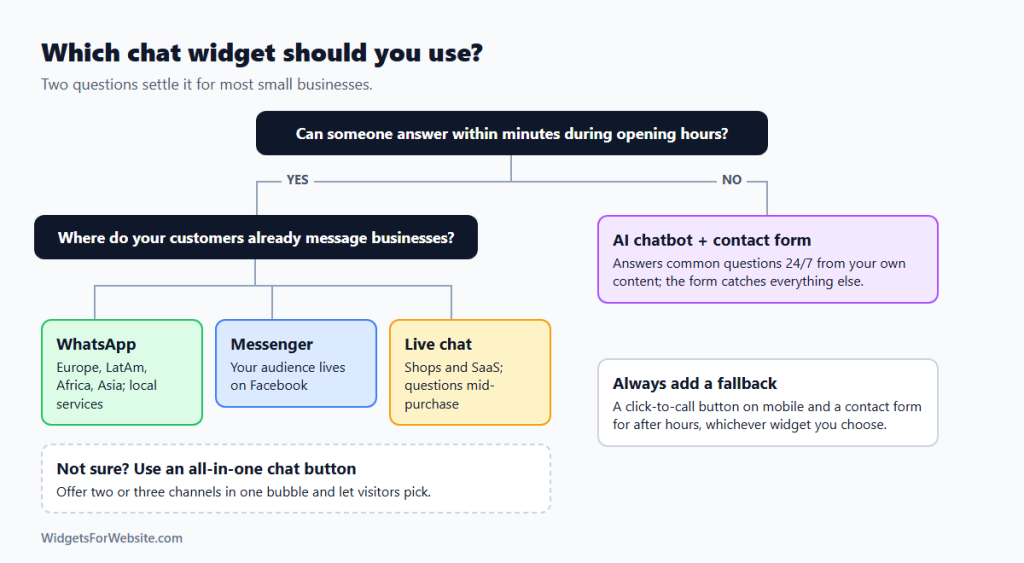
- Can someone answer within a few minutes during opening hours? If not, start with an AI chatbot and a contact form. A human channel nobody watches is worse than none.
- Where do your customers already message businesses? Look at how people contact you today. If it’s WhatsApp, use WhatsApp. If it’s your Facebook Page, use Messenger. If they’re shopping on your site and don’t want to leave it, use live chat. If it’s a mix, use an all-in-one button.
Setup tips for any chat widget
- Set expectations. “We usually reply within 15 minutes, Mon–Fri 9–6” in the welcome message prevents frustration.
- Use a schedule. The WhatsApp, Messenger and all-in-one widgets can show the chat only during your opening hours.
- Don’t cover buttons on mobile. Check that the floating bubble doesn’t hide your “Add to cart”, cookie banner, or menu on a phone screen.
- Don’t pop it open on page load. A chat that opens by itself after two seconds feels pushy. Use a trigger such as time on page or scroll depth, or let visitors open it themselves.
- Show it on the right pages. Display conditions let you show chat on pricing, product, and contact pages and hide it on blog posts or the checkout if it distracts.
How to add a chat widget to your website
Build the widget, copy the embed code, and paste it into your site. A floating chat bubble belongs on every page, so paste it in your builder’s site-wide code setting (for example, the footer code area) rather than a single page. Our guide on how to add embed code to any website builder shows where that is on Wix, Squarespace, Shopify, Webflow, and WordPress.
On Google Sites, every embed is boxed in, so a floating bubble can’t float over the page. Use the inline button version of the WhatsApp widget instead, placed where visitors will see it. See how to add widgets to Google Sites for details.
Running a restaurant? See which chat and call buttons fit alongside your menu and booking widget in 8 website widgets every restaurant needs.
Frequently asked questions
Is a WhatsApp chat widget free?
You can build the WhatsApp chat widget for free, and the WhatsApp Business app is free too. Costs only come in if you move to the WhatsApp Business Platform (the API used by large teams and automated messaging), which charges for some types of messages.
Do visitors need WhatsApp or Facebook to use the chat?
For WhatsApp and Messenger chat, yes: the conversation continues in that app, so the visitor needs an account. Live chat and AI chatbots work in a window on your site and need nothing. That’s why an all-in-one widget with a phone or SMS option is a safe choice for mixed audiences.
Which is better for sales: WhatsApp or live chat?
It depends on the sale. WhatsApp is better for considered purchases and local services, because the conversation stays on the customer’s phone and you can follow up later. Live chat is better for quick questions while someone is about to buy online, because they never leave your checkout.
Can I use my personal WhatsApp number?
You can, but the free WhatsApp Business app is a better fit. It keeps business chats separate and adds a business profile, automatic greeting and away messages, quick replies, and labels to organize customers.
Will a chat widget slow down my website?
A single chat widget has a small effect, and most load after the main content. Avoid stacking several chat tools on one page; if you want several channels, use one all-in-one widget instead of three separate bubbles. More tips in do website widgets slow down your site?
Add your chat button today
Pick the channel your customers already use and set it up in a few minutes: WhatsApp chat, Messenger chat, AI chatbot, or all channels in one button. All are free to build, and all are listed with 90+ others in our free HTML widgets library.
Build your first widget for free
Pick a template, customize it in your browser and paste the code into your website. The free plan covers one widget with up to 200 views a month.
Browse all 85 widgets