STEP 01 — Choosing widget type
Select a widget type from the list below.
STEP 02 — Creating the widget
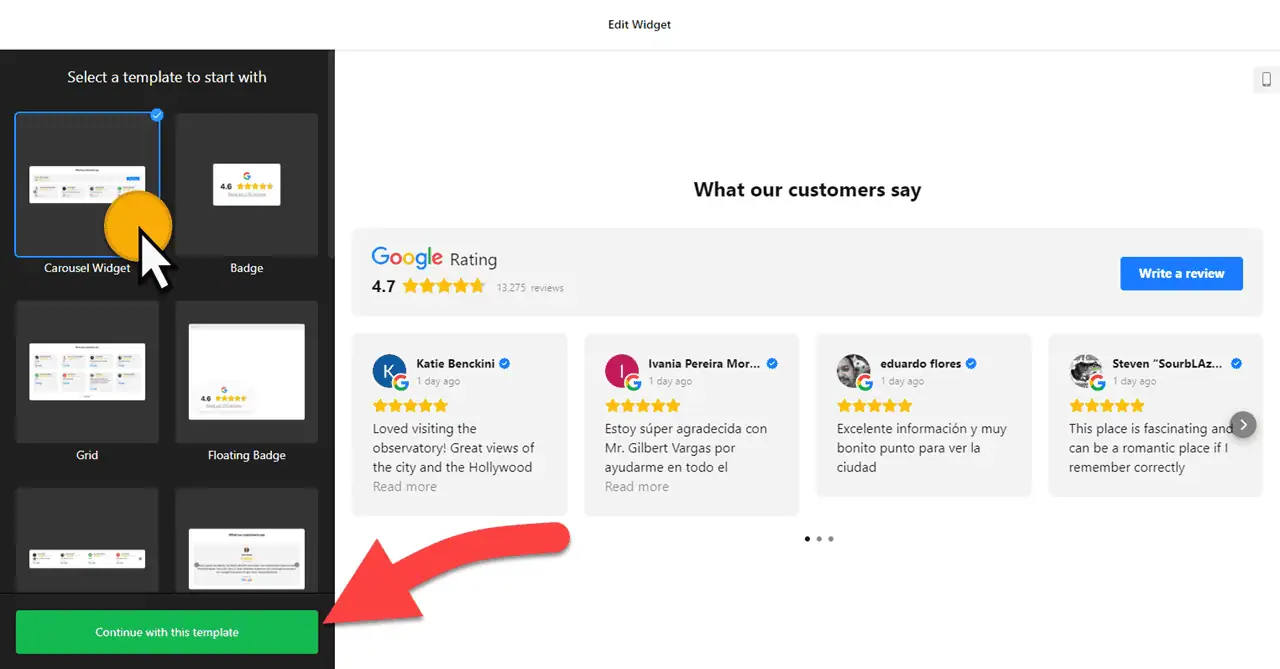
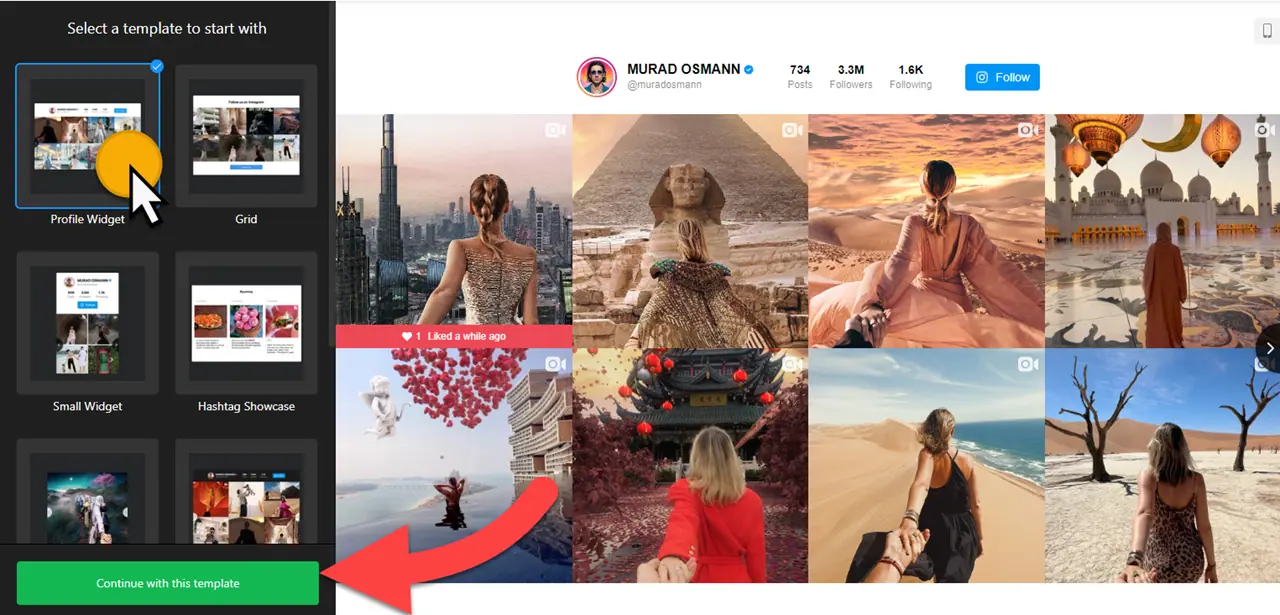
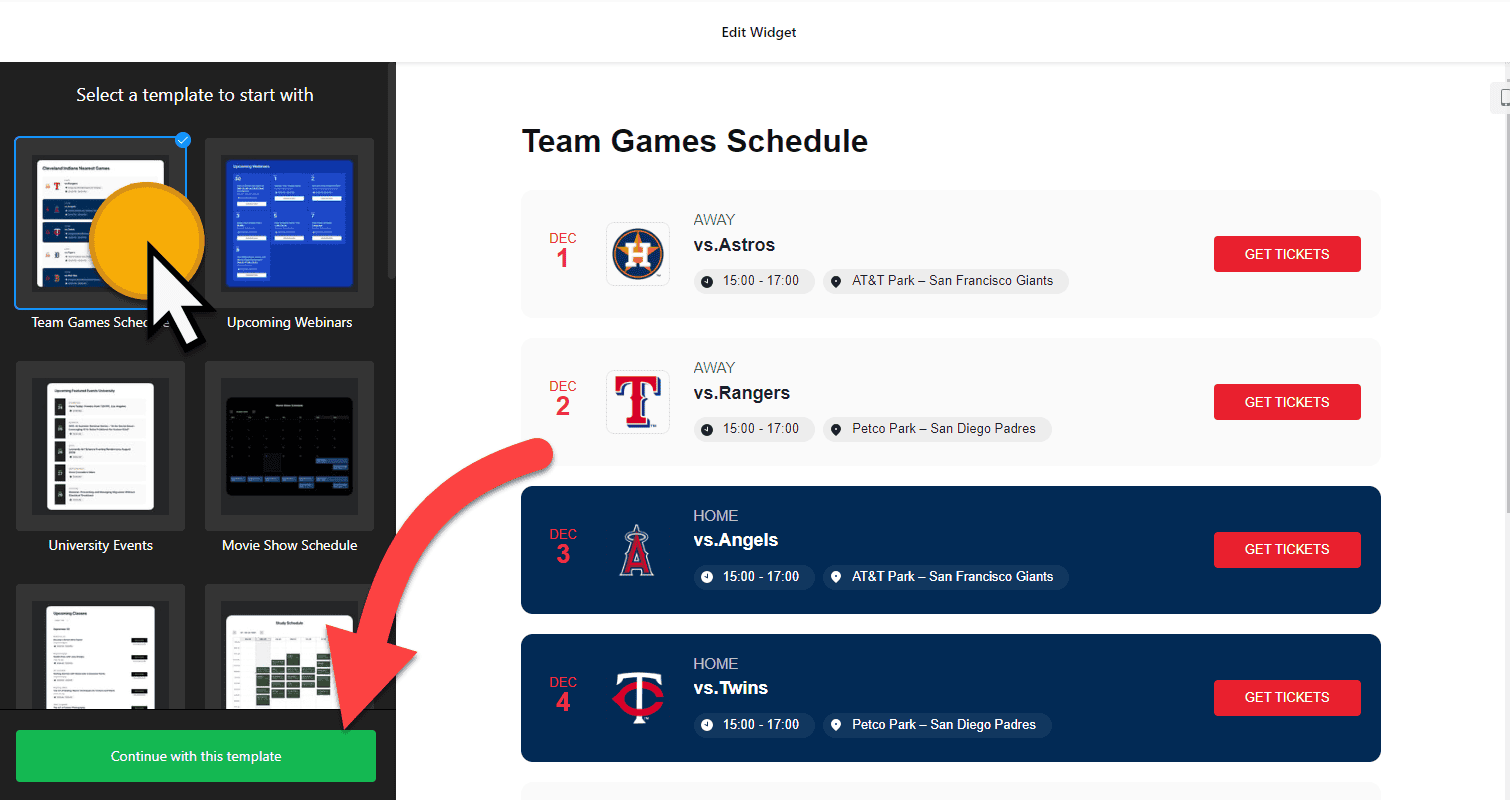
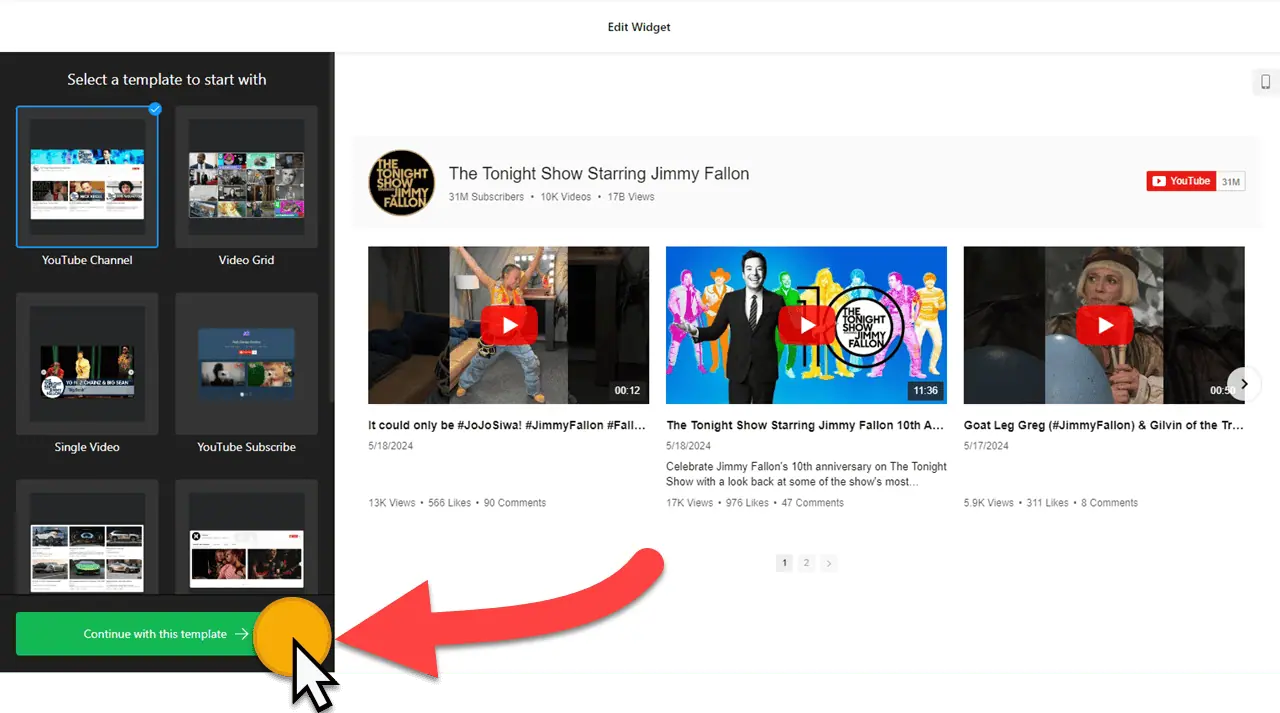
Select a template, click on the “Continue with this template” button, and customize your widget. Your widget has many customization options. You can also use custom CSS and JS to further enhance your touch!
STEP 03 — Adding to your website
Click the ‘Add to Website for free‘ button, then register by entering your email address and password so you can manage them later from your dashboard. Copy the embed code (HTML) and paste it into your website’s HTML page, theme, template, or source code editor where you want to display it.
-
Wix YouTube Gallery Widget Generator: Display YouTube Feed on Your Wix Website
-

Squarespace YouTube Gallery Widget Generator: Add YouTube Channel to Your Squarespace Website
-

Shopify Google Reviews Widget Generator: Add Google Reviews to Your Shopify Store
-
Wix Google Reviews Widget Generator: Add Google Reviews to Your Wix Website
-

Wix Instagram Feed Widget Generator: Embed Instagram Posts on Your Wix Website
-
Webflow Instagram Feed Widget Generator: Embed Instagram Posts on Your Webflow Website
-
Shopify Instagram Feed Widget Generator: Embed Instagram Posts on Your Shopify Store
-
Instagram Feed Widget Generator: Embed Instagram Posts on Your Google Sites Website
-
Squarespace Instagram Feed Widget Generator: Embed Instagram Posts on Your Squarespace Website
-
WordPress Instagram Feed Widget Generator: Embed Instagram Posts on Your WordPress Website Without Plugin
-
10 Best Website Widgets for Marketers & Businesses to Drive Growth in 2025
-

Event Calendar Widget: Add Calendar to Your Website