
Use the widget builder below to create your Portfolio widget for free. Select a template and click “Continue with this template” button to get started.
How to use the Portfolio Widget Generator
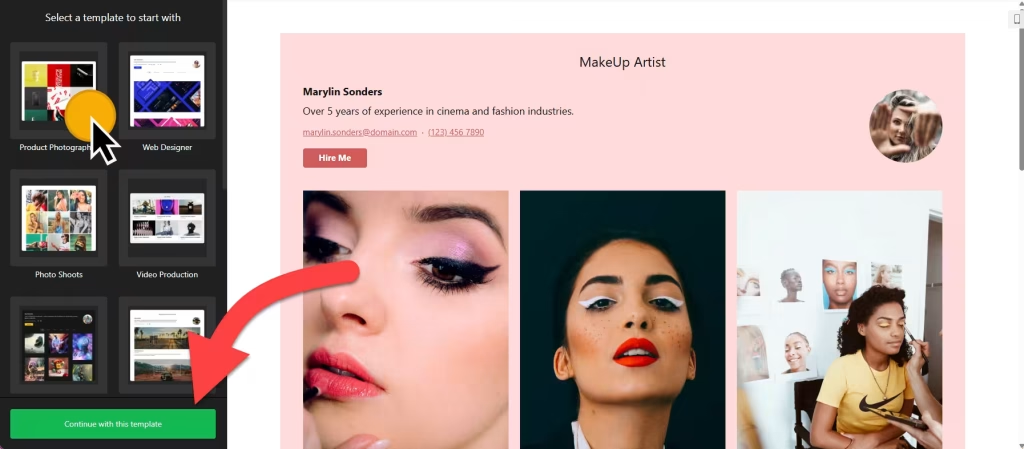
- Choose a template: Pick a ready-made template, for example a photography, developer, student, one-page, makeup artist, tattoo or wedding portfolio, and click “Continue with this template“. You can also start from scratch.
- Add your projects: Add each project with photos or videos, a title, a description, dates and any extra details. There’s no limit on the number of projects.
- Organize them into categories: Categories appear as tabs at the top of the widget, so visitors can switch between types of work.
- Set up the project popup: When someone clicks a project, it opens in a popup with its images, videos and details, without leaving your page. You choose which details show on hover and which appear only in the popup.
- Link to more: Give any project a button that sends visitors to a case study, product page or live demo.
- Customize the look: Choose the layout, adjust the photo grid, pick which info elements to show and apply your own colors.
- Save your widget: Click “Add to website for free” and sign up on the next page to save your widget.
- Copy the embed code: Paste it into your website where you want the portfolio to appear.
How to add the Portfolio widget to your website
After you save the widget, Elfsight gives you a short embed code. Paste it into a custom HTML or embed block where you want your portfolio to show. It works on WordPress, Wix, Squarespace, Shopify, Webflow, Google Sites and any other website that accepts custom HTML. For step-by-step instructions for each platform, see our guide on how to add embed code to any website builder.
How to manage your Portfolio widget
Log in to your Elfsight dashboard to edit your portfolio at any time, for example to add new projects or change the layout. Changes go live automatically, so you don’t need to replace the embed code on your website. From the dashboard you can also create more widgets and copy the embed code again.
More gallery, video and audio widgets
- Photo Gallery widget
Image galleries with a lightbox - Image Slider widget
A responsive slider or carousel - Video Gallery widget
YouTube, TikTok and Vimeo in one gallery - Vimeo Gallery widget
Videos from Vimeo - Before & After Slider widget
Compare two images with a slider - Audio Player widget
Play music and audio files