
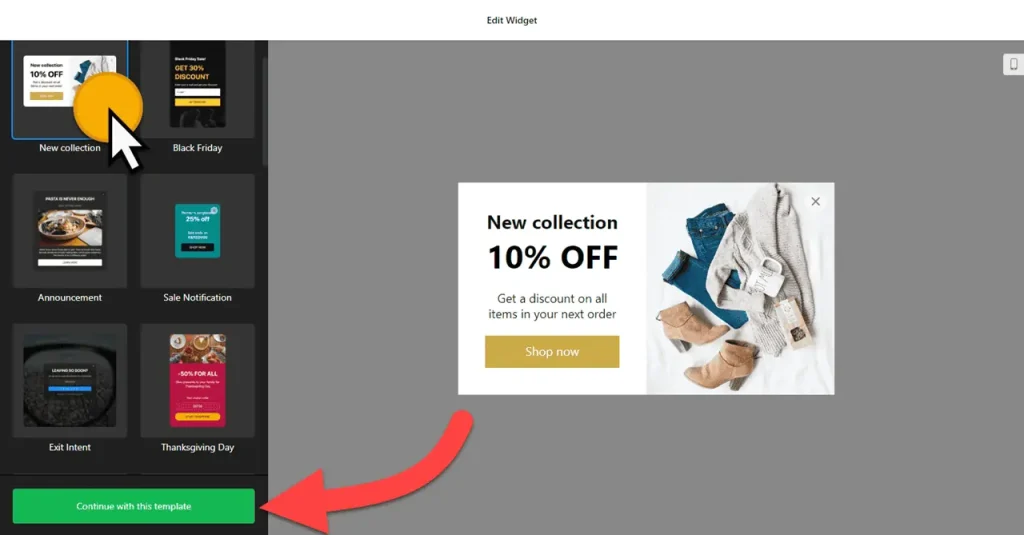
Use the builder below to create a free popup for your Wix website. Pick a template and click “Continue with this template” to get started.
Small businesses and local services on Wix use popups for a few clear jobs: a first-visit discount, a newsletter sign-up, holiday opening hours, or a free-quote offer when someone is about to leave. This builder makes the popup in your browser, with triggers and display rules built in. One thing is different on Wix: a popup has to float over the whole page, so it goes in through Wix’s site-wide Custom Code setting rather than an Embed HTML box.
How to add a Popup widget to Wix
1. Create your widget
- Choose a template: there are over 20, including New Collection (a coupon popup), Announcement, Exit Intent, Newsletter Subscribe and Floating Popup.
- Add your content: describe the popup to the AI Popup Generator in plain words, or build it yourself from elements such as a heading, text, form, coupon, timer, image and button.
- Pick a layout: modal, left or right pane, left or right slide-in, or a top or bottom bar. Turn on the close button, backdrop or reopen button as needed.
- Set when it appears: choose the trigger (on page load, time on page, on click, on scroll or exit intent), the pages and devices it shows on, and how often each visitor sees it.
- Save it: click “Add to website for free“, sign up on the next page and copy your embed code.
2. Add it to your Wix site
- Check that your site is on a Wix premium plan with a connected domain, and publish it. Wix’s site-wide Custom Code needs both.
- In your site’s dashboard, open Settings › Custom Code. Menu names can shift slightly as Wix updates its dashboard.
- Add new custom code, paste the popup code and give it a name you’ll recognize, such as “First-visit offer popup”.
- Load it on all pages. If Wix asks where to place the code, pick the end of the body: the popup code works best just before the closing </body> tag.
- Save, then open your live site (not the editor) and check that the popup appears with the trigger you chose, on a computer and on a phone.
When and where to show a popup on your Wix site
- A first-visit offer on your homepage, such as a discount on a first appointment, using the New Collection coupon template and a short time-on-page delay.
- A newsletter sign-up on blog posts, triggered on scroll, so readers see it after they’ve read part of the post.
- Holiday hours or closure notices, shown on page load but only once per visitor, so regular customers aren’t asked every time.
- An exit-intent offer on your services or pricing page, such as a free quote or consultation.
Do you need a paid Wix plan?
Yes, for a popup that covers the page. Wix’s Embed HTML element works on free plans, but it runs code inside its own sandboxed frame, so a popup pasted there can only open inside that box. To load the popup over your pages, use Settings › Custom Code, which needs a premium plan, a connected domain and a published site.
Once the code is in Custom Code, the popup’s own display settings decide where it shows: pick the pages, hide it on mobile or desktop, set a schedule and limit how often each visitor sees it. The widget’s free plan covers one widget with up to 200 views a month, with a small Elfsight link; paid widget plans start at $5 a month, billed yearly.
Popup widget features
- 20+ responsive templates for coupons, announcements, exit intent, newsletter sign-ups and recent sales.
- AI Popup Generator, or 14 elements to build your own: heading, text, form, coupon, timer, video, image, button, HTML embed and more.
- Layouts: modal, left and right pane, left and right slide-in, top and bottom bar, with a maximum width setting.
- Five triggers: on page load, time on page, on click, on scroll and exit intent, alone or combined.
- Display rules for pages, devices, schedule and how often each visitor sees the popup.
- Extras: reopen button, backdrop, close button, a click-through popup link, and custom CSS and JavaScript.
Frequently asked questions
Do I need a Wix premium plan to add a popup?
Yes, for a real popup. It goes in through Settings › Custom Code, which Wix offers on premium plans with a connected domain. The free Embed HTML element keeps the popup inside a box on the page.
Why does my popup only show inside a box on Wix?
It was added with an Embed HTML element, which Wix runs in its own frame. Remove that element and add the code under Settings › Custom Code instead.
Why isn’t my popup appearing on Wix?
Custom code only runs on the published site, so check the live site, not the editor. Then check the popup’s trigger and display settings: it may be set to wait, to show once per visitor, or to skip your device. An ad blocker can also hide it.
Can I show the popup on only some pages of my Wix site?
Yes. Choose the pages in the popup’s display settings. You can also hide it on mobile or desktop, or schedule it for certain dates.
Can I change the popup after it’s live?
Yes. Edit it in your Elfsight dashboard and save. The popup on your Wix site updates on its own, so you don’t need to touch the custom code again.
More Wix widgets
- Popup widget
All templates and features - Wix Countdown Timer widget
Count down to a sale or launch - Wix Pricing Table widget
Compare plans and prices - Wix Google Reviews widget
Your Google Business reviews and rating - Wix Contact Form widget
A simple contact form - 20 best Wix widgets
Our roundup of the best apps and widgets for Wix