
Use the builder below to create a free contact form for your Webflow website. Select a template and click “Continue with this template” to begin.
Webflow sites are built with care: agency portfolios, product landing pages, startup homepages. A contact form there has to fit the design and send leads to the right place. This builder lets you set the color scheme and accent color, add custom CSS for the rest, show fields based on earlier answers and pass every entry to Google Sheets, Mailchimp or Zapier. You drop the code into a Code Embed element in the Webflow Designer.
How to add a Contact Form widget to Webflow
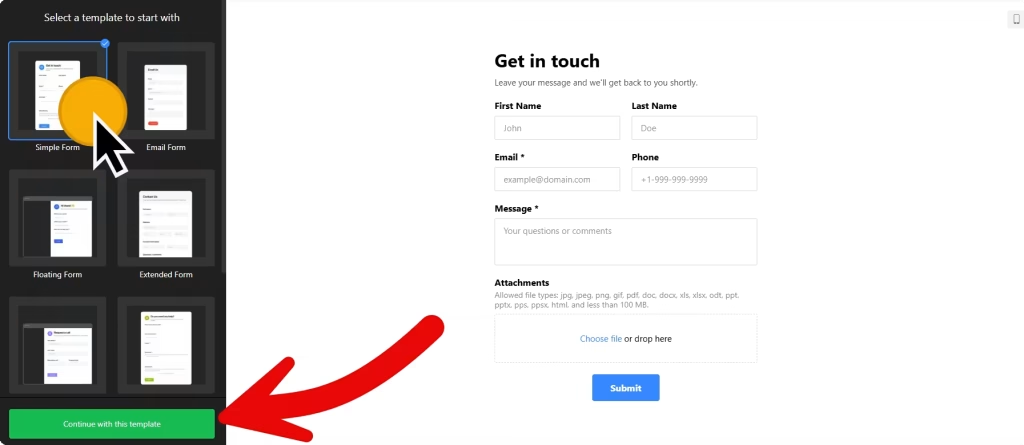
1. Create your widget
- Choose a template: Simple Form for a footer or landing page, Request a Call for demo and sales requests, or Extended Form for project enquiries.
- Add fields from 17 blocks, such as short text for a company name, a choice field for project type and a long text field for the details.
- Match your design: pick the color scheme and accent color, arrange fields vertically or horizontally, and add custom CSS for spacing or type the editor doesn’t cover.
- Decide what happens after submit: show a success message, hide the form or redirect to a thank-you page you built in Webflow.
- Save it: click “Add to website for free“, sign up on the next page and copy your embed code.
2. Add it to your Webflow site
- Open the page in the Webflow Designer.
- Open the Add panel and drag a Code Embed element to where the form should appear, for example inside your contact section’s container.
- Paste the form code and click Save & Close.
- Don’t worry if the canvas shows an empty box. Scripts don’t render inside the Designer, so use Preview or publish to see the form.
- Publish the site and submit a test entry to check the email notification and any integrations.
Where to put the Contact Form widget on your Webflow site
- In the contact section of a landing page, close to the main call to action.
- On a dedicated Contact page, alongside your email, studio address and social links.
- On a demo or quote request page, using the Request a Call template, with a redirect to a thank-you page.
- On case study pages, so a visitor who likes the work can start a conversation right there.
Do you need a paid Webflow plan?
Yes. In Webflow, the Code Embed element and custom code require a paid site plan or a workspace plan. Without one, you can’t add the form code to a page, so check your plan before you design the form into a layout.
For the Floating pane embed type, add the code under Site settings › Custom code › Footer code so it loads on every page. The widget’s free plan covers one widget with up to 200 views a month on unlimited websites, with a small Elfsight link; paid widget plans start at $5 a month, billed yearly.
Contact Form widget features
- Custom CSS and custom JavaScript fields for styling and behavior the editor doesn’t cover.
- Form pre-fill and language settings.
- Conditional logic that shows or hides fields based on other answers.
- Post-submit actions: a success message, a redirect to a URL or hiding the form.
- Integrations with Mailchimp, Google Sheets and Zapier, plus email notifications and auto-replies.
- Inline or Floating pane embed types, with vertical or horizontal field layouts.
Frequently asked questions
Do I need a paid Webflow plan for the contact form?
Yes. Webflow requires a paid site plan or workspace plan for the Code Embed element and custom code.
Why can’t I see the form in the Webflow Designer?
Scripts don’t render inside the Designer canvas, so the Code Embed looks empty there. Open Preview or publish the site to see the form working.
Can I redirect to a Webflow thank-you page after submit?
Yes. In the builder’s settings, choose Redirect to URL and enter the address of your thank-you page.
How do I add a floating contact form to every Webflow page?
Choose the Floating pane embed type, then paste the code under Site settings › Custom code › Footer code and publish.
Do changes to the form need a republish in Webflow?
No. Edit the form in your Elfsight dashboard and save. The live form updates on its own, without new code or a republish.
More Webflow widgets
- Contact Form widget
All templates and features - Webflow WhatsApp Chat widget
A WhatsApp chat button or bubble - Webflow AI Chatbot widget
Answers questions using your own content - Webflow Google Reviews widget
Your Google Business reviews and rating - Webflow Instagram Feed widget
Your latest Instagram posts and reels - How to add embed code to any website
Where to paste widget code on every website builder