
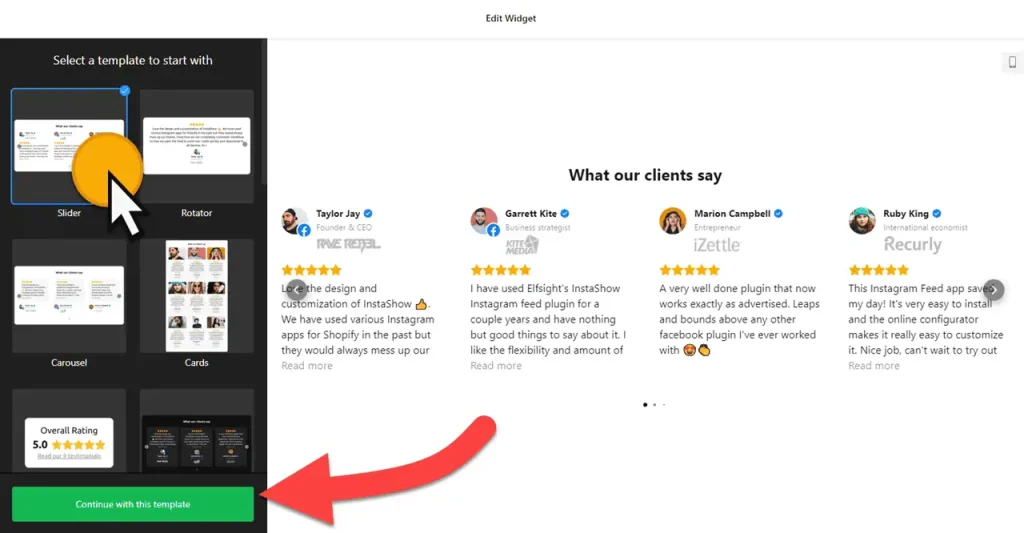
Use the builder below to create a free testimonials slider for your Google Site. Pick a template and click “Continue with this template” to add your first testimonial.
Tutors, nonprofits, clubs, school programs and small teams on Google Sites can all use a few honest quotes: a parent on a tutoring service, a volunteer on a charity, a member on a club. A testimonials slider shows those words with names and photos in a compact space. You type them in yourself and add the slider with the Google Sites Embed tool. Choose an inline layout, because Google Sites keeps every embed inside its own box.
How to add a Testimonials Slider widget to Google Sites
1. Create your widget
- Choose a template: Slider, Rotator, Carousel, Cards, Badge, Customer Story or List. Slider without Star Ratings suits schools, clubs and charities, where stars can feel out of place.
- Add your testimonials: click “Add Testimonial” and enter the quote, name, a caption such as “Parent, Year 5” and a profile picture. Ask people before you use their name and photo, and drag the quotes into order.
- Pick an inline layout: Carousel, Grid, Masonry, List, Slider or Badge. Skip Floating Badge on Google Sites, since the embed box can’t float.
- Style it: choose a card style, color scheme and accent color, and hide dates or ratings you don’t need.
- Save it: click “Add to website for free“, sign up on the next page and copy your embed code.
2. Add it to your Google Site
- Open your site in Google Sites and go to the page for the testimonials.
- In the Insert panel on the right, click Embed and open the Embed code tab.
- Paste the slider code, click Next, then Insert.
- Drag the edges of the embed box until the whole testimonial card fits, including the name and photo. Content outside the box is cut off.
- Publish the site and check the slider on a computer and a phone.
Where to put the Testimonials Slider widget on your Google Site
- On a tutoring or coaching site, with quotes from parents and students on the homepage.
- On a nonprofit’s Get Involved or Donate page, with words from volunteers and supporters.
- On a club or team’s Join page, with quotes from current members.
- On a school program or after-school club page, with feedback from parents.
Do you need a paid Google Sites plan?
No. Google Sites is free, and the Embed tool works on every site. What matters is the box: every embed sits in its own isolated frame, and there’s no way to add code to every page at once. A Floating Badge would only appear inside its box, so use an inline layout such as Slider, Carousel or Grid, and add the embed to each page where you want quotes.
The widget’s own free plan covers one widget with up to 200 views a month on unlimited websites, with a small Elfsight link, which is often enough for a small club or tutor. Paid widget plans start at $5 a month, billed yearly.
Testimonials Slider widget features
- Eight templates, including Slider without Star Ratings for non-commercial sites.
- Seven layouts: Carousel, Grid, Masonry, List, Slider and Badge sit inline; Floating Badge is meant for sites with site-wide code.
- Names, captions, dates and profile pictures on each testimonial, with optional photos, website and social profile.
- Drag-and-drop order, so the best quotes come first.
- Show or hide ratings and dates, and choose a card style.
- Color scheme, accent color and custom CSS to fit your site’s theme.
Frequently asked questions
Does the testimonials slider work on Google Sites?
Yes. Paste the code with Insert › Embed › Embed code. The slider appears inside its own embed box on the page.
Can I use the Floating Badge layout on Google Sites?
Not as a floating badge. Google Sites keeps every embed inside its own box, so the badge can’t float over the page. Use an inline layout such as Slider, Carousel or Grid instead.
Why is my testimonials slider cut off on Google Sites?
The embed box is too small. Click the box in the editor and drag its edges until the whole card fits, then publish again.
Can I hide the star ratings?
Yes. Start from the Slider without Star Ratings template, or hide ratings in the testimonial settings.
Can I add testimonials later without editing my Google Site?
Yes. Add or edit them in your Elfsight dashboard and save. The slider inside the embed box updates on its own, with no need to republish.
More Google Sites widgets
- Testimonials Slider widget
All templates and features - Google Sites All-in-One Reviews widget
Reviews from 50+ platforms in one feed - Google Sites Google Reviews widget
Your Google Business reviews and rating - Google Sites Contact Form widget
A simple contact form - Google Sites Instagram Feed widget
Your latest Instagram posts and reels - Essential Google Sites widgets
10+ widgets that work well on Google Sites