
Use the builder below to create a free photo gallery for your Wix website. Pick a template, click “Continue with this template” and add your photos.
Photos do a lot of the selling on a small business website. A bakery shows its cakes, a builder shows finished kitchens, a salon shows real haircuts. Upload your photos once, choose a layout such as Grid, Carousel or Masonry, and add the gallery to any Wix page with an Embed HTML element. You can also turn on photo protection or a watermark if you don’t want your images copied.
How to add a Photo Gallery widget to Wix
1. Create your widget
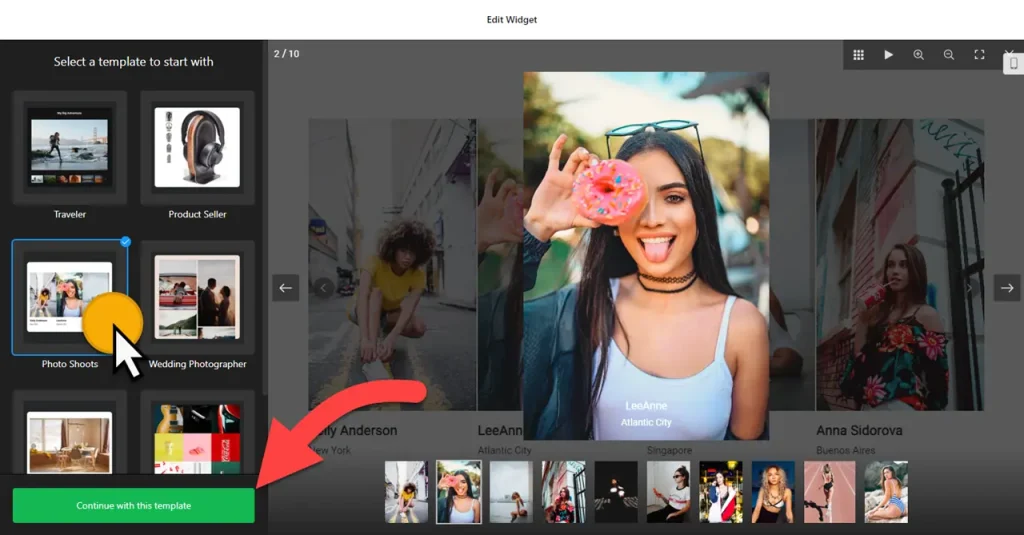
- Choose a template: start from one such as Traveler, Product Seller, Photo Shoots or Wedding Photographer, then click “Continue with this template“.
- Add your photos: upload the images you want to show in the widget editor.
- Pick a layout: Carousel, Grid, Vertical Masonry, Horizontal Masonry, Slider or Panoramic. A Carousel or Slider keeps the same height however many photos you add, which makes the Wix box easier to size.
- Set what happens on click: choose the action when someone clicks a photo, and turn on photo protection or a watermark if you need them.
- Style and save: adjust the font, background, heading, photo and popup styles, then click “Add to website for free“, sign up and copy your embed code.
2. Add it to your Wix site
- Open your site in the Wix Editor and go to the page where the gallery should appear.
- Click Add Elements (+), then Embed Code › Popular Embeds › Embed HTML. In Wix Studio the element is called Embed code.
- Click Enter Code, make sure Code is selected, paste the gallery code and click Update.
- Drag the corners of the box until the whole gallery is visible, including the heading and the last row of photos.
- Switch to the mobile editor and resize the box there too. Wix embed boxes don’t resize on their own, and photos may wrap into more rows on a phone.
- Publish your site, then open the live page and click a few photos to check how they open on a computer and on your phone.
Where to put the Photo Gallery widget on your Wix site
- On your homepage, just below the intro, so new visitors see your work before they reach the contact form.
- On a services page, with photos of finished jobs next to each service: a renovated bathroom, a wedding cake, a garden makeover.
- On your about or location page, showing your shop, studio or team so people know what to expect when they visit.
- On a venue or events page, with photos from past events.
Do you need a paid Wix plan?
No. The Embed HTML element works on Wix’s free and premium plans, so you can add the gallery to any page without upgrading. Wix only displays HTTPS code, so paste the code exactly as the builder gives it. The widget’s own free plan covers one widget with up to 200 views a month on unlimited websites, with a small Elfsight link; paid widget plans start at $5 a month, billed yearly.
One Wix detail to plan for: Wix runs embedded code inside its own frame, so the gallery and its popup stay inside the Embed HTML box. When a visitor clicks a photo, the larger view opens within that box, not over the whole page. Give the box enough room for that view to be useful, or pick a different click action in the widget settings if a compact box suits your page better.
Photo Gallery widget features
- Six layouts: Carousel, Grid, Vertical Masonry, Horizontal Masonry, Slider and Panoramic.
- Ready-made templates such as Traveler, Product Seller, Photo Shoots and Wedding Photographer.
- Click actions and popup styles: choose what happens when someone clicks a photo and how the popup looks.
- Photo protection and watermark settings to discourage people from copying your images.
- Style controls for the font, background, heading and photos, plus custom CSS and JavaScript.
- One dashboard to edit the gallery, create more galleries and copy the embed code again.
Frequently asked questions
Is the photo gallery free on Wix?
Yes. The builder is free, and the free plan includes one widget with up to 200 views a month on unlimited websites, with a small Elfsight branding link. Paid plans start at $5 a month, billed yearly, for more views and no branding.
Do I need a Wix premium plan to add the gallery?
No. Wix lists no plan requirement for the Embed HTML element, so the gallery works on free and premium Wix sites alike.
Why is my photo gallery cut off on Wix?
The Embed HTML box is smaller than the gallery. Click the element and drag its corners until every row fits, then do the same in the mobile editor. Grid and Masonry layouts grow as you add photos; a Carousel or Slider keeps a fixed height.
Why does a clicked photo open inside the box instead of full screen?
Wix keeps embedded code inside its own frame, so the popup can’t open over the rest of your page. Make the box larger so the enlarged photo has room, or change the click action in the widget settings.
Can I add more photos after the gallery is on my Wix site?
Yes. Edit the gallery in your Elfsight dashboard and save. Your Wix page updates on its own, so you don’t need to paste the code again. If you use a Grid or Masonry layout, check that the box is still tall enough.
More Wix widgets
- Photo Gallery widget
All templates and features - Wix Before & After Slider widget
Compare two images with a slider - Wix Audio Player widget
Play music and audio files - Wix Background Music widget
Music that plays in the background - Wix PDF Viewer widget
Show PDFs right on the page - 20 best Wix widgets
Our roundup of the best apps and widgets for Wix