
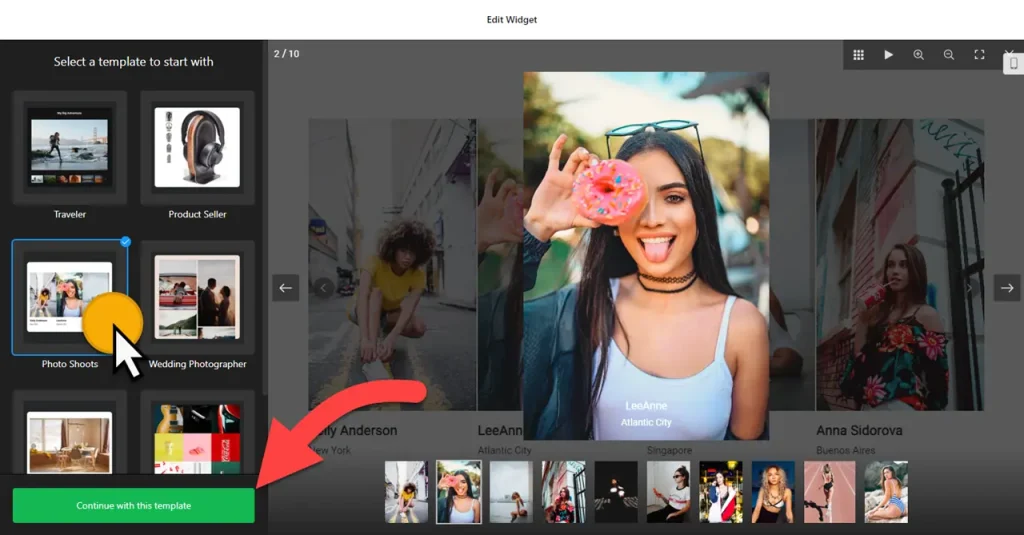
Use the builder below to create a free photo gallery for your Squarespace website. Pick a template, click “Continue with this template” and upload your photos.
Many Squarespace sites exist to show work: a photographer’s latest shoots, a florist’s arrangements, an interior studio’s finished rooms. This gallery gives you six layouts, a popup when someone clicks a photo, and photo protection and watermark settings for images you don’t want copied. You build it in your browser and add it to any Squarespace page with a Code Block.
How to add a Photo Gallery widget to Squarespace
1. Create your widget
- Choose a template: Photo Shoots and Wedding Photographer suit portfolios; Traveler and Product Seller suit travel and product work. Click “Continue with this template“.
- Upload your photos: add the images you want to show. Put your strongest shots first.
- Pick a layout: Carousel, Grid, Vertical Masonry, Horizontal Masonry, Slider or Panoramic. Masonry keeps each photo’s shape, which suits mixed portrait and landscape shots.
- Protect and style: choose what happens on click, turn on photo protection or add a watermark, then set the font, background, heading, photo and popup styles.
- Save it: click “Add to website for free“, sign up on the next page and copy your embed code.
2. Add it to your Squarespace site
- In Squarespace, open the page where the gallery should go and click Edit.
- Click an Add Block point (+) where you want the gallery and choose Code.
- Paste the gallery code, set the mode to HTML and turn off Display Source.
- Save the page and exit the editor.
- Open the live page and check that the photos load and open when clicked. If the block is empty, check your Squarespace plan (see below).
Where to put the Photo Gallery widget on your Squarespace site
- On a portfolio or work page, one gallery per project or shoot type, so clients can browse by category.
- On a services or packages page, with examples of each session or package next to the booking link.
- On your about page, showing your studio, workspace or team at work.
- On a client or event recap page, using the Panoramic or Horizontal Masonry layout for wide venue and landscape shots.
Do you need a paid Squarespace plan?
Probably, yes. Squarespace runs JavaScript in Code Blocks only on higher-tier paid plans: Core or above on current plans, Business or above on older ones. The gallery loads with a script, so on a plan without JavaScript the Code Block shows nothing at all, and Squarespace doesn’t show an error. If the block is empty on your live site, your plan is the first thing to check.
The widget has its own free plan: one widget with up to 200 views a month on unlimited websites, with a small Elfsight link. Paid widget plans start at $5 a month, billed yearly. You don’t need Code Injection under Settings › Advanced for a gallery; it sits on one page, so a Code Block is the right place.
Photo Gallery widget features
- Six layouts: Carousel, Grid, Vertical Masonry, Horizontal Masonry, Slider and Panoramic.
- Templates for photographers, travelers and product sellers.
- Photo protection and watermark settings to discourage copying.
- Click actions and popup styles for how a photo opens when clicked.
- Font, background, heading and photo styles, plus custom CSS and JavaScript to match your site.
Frequently asked questions
Which Squarespace plan do I need for the photo gallery?
A plan that runs JavaScript in Code Blocks: Core or above on current Squarespace plans, or Business or above on older ones. On other plans the gallery code is saved but nothing appears.
Why is my gallery blank on Squarespace?
Usually the plan doesn’t allow JavaScript, so the script never runs. If you see the code itself as text, the Code Block is not set to HTML or Display Source is still on. Always check the live page after saving.
Can I stop people downloading my photos?
You can make it harder. Turn on photo protection and add a watermark in the gallery settings. No website can fully stop copying, so a watermark is the clearest way to mark important images as yours.
Can I add new shoots to the gallery later?
Yes. Upload the new photos in your Elfsight dashboard and save. The gallery on your Squarespace page updates on its own, so you don’t need to edit the Code Block again.
Is the photo gallery free?
Yes. The free plan includes one widget with up to 200 views a month on unlimited websites, with a small Elfsight branding link. Paid plans start at $5 a month, billed yearly.
More Squarespace widgets
- Photo Gallery widget
All templates and features - Squarespace Before & After Slider widget
Compare two images with a slider - Squarespace Audio Player widget
Play music and audio files - Squarespace Background Music widget
Music that plays in the background - Squarespace PDF Viewer widget
Show PDFs right on the page - 25 best Squarespace widgets
Our roundup of plugins and widgets for Squarespace