
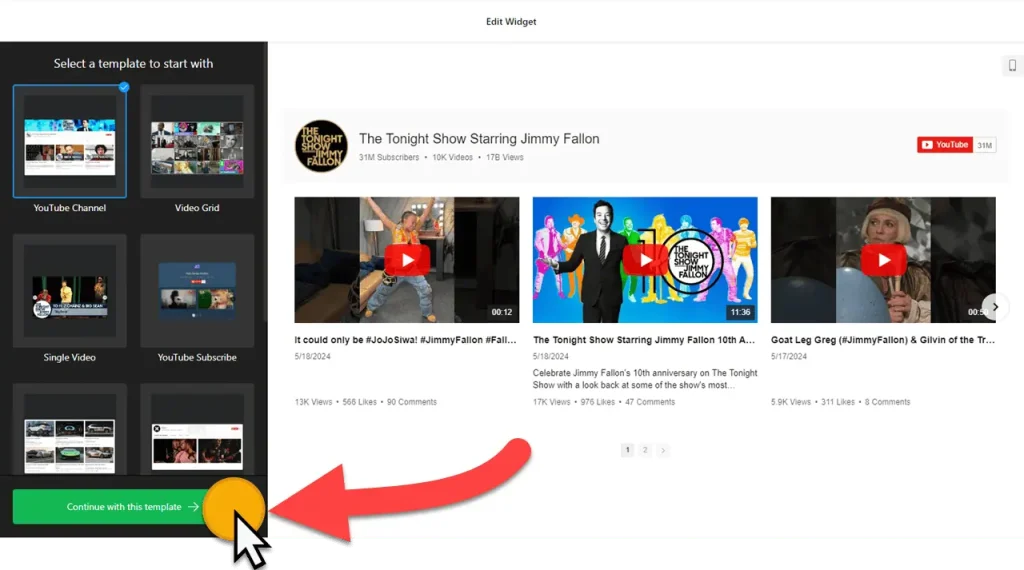
Use the builder below to create a free YouTube gallery for your Google Sites page. Pick a template, click “Continue with this template” and add your channel or playlist.
Schools, clubs, teams and nonprofits often keep their videos on YouTube: lessons, match highlights, concerts, event recaps, campaign stories. Instead of adding those videos to Google Sites one by one, a gallery widget brings a whole channel or playlist into a single embed box, so visitors can browse everything from one page. Build it here, paste the code into Google Sites, and size the box to fit.
How to add a YouTube Gallery widget to Google Sites
1. Create your widget
- Choose a template to set the starting design. You can change it later.
- Add your sources: paste your YouTube channel URL. Under Source Groups, you can mix channels, playlists and single videos, for example one group per class, season or event.
- Set the layout: header, columns and rows, video, popup and slider settings. Keep the number of rows small so the gallery fits in an embed box of sensible height.
- Style it in the Appearance tab. If your site isn’t in English, use the language tab to translate the front-end messages.
- Save it: click “Add to website for free“, sign up on the next page and copy your embed code.
2. Add it to your Google Site
- Open your site in Google Sites and go to the page where the videos should appear.
- In the Insert panel on the right, click Embed, then open the Embed code tab.
- Paste the gallery code, click Next, then Insert.
- Drag the edges of the embed box until the whole gallery fits, including the header and any slider arrows. Google Sites doesn’t resize the box for you.
- Publish the site and open a video on the live page. The popup player opens inside the embed box, so make the box tall enough to watch comfortably.
Where to put the YouTube Gallery widget on Google Sites
- On a school or class site: lesson recordings or a teacher’s playlist on a Resources page.
- On a sports team or club site: match highlights and training videos, grouped by season.
- On a nonprofit site: campaign videos and volunteer stories on the About or Get Involved page.
- On an internal team site: onboarding and how-to videos collected in one place.
Do you need a paid Google Sites plan?
No. There’s no special plan to buy for embedding code on Google Sites, so the gallery works on any site. What you do need to plan for is the frame: Google Sites boxes every embed in its own isolated frame. The gallery stays inside the box you draw, the video popup opens within it, and there’s no way to add code to every page at once. Place the box where visitors look for videos and give it room.
The widget’s own free plan covers one widget with up to 200 views a month on unlimited websites, with a small Elfsight link. A school or club page with more visitors than that can move to a paid widget plan, which starts at $5 a month, billed yearly.
YouTube Gallery widget features
- Any YouTube source: channels, playlists and single videos.
- Source Groups to sort videos by class, team, season or topic.
- Layout control: header, columns and rows, video, popup and slider settings.
- Appearance settings with a Custom CSS field.
- Language tab to translate front-end messages, plus an AdSense tab for monetizing video content.
Frequently asked questions
Can I add a YouTube gallery to Google Sites for free?
Yes. The builder is free, Google Sites doesn’t charge for embedding code, and the widget’s free plan covers one widget with up to 200 views a month, with a small Elfsight link. Paid plans start at $5 a month, billed yearly.
Why is my YouTube gallery cut off on Google Sites?
The embed box is too small. Click the box in the Google Sites editor and drag its edges until the whole gallery fits, then publish again.
Why does the video popup look small on Google Sites?
Google Sites keeps every embed inside its own frame, so the popup player can’t open bigger than the embed box. Make the box taller, or use fewer rows so the box can stay compact and still show the popup well.
Can I show the same gallery on several Google Sites pages?
Yes. Add an embed box with the same code to each page. Google Sites can’t add code to every page at once, but when you edit the widget, every copy updates.
The gallery doesn’t load on Google Sites. What can I try?
Check the published page, not the editor. Copy the code again straight from your Elfsight dashboard, since copying through a document can break the quotes. If a script widget still won’t load, try the widget’s iframe version where one exists.
More Google Sites widgets
- YouTube Gallery widget
All templates and features - Google Sites Instagram Feed widget
Your latest Instagram posts and reels - Google Sites Facebook Feed widget
Posts from your Facebook Page - Google Sites TikTok Feed widget
Your TikTok videos in a grid or slider - Google Sites LinkedIn Feed widget
Company posts from LinkedIn - Essential Google Sites widgets
10+ widgets that work well on Google Sites