
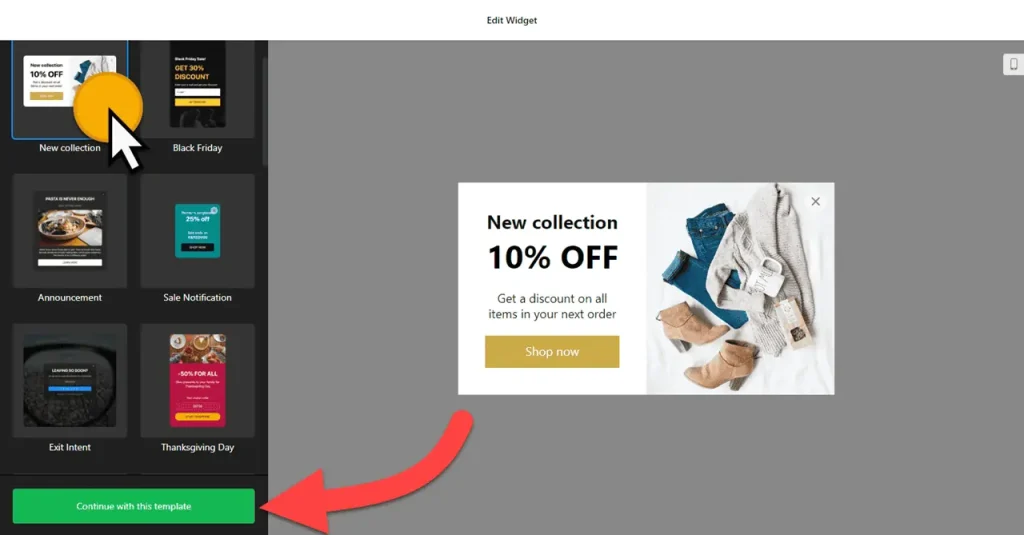
Use the builder below to create a free popup for your Squarespace website. Pick a template and click “Continue with this template” to get started.
Photographers, designers, studios and service businesses on Squarespace often use popups to grow a mailing list, announce something new, or offer a discount on a first booking. This builder lets you decide exactly how and when the popup appears, from exit intent to scroll, and put a form, coupon or timer inside it. You add it with a Code Block on one page or with Code Injection for the whole site.
How to add a Popup widget to Squarespace
1. Create your widget
- Choose a template: Newsletter Subscribe, Announcement, Special for You, Exit Intent and New Collection (a coupon popup) are among more than 20.
- Add your content: let the AI Popup Generator draft it from a short description, or add elements yourself, such as a sign-up form, an image of your latest work, a coupon or a timer.
- Pick a layout: a centered modal, a left or right pane, a slide-in, or a top or bottom bar. Set the maximum width, and turn on the close button, backdrop or reopen button.
- Set display rules and triggers: choose the pages and devices, a schedule, how often each visitor sees it, and what opens it: page load, time on page, click, scroll or exit intent.
- Save it: click “Add to website for free“, sign up and copy your embed code.
2. Add it to your Squarespace site
- Decide where the popup should load. For the whole site, use Code Injection. For one page, such as a workshop or booking page, use a Code Block.
- Whole site: go to Settings › Advanced › Code Injection, paste the popup code (into the footer box, if you see header and footer fields) and save.
- One page: edit the page, click an Add Block point (+), choose Code, paste the code, set the mode to HTML, turn off Display Source and save.
- Open the live site and trigger the popup to test it: wait, scroll or move to leave the page, depending on your settings.
- If nothing appears, check your plan. JavaScript needs Core or above (Business or above on older plans).
When and where to show a popup on your Squarespace site
- A newsletter sign-up on blog or journal posts, triggered on scroll, for photographers, writers and designers who share new work.
- An announcement on the homepage for a new collection, exhibition or class schedule, shown once per visitor.
- A first-booking offer on your services page, opened by exit intent, such as a discount on a first session.
- A slide-in on portfolio pages inviting visitors to request a quote after they’ve spent some time browsing.
Do you need a paid Squarespace plan?
Yes. The popup runs on JavaScript, and Squarespace only runs JavaScript in Code Blocks and Code Injection on Core or higher plans (Business or higher on older plans). On a lower plan the code saves, but nothing appears and there’s no error message.
Code Injection loads the popup on every page, so use the popup’s display settings to narrow it down: pick pages, hide it on mobile, set a schedule and limit how often each visitor sees it. The widget’s free plan covers one widget with up to 200 views a month, with a small Elfsight link; paid widget plans start at $5 a month, billed yearly.
Popup widget features
- More than 20 responsive templates, from coupon and newsletter popups to exit-intent and floating popups.
- AI Popup Generator or 14 building blocks, including heading, text, form, coupon, timer, video, image, button and HTML embed.
- Layouts: modal, left or right pane, left or right slide-in, and top or bottom bar.
- Triggers: on page load, time on page, on click, on scroll and exit intent, which you can combine.
- Display settings for pages, devices, schedule and frequency per visitor.
- Reopen button, backdrop, close button and popup link, plus custom CSS and JavaScript.
Frequently asked questions
Which Squarespace plan do I need for a popup?
Core or higher on current plans, or Business or higher on older plans. Lower plans don’t run JavaScript in Code Blocks or Code Injection, so the popup won’t appear.
Should I use a Code Block or Code Injection for the popup?
Use Code Injection if the popup should be available across the site, then pick pages in the popup’s display settings. Use a Code Block if it belongs to one page only, such as a single landing page.
Why isn’t my popup showing on Squarespace?
Check your plan allows JavaScript, Display Source is off in the Code Block, and you’re viewing the live site. Also check the popup’s settings: it may wait for a scroll or exit intent, or already have been shown to you once.
Can the popup collect email sign-ups?
Yes. Start from the Newsletter Subscribe template or add a Form element to any popup, then use the scroll or exit-intent trigger so it appears at a natural moment.
Can I change the popup later?
Yes. Edit it in your Elfsight dashboard and save. The popup on your Squarespace site updates on its own, with no need to paste the code again.
More Squarespace widgets
- Popup widget
All templates and features - Squarespace Countdown Timer widget
Count down to a sale or launch - Squarespace Pricing Table widget
Compare plans and prices - Squarespace Google Reviews widget
Your Google Business reviews and rating - Squarespace Contact Form widget
A simple contact form - 25 best Squarespace widgets
Our roundup of plugins and widgets for Squarespace