
Use the widget builder below to create your free flipbook widget. Select a template and click “Continue with this template” to get started.
Turn any PDF into an interactive flipbook that visitors can page through like a printed book, right on your website. No coding needed.
How to use the Flipbook widget builder
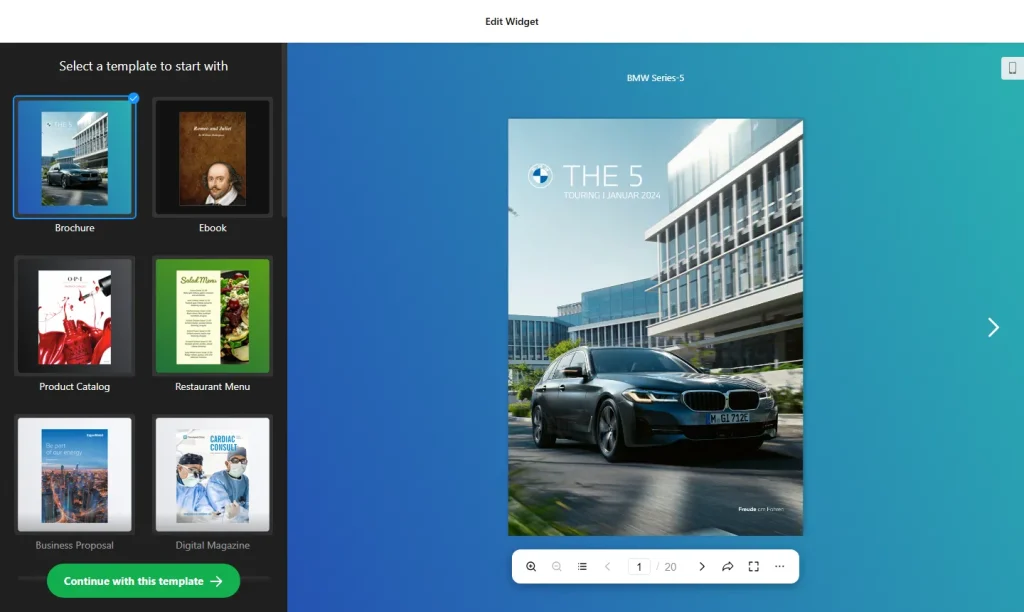
- Choose a template: Pick a design in the builder above, such as Restaurant Menu, Newspaper, Fashion Lookbook, Booklet, Travel Guide, Photo Album or Newsletter, and click “Continue with this template”.
- Add your PDF: Upload a PDF file or paste a link to one. The widget converts its pages into a flipbook with a page-turn animation.
- Choose the view: Show pages as a book-style spread, or let readers switch to single-page view when they need a closer look.
- Set up the toolbar: Decide which controls readers get, such as zoom, full screen, table of contents, search, download, print and share.
- Customize the look: Adjust the background and theme colors so the flipbook matches your brand.
- Save your widget: Click “Add to website for free” and sign up on the next page to save your widget.
- Copy the embed code: Paste it into your website where you want the flipbook to appear.
Key features of the Flipbook widget
- Page-flip animation: Turns static PDFs into book-like catalogs, magazines and brochures that readers flip through page by page.
- Zoom and full screen: Readers can zoom in on details or open the flipbook in full-screen mode.
- Table of contents: Lets readers jump straight to a section of a long document.
- Search inside the document: Visitors can find words or phrases in your catalog in seconds.
- Download, print and share: Optional buttons let readers save the original PDF, print pages or share a link to the flipbook.
- Ready-made templates: Start from designs made for menus, newspapers, lookbooks, booklets, travel guides, photo albums and newsletters.
- Works on every device: The flipbook is optimized for desktop, tablet and phone screens.
When to use a flipbook instead of a PDF link
A plain PDF link sends visitors away to a separate file or a download. A flipbook keeps the document on your page and lets people browse it the way they would read a printed catalog, so it works best for content that is meant to be looked through:
- Product catalogs and price lists
- Restaurant and café menus
- Brochures, booklets and fashion lookbooks
- Newsletters, magazines and travel guides
- Photo albums and printed portfolios
Tip: If you only need a simple document viewer without the page-flip effect, use the PDF Viewer widget. For Word, Excel or PowerPoint files, the File Viewer widget is the better fit.
How to add the Flipbook widget to your website
After you save the widget, Elfsight gives you a short embed code. Paste it into a custom HTML or embed block where you want the flipbook to show. It works on WordPress, Wix, Squarespace, Shopify, Webflow, Google Sites and any other website that accepts custom HTML. For step-by-step instructions for each platform, see our guide on how to add embed code to any website builder.
Good places for a flipbook are a dedicated catalog or menu page, a product category page, or a resources page where you share brochures and guides.
How to manage your Flipbook widget
Log in to your Elfsight dashboard to edit your widget at any time, for example to replace the PDF with a new edition of your catalog. Changes go live automatically, so you don’t need to replace the embed code on your website. From the dashboard you can also create more widgets, copy the embed code again and see how many views your widget has used this month.
Frequently asked questions
Is the flipbook widget free?
Yes. Elfsight’s free plan includes one widget with up to 200 views per month on unlimited websites, with a small Elfsight branding link. Paid plans start at $5 per month (billed yearly) and add more views and remove the branding.
What file types can I turn into a flipbook?
The Flipbook widget works with PDF files. Upload a PDF or add a link to one, and the widget turns it into an interactive flipbook.
Can readers search, download or print the flipbook?
Yes. The toolbar can include search, download of the original PDF, print and share options, and you decide which of them readers get.
Can I add a table of contents?
Yes. A Table of Contents option in the toolbar lets readers jump between the sections of long PDFs.
Does the flipbook work on phones?
Yes. Flipbooks are optimized for all devices and screen sizes, and readers can switch to single-page view for a closer look at one page.
More document and gallery widgets
- PDF Viewer widget
Embed PDF files for viewing and downloading - File Viewer widget
Embed Word, Excel, PowerPoint and other files - Restaurant Menu widget
Show your dishes, drinks and prices - Image Slider widget
Showcase photos and offers in a slider