
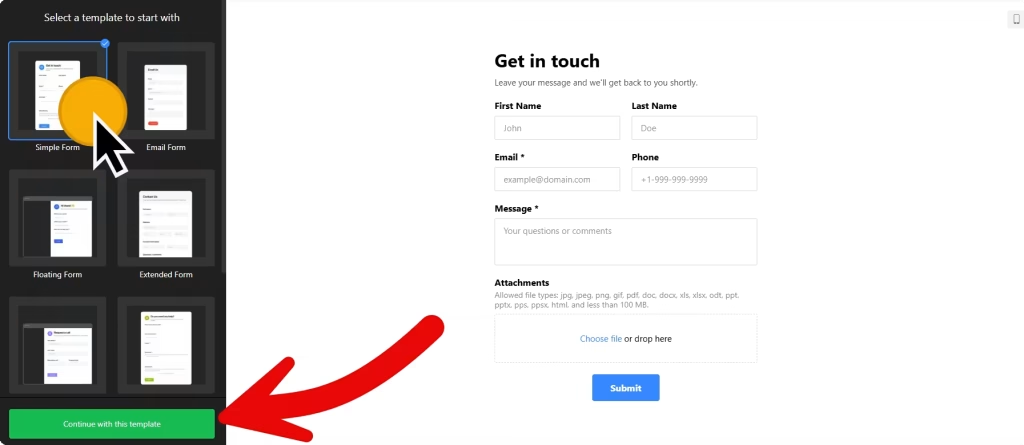
Use the builder below to create a free contact form for your Google Sites page. Pick a template and click “Continue with this template” to add your fields.
Google Sites is where many schools, sports clubs, community groups and nonprofits keep their website, and teams use it for internal sites too. A contact form lets parents, members, volunteers or colleagues get in touch without you publishing a personal email address. This builder makes the form, and you add it with the Google Sites Embed tool, where it sits in its own box on the page.
How to add a Contact Form widget to Google Sites
1. Create your widget
- Choose a template: Simple Form or Email Form for a club or class page, Extended Form when you need more details. Skip Floating Form, because on Google Sites a floating pane can’t leave its embed box.
- Add your fields: name, email, a drop-down for the topic (for example Membership, Fixtures or Volunteering) and a consent box. Mark the ones you need as required.
- Route the messages: set the email address that receives each message and write the automatic reply, then connect Google Sheets if you want every entry in a shared spreadsheet.
- Pick the Inline embed type and a vertical layout, which fits a narrow embed box better.
- Save it: click “Add to website for free“, sign up on the next page and copy your embed code.
2. Add it to your Google Site
- Open your site in Google Sites and go to the page where the form should appear, such as Contact or Get Involved.
- In the Insert panel on the right, click Embed, then open the Embed code tab.
- Paste the form code, click Next, then Insert.
- Drag the edges of the embed box until every field and the submit button fit. If you use conditional logic, leave room for the fields that appear later.
- Publish the site and send a test message from the live page.
Where to put the Contact Form widget on your Google Site
- On the Contact page of a school, club or charity, with a topic drop-down so you can see at a glance what each message is about.
- On a team or class page, so parents have one place to send questions.
- On a Volunteer or Get Involved page for a nonprofit, with fields for availability and interests.
- On an internal site, as a simple request or feedback form for staff.
Do you need a paid Google Sites plan?
No. The Embed tool is part of Google Sites, and the form goes in like any other embed. What Google Sites does do is put every embed in its own isolated box. The form only shows inside that box, and there is no way to add code to every page at once.
That’s why the Floating pane embed type doesn’t work here: a floating form can’t leave its box. Use Inline, and add the form to each page that needs it. If a script widget won’t load, try the widget’s iframe version where one exists. The widget’s free plan covers one widget with up to 200 views a month on unlimited websites, with a small Elfsight link; paid plans start at $5 a month, billed yearly.
Contact Form widget features
- Google Sheets integration, so every entry lands in a spreadsheet your team can share.
- Email notifications to you and an automatic reply to everyone who writes in.
- 17 field blocks, including date, time, choice, drop-down, file upload and consent.
- Conditional logic that shows extra fields only when an earlier answer needs them.
- Language settings and Google reCAPTCHA spam protection.
Frequently asked questions
Can I add a contact form to Google Sites for free?
Yes. Embedding code is part of Google Sites, and the widget’s free plan includes one widget with up to 200 views a month on unlimited websites, with a small Elfsight branding link. Paid plans start at $5 a month, billed yearly.
Why is my form cut off in Google Sites?
The embed box is smaller than the form. Click the box in the editor and drag its edges until the whole form, including the submit button, fits. Then publish again.
Can the contact form float on every page of my Google Site?
No. Google Sites puts each embed in its own box and can’t add code to every page, so a floating pane stays stuck inside the box. Use the Inline embed type and add the form to the pages that need it.
Can entries go to a Google Sheet?
Yes. Connect Google Sheets in the builder’s integrations and each new entry is added to your spreadsheet, alongside the email notification.
The form doesn’t load in Google Sites. What can I do?
Check that you pasted the full code into the Embed code tab and published the site. If a script widget still won’t load, try the widget’s iframe version where one exists.
More Google Sites widgets
- Contact Form widget
All templates and features - Google Sites Google Reviews widget
Your Google Business reviews and rating - Google Sites Instagram Feed widget
Your latest Instagram posts and reels - Google Sites FAQ widget
Questions and answers in an accordion - Google Sites Countdown Timer widget
Count down to a sale or launch - Essential Google Sites widgets
10+ widgets that work well on Google Sites