
Use the builder below to create a free Google Reviews widget for your Webflow site. Pick a template, click “Continue with this template” and add your business.
Webflow sites are usually built to win a visitor over in a few scrolls: a strong hero, a few proof points, a clear call to action. Real Google reviews are some of the best proof you can add, and you don’t have to copy them in by hand or rebuild a section to show them. Find your business once, style the widget to match your design, and drop it onto the page with a Code Embed element.
How to add a Google Reviews widget to Webflow
1. Create your widget
- Choose a template: start from Carousel Widget, Badge, Grid with AI Summary, List, Review Wall, Slider or Sidebar Widget.
- Add your business: enter its name and address. If you don’t have a public address, paste a Google Maps link instead.
- Pick what to show: filter reviews by keyword or reviewer name, set how many appear, and turn on the AI summary if you want a short overview of what customers like most.
- Match your Webflow design: choose the layout and width, add a header, pick a review style, then set the color scheme and accent color. Use the custom CSS field for anything else.
- Save it: click “Add to website for free“, sign up on the next page and copy your embed code.
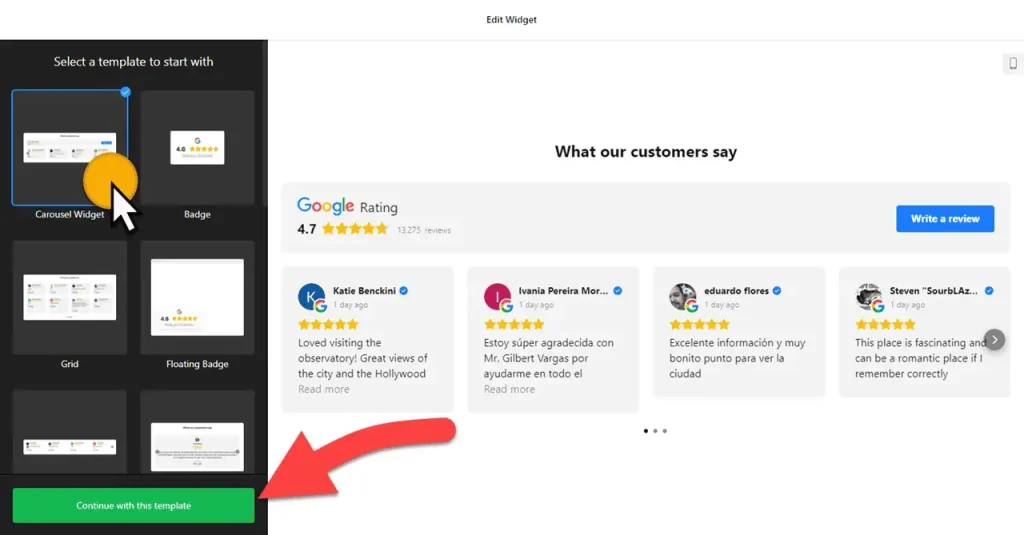
2. Add it to your Webflow site
- Open your project in the Webflow Designer and go to the page where the reviews should appear.
- Open the Add panel and drag a Code Embed element into place, for example in a section under your hero or next to a contact form.
- Paste the widget code into the editor and click Save & Close.
- Don’t worry if the canvas only shows an empty embed. Webflow doesn’t run scripts inside the Designer, so the reviews won’t appear there.
- Publish the site, or open Preview, and check the reviews on a desktop screen and on a phone. If the widget looks too wide or narrow, change its width in the layout settings or adjust the section that holds the Code Embed.
Where to put the Google Reviews widget on your Webflow site
- Below the hero on your homepage, as a carousel or slider, so visitors see your rating before they scroll far.
- On a landing page, right above the sign-up form or booking button.
- On service or pricing pages, where a Grid with AI Summary sits next to the price and answers “are they any good?”
- On a dedicated reviews page, using the Review Wall template or the Masonry layout to show every review.
- As a floating badge on every page, showing your rating in a corner without taking space in your layout.
Do you need a paid Webflow plan?
Yes, for most sites. Webflow only allows the Code Embed element and custom code on a paid site plan or workspace plan, so a free Webflow project can’t run the widget script. Once your plan allows custom code, any page can hold the widget. The widget itself has a free plan: one widget with up to 200 views a month on unlimited websites, with a small Elfsight link. Paid widget plans start at $5 a month, billed yearly.
The Floating Badge layout works a little differently. It isn’t tied to one spot on the page, so instead of a Code Embed element, paste the code into Site settings › Custom code › Footer code. It then loads on every page of your published site. Webflow renames menus now and then, but site-wide custom code has stayed under Site settings.
Google Reviews widget features
- Seven layouts: Carousel, Grid, Masonry, List, Slider, Badge and Floating Badge.
- AI-generated summary that sums up the key facts and what customers like most.
- Filters to include or exclude reviews by keyword or reviewer name, plus a limit on how many show.
- Review controls: choose a review style and show or hide the verified badge, rating and business owner replies.
- Language and auto-translation, Schema.org markup, rating format, custom CSS and custom JavaScript.
Frequently asked questions
Do I need a paid Webflow plan for the Google Reviews widget?
Yes. The Code Embed element and site-wide custom code both need a paid Webflow site plan or workspace plan. On a free project, the widget script won’t run, so the reviews won’t appear.
Why don’t my Google reviews show in the Webflow Designer?
Webflow doesn’t run scripts inside the Designer canvas. Publish the site or open Preview to see the widget. If it’s still missing on the live site, check that the code is in a Code Embed element, not a text block, and that your plan allows custom code.
How do I show my Google rating on every Webflow page?
Choose the Floating Badge layout in the builder and paste the code into Site settings › Custom code › Footer code. The badge then loads on every page after you publish.
Can I change the reviews widget after adding it to Webflow?
Yes. Edit the widget in your Elfsight dashboard and save. Your Webflow site picks up the changes on its own, so you don’t need to paste the code again.
Is the Google Reviews widget free?
Yes. The free plan covers one widget with up to 200 views a month on unlimited websites, with a small Elfsight branding link. Paid plans start at $5 a month, billed yearly, for more views and no branding.
More Webflow widgets
- Google Reviews widget
All templates and features - Webflow All-in-One Reviews widget
Reviews from 50+ platforms in one feed - Webflow Testimonials Slider widget
Your own customer quotes in a slider - Webflow Contact Form widget
A simple contact form - Webflow Instagram Feed widget
Your latest Instagram posts and reels - How to add embed code to any website
Where to paste widget code on every website builder