
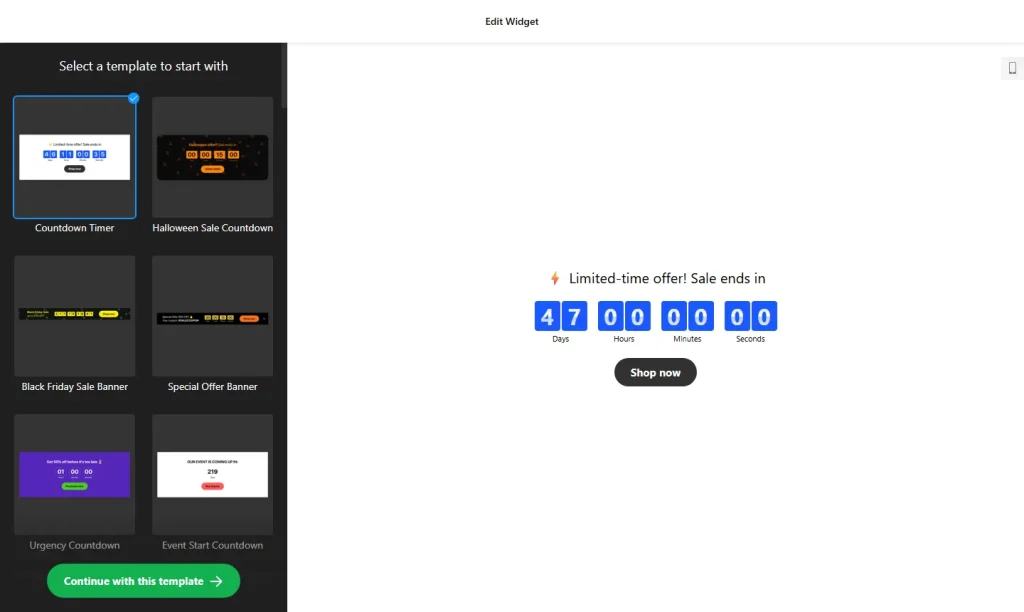
Use the builder below to create a free countdown timer for your WordPress website. Pick a template, set your date and click “Continue with this template“.
Many countdown tools for WordPress are plugins, each with its own settings screen and updates to keep up with. This timer is a short embed code instead. Build it in your browser, paste it into a Custom HTML block, and use it to count down to a WooCommerce sale, a webinar, a course launch or the end of an offer you mention in a blog post. Self-hosted WordPress runs the code as it is.
How to add a Countdown Timer widget to WordPress
1. Create your widget
- Choose a template: Special Offer Banner, Urgency Countdown, Event Start Countdown, Launch Countdown or Evergreen Timer, among others.
- Set the timer: the start-to-finish timer uses fixed start and end times and a time zone, which suits a sale or webinar. The remaining-time counter runs a separate timer for each visitor.
- Choose the position: “Install To Required Position” keeps the timer where you paste the block, inside your post or page. The banner positions place it as a bar at the top or bottom of the page.
- Set the end action and button: hide the timer, show a message, or redirect visitors to a URL when time runs out. Add a call-to-action button such as “Shop the sale” or “Register now”.
- Style and save: pick a clock type or holiday theme, set the animation, font and size, then click “Add to website for free“, sign up and copy your embed code.
2. Add it to your WordPress site
- Open the page or post in the WordPress block editor.
- Click the block inserter (+), add a Custom HTML block where the timer should appear and paste the countdown code.
- Switch to Preview inside the block to check it, then click Update or Publish.
- Using Elementor? Drag in the HTML widget and paste the code there. In the classic editor, paste it into the Text tab, not the Visual tab.
- If the timer loads late or not at all, check performance plugins that delay or combine JavaScript, exclude the widget script, and clear your cache.
Where to put the Countdown Timer widget on your WordPress site
- On a WooCommerce sale page, above the products on offer, counting down to the moment the discount ends.
- In a blog post that announces a launch, giveaway or early-bird price, right after the paragraph with the deadline.
- On a webinar or event registration page, next to the sign-up form, with the timer set to the start time.
- On a landing page for a course or membership opening, with a redirect to the sales page when the countdown ends.
Do you need a paid WordPress plan?
Not on self-hosted WordPress (WordPress.org). It accepts scripts out of the box, so the Custom HTML block runs the timer on any theme, with no plugin needed. WordPress.com is different: <script> tags only work on plans that allow plugins, and on other plans they’re removed when you save. The widget’s own free plan covers one widget with up to 200 views a month, with a small Elfsight link; paid widget plans start at $5 a month, billed yearly.
The banner positions work in WordPress because the code runs in the page itself, not in a separate frame. A banner shows on the page where you added the block, so add it to each page that should show the sale bar.
Countdown Timer widget features
- Three countdown types: fixed start and end dates with a time zone, a personal timer per visitor, or a number counter.
- Four positions: inline, static top banner, floating top banner or floating bottom banner.
- What happens at zero: hide the timer, show a message or redirect to another URL.
- Optional call-to-action button near the bottom of the clock.
- Holiday themes and clock types with animation, font and size settings, plus custom CSS and JavaScript.
Frequently asked questions
Do I need a plugin to add a countdown timer to WordPress?
No. On self-hosted WordPress, paste the code into a Custom HTML block and it works. On WordPress.com, scripts only work on plans that allow plugins, so check your plan first.
Why is my countdown not showing in WordPress?
The code was probably pasted into a paragraph block or the Visual tab, so use a Custom HTML block or the Text tab instead. On WordPress.com, a plan without plugins strips the script. A performance plugin that delays JavaScript or an old cached page can also hide it.
Can I use the countdown for a WooCommerce sale?
Yes. Choose the start-to-finish timer, set the sale’s end time and time zone, add a “Shop the sale” button and paste the code on your sale page. When time runs out, the timer can hide itself or redirect shoppers.
Does the countdown work with Elementor?
Yes. Drag the HTML widget into your Elementor layout and paste the code. Preview or publish the page to see the timer.
Can I change the end date later?
Yes. Edit the widget in your Elfsight dashboard and save. Every WordPress page that uses the code updates on its own, so you don’t need to edit the blocks again.
More WordPress widgets
- Countdown Timer widget
All templates and features - WordPress Popup widget
Offers, sign-ups and announcements - WordPress Pricing Table widget
Compare plans and prices - WordPress Google Reviews widget
Your Google Business reviews and rating - WordPress Contact Form widget
A simple contact form - How to add embed code to any website
Where to paste widget code on every website builder