
Use the builder below to create a free event calendar for your Webflow website. Pick a template, click “Continue with this template” and add your events.
Webflow sites are built with care for layout and type, so a calendar has to fit the design rather than look bolted on. This one gives you seven layouts, a maximum width, font and background settings, and a custom CSS field for exact control. It suits webinar and launch landing pages, conference and meetup sites, and marketing sites that run regular events. Add events by hand or sync Google Calendar, then drop the code into a Code Embed element, with no CMS collection to set up.
How to add an Event Calendar widget to Webflow
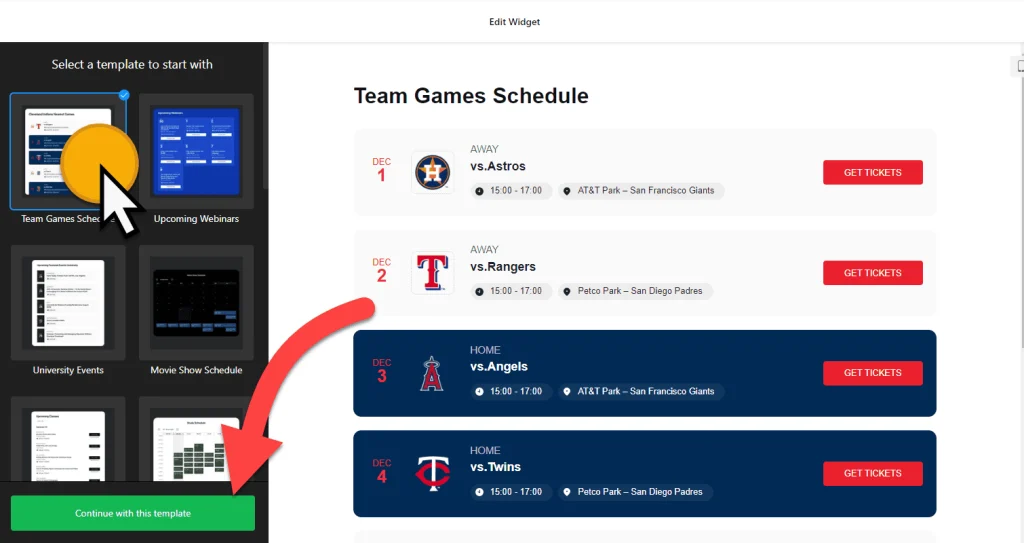
1. Create your widget
- Choose a template: there are 17, including Upcoming Webinars, Convention Center, Club Events, Slider Exhibition and Movie Show Schedule.
- Add your events: type them in or connect Google Calendar to sync them. Give each event a description, image, video, file attachment or a call-to-action button such as Register.
- Organize them: add event types, hosts and venues, for example tracks and speakers for a conference.
- Fit it to your design: choose List, Grid, Masonry, Slider, Month, Week or Day, then set the maximum width, font and background. Use custom CSS for anything else.
- Save it: click “Add to website for free“, sign up on the next page and copy your embed code.
2. Add it to your Webflow site
- Open the page in the Webflow Designer.
- Open the Add panel and drag a Code Embed element into the section where the calendar should appear.
- Paste the calendar code and click Save & Close.
- Make sure the parent container gives the calendar enough width. A Month or Week layout needs more room than a List.
- Expect an empty box on the canvas: scripts don’t render inside the Designer. Use Preview or publish to see the calendar.
- Publish the site and check the page on desktop and mobile.
Where to put the Event Calendar widget on your Webflow site
- On a webinar or event landing page, with a List layout of sessions under the hero section.
- On a conference or meetup site, using a Week or Day layout for the program.
- On your homepage, in a Slider that shows the next events with images and a register button.
- On a community or resources page, listing office hours, workshops and talks.
Do you need a paid Webflow plan?
Yes. Webflow’s Code Embed element and custom code require a paid site plan or workspace plan, so you’ll need one before the calendar can go live. You can still build and test the calendar in the builder above first.
The widget has its own free plan: one widget, up to 200 views a month on unlimited websites, with a small Elfsight link. Paid widget plans start at $5 a month, billed yearly, for more views and no branding.
Event Calendar widget features
- 17 responsive templates for webinars, conventions, clubs, exhibitions and show schedules.
- Seven layouts: List, Grid, Masonry, Slider, Month, Week and Day.
- Google Calendar sync, or add and edit events by hand.
- Rich event details: descriptions, images, call-to-action buttons, videos and file attachments.
- Event types, hosts and venues to structure a full program.
- Design control: maximum width, font, background, past events, click actions, language and custom CSS.
Frequently asked questions
Which Webflow plan do I need for the event calendar?
A paid site plan or workspace plan. The calendar goes into a Code Embed element, and Webflow requires one of those plans for Code Embed and custom code.
Why is the calendar empty in the Webflow Designer?
Scripts don’t run inside the Designer canvas, so the Code Embed shows as an empty box while you edit. Open Preview or the published site to see the calendar.
Can I match the calendar to my Webflow design?
Yes. Choose the layout, maximum width, font and background in the builder, and use the custom CSS field for anything else.
Is the event calendar free?
Yes. The builder is free, and the free plan includes one widget with up to 200 views a month on unlimited websites, with a small Elfsight branding link. Paid plans start at $5 a month, billed yearly.
Do I need to republish Webflow when I add events?
No. Events you add or edit in your Elfsight dashboard, or sync from Google Calendar, appear on your Webflow site automatically. You only republish when you change the Webflow page itself.
More Webflow widgets
- Event Calendar widget
All templates and features - Webflow Appointment Booking widget
Online booking with time slots - Webflow Business Hours widget
Opening hours with an open-now status - Webflow Restaurant Menu widget
Your menu with prices and photos - Webflow Google Reviews widget
Your Google Business reviews and rating - How to add embed code to any website
Where to paste widget code on every website builder