
Use the widget builder below to create your free comments widget. Select a template and click “Continue with this template” to get started.
Add a comment section to any page so visitors can share opinions, ask questions and reply to each other. Threaded replies, reactions and moderation are built in. No coding needed.
How to use the Comments widget builder
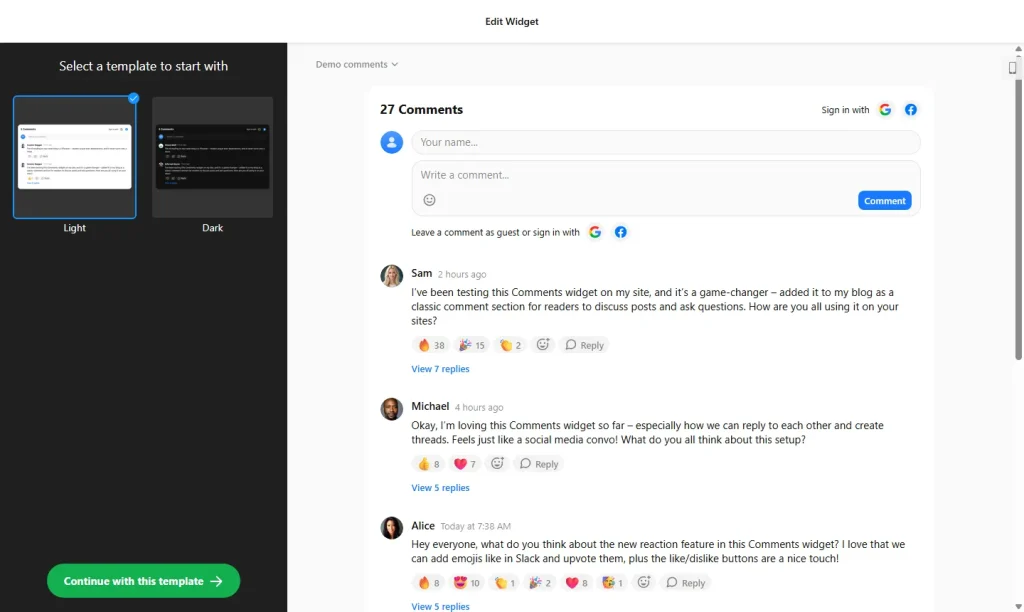
- Choose a template: Pick a design in the builder above and click “Continue with this template”. You can change the style later.
- Set up reactions: Decide how visitors can respond to comments, with emoji reactions and like or dislike votes.
- Choose the sort order: Show the newest comments first or sort them by popularity.
- Set moderation and notifications: Configure moderation rules and turn on email alerts, so you know when someone comments or replies.
- Customize the look: Adjust colors and layout so the comment section matches your website.
- Save your widget: Click “Add to website for free” and sign up on the next page to save your widget.
- Copy the embed code: Paste it into your website where you want the comments to appear, usually below your content.
Key features of the Comments widget
- Easy commenting: Visitors can comment as guests or sign in with Google or Facebook.
- Threaded replies: Replies are grouped under the original comment, and replying to someone mentions them automatically, so conversations are easy to follow.
- Reactions: Emoji reactions, likes, dislikes and @mentions make the discussion more lively.
- Moderation tools: Edit or delete comments at any time and mark unwanted ones as spam to keep discussions clean.
- Email notifications: Get alerts about new comments and replies so you can respond quickly.
- Visitor controls: Commenters can edit or delete their own comments after posting.
- 70+ languages: The interface is localized into more than 70 languages.
When to add comments to your website
Comments turn a one-way page into a conversation. Visitors ask questions, share their experience and come back to read replies. A comments widget is especially useful for:
- Blogs, tutorials and news pages
- Websites with no comment feature built in, such as Google Sites or plain HTML sites
- Product, course or event pages where people have questions before they buy or sign up
- Community and membership pages where you want people to talk to each other
Elfsight says the widget uses SEO-friendly markup, so comments can add fresh, relevant text to your pages. Reply to early comments and remove spam quickly. An active, clean comment section encourages more people to join in.
How to add the Comments widget to your website
After you save the widget, Elfsight gives you a short embed code. Paste it into a custom HTML or embed block at the bottom of the page where you want comments. It works on WordPress, Wix, Squarespace, Shopify, Webflow, Google Sites and any other website that accepts custom HTML. For step-by-step instructions for each platform, see our guide on how to add embed code to any website builder.
Comments include names and messages, and visitors can sign in with Google or Facebook, so check that your privacy policy covers your comment section.
How to manage your Comments widget
Log in to your Elfsight dashboard to edit your widget or moderate comments at any time. Changes go live automatically, so you don’t need to replace the embed code on your website. From the dashboard you can also create more widgets, copy the embed code again and see how many views your widget has used this month. Check new comments regularly, especially in the first weeks after you add the widget, and keep email alerts on so spam or open questions don’t sit unanswered for long.
Frequently asked questions
Is the comments widget free?
Yes. Elfsight’s free plan includes one widget with up to 200 views per month on unlimited websites, with a small Elfsight branding link. Paid plans start at $5 per month (billed yearly) and add more views and remove the branding.
How do visitors post comments?
Visitors can comment as guests or sign in with Google or Facebook. Replies are grouped into threads, and replying to a comment mentions its author automatically.
Can I moderate comments?
Yes. You can edit or delete comments at any time and mark unwanted comments as spam to keep discussions clean.
Will I be notified about new comments?
Yes. Email notifications let you know about new comments and replies, so you can respond or moderate quickly.
Can visitors edit or delete their own comments?
Yes. Commenters can edit or delete their own comments after posting them.
More widgets for engaging visitors
- Blog widget
Add a blog section to any website - All-in-One Reviews widget
Show customer reviews from 20+ platforms in one feed - FAQ widget
Answer common questions in an accordion - How to add widgets to Wix websites
- Poll widget
Ask visitors a quick question and show the results - Social Share Buttons
Let visitors share your pages on social media