
You found the perfect widget: a Google reviews carousel, a WhatsApp chat button, an Instagram feed. The widget builder hands you a few lines of code and says “paste this into your website.” But where, exactly?
Every website builder has its own place for custom code, and each one has a few rules that can make a widget silently fail. This guide shows you where to paste embed code in Wix, Squarespace, Shopify, Webflow, WordPress and Google Sites, what each platform blocks, and how to fix a widget that won’t show up.
In this guide
- What is embed code?
- Where to paste embed code: quick reference
- How to add embed code to Wix
- How to add embed code to Squarespace
- How to add embed code to Shopify
- How to add embed code to Webflow
- How to add embed code to WordPress
- How to add embed code to Google Sites
- Widget not showing? 8 common fixes
- Frequently asked questions
- Ready to add your first widget?
What is embed code?
Embed code is a short snippet of HTML that loads content from another service inside your page. Widgets usually give you one of two kinds:
- Script embed: a
<div>placeholder plus a<script>tag. The script runs in your page and draws the widget into the placeholder. This is the most common type and the most flexible, but some builders restrict scripts. - Iframe embed: an
<iframe>tag that shows the widget as a small “window” into another page. Iframes work almost everywhere, but they have a fixed size and can’t float over your page.
A typical script embed looks like this:
<div class="widget-app-12345"></div>
<script src="https://example.com/platform.js" async></script>
Don’t have a widget yet? Browse our library of 90+ free HTML widgets. Every widget builder gives you a ready-to-paste embed code.
Where to paste embed code: quick reference
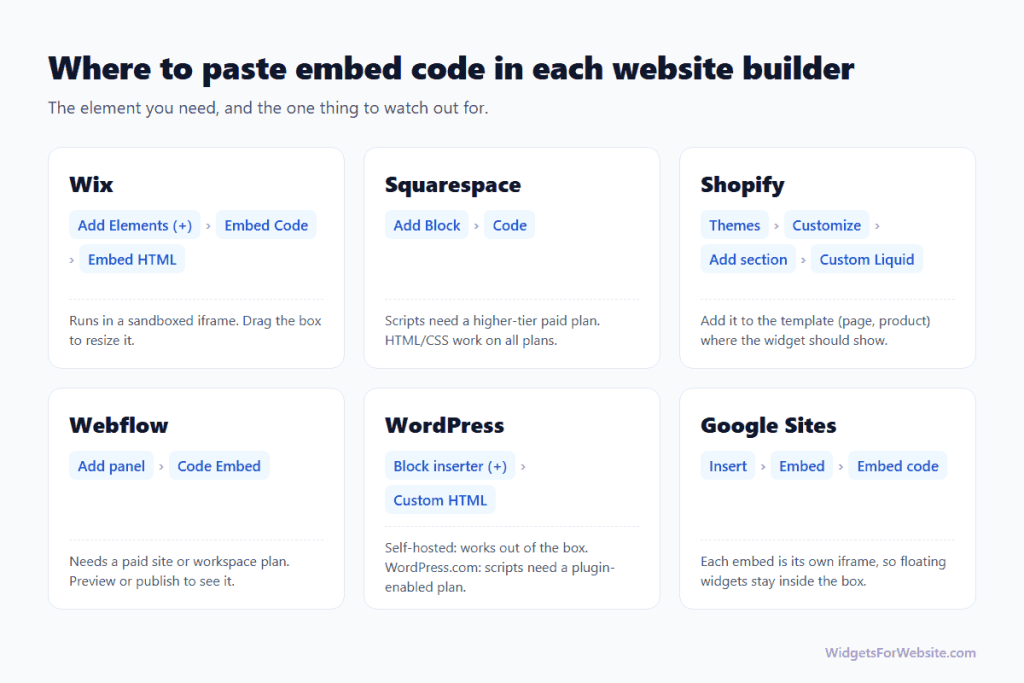
| Website builder | Element to use | Watch out for |
|---|---|---|
| Wix | Add Elements (+) › Embed Code › Embed HTML | Runs in a sandboxed iframe; resize the box to fit |
| Squarespace | Add Block › Code | JavaScript needs a higher-tier paid plan |
| Shopify | Customize theme › Add section › Custom Liquid | Add it to the right template (page, product, etc.) |
| Webflow | Add panel › Code Embed | Needs a paid site or workspace plan; preview to see it |
| WordPress | Block inserter (+) › Custom HTML | WordPress.com: scripts need a plugin-enabled plan |
| Google Sites | Insert › Embed › Embed code | Each embed is boxed in; floating widgets stay inside it |
How to add embed code to Wix
- Open your site in the Wix Editor and go to the page where the widget should appear.
- Click Add Elements (+) on the left, then choose Embed Code › Embed HTML. In Wix Studio, the element is simply called Embed code.
- Click Enter Code, make sure Code is selected, paste your snippet and click Update.
- Drag the corners of the box until the whole widget is visible, then publish.
Good to know: Wix places your code inside its own sandboxed iframe, so the widget can’t read or change the rest of your page. Self-contained widgets like reviews, feeds and forms work perfectly. For code that must load on every page (such as a site-wide chat button), use Settings › Custom Code, which is available on premium plans with a connected domain.
Step-by-step examples: Google reviews on Wix, Instagram feed on Wix, WhatsApp chat on Wix, or see our 20 best Wix apps and widgets.
How to add embed code to Squarespace
- Edit the page and click an Add Block point (+) where the widget should go.
- Choose Code from the block menu.
- Paste your embed code, make sure the mode is set to HTML, and turn off Display Source so visitors see the widget, not the code.
- Save the page and check it on the live site.
Good to know: plain HTML and CSS work on every plan, but JavaScript inside a Code Block requires a higher-tier paid plan (Core or above on current plans, Business or above on older ones). On a plan without JavaScript, a script-based widget simply shows nothing, with no error. For site-wide code, use Settings › Advanced › Code Injection, which has the same plan requirement.
Examples: Google reviews on Squarespace, Instagram feed on Squarespace, pricing table on Squarespace, or browse 25 best Squarespace plugins and widgets.
How to add embed code to Shopify
- In your Shopify admin, go to Online Store › Themes and click Customize.
- Use the page selector at the top to open the template where the widget belongs, for example the home page, a product page or a custom page.
- Click Add section and choose Custom Liquid.
- Paste your embed code into the Liquid code box, drag the section into position and click Save.
Good to know: a section added to a template appears on every page that uses that template. Adding it to the default product template, for instance, shows the widget on all product pages. To load a floating widget everywhere, add the Custom Liquid section to the footer area of the theme, which appears site-wide.
Examples: Google reviews on Shopify, Instagram feed on Shopify, WhatsApp chat on Shopify.
How to add embed code to Webflow
- Open your page in the Webflow Designer and open the Add panel.
- Drag a Code Embed element onto the canvas where the widget should appear.
- Paste your embed code into the editor that opens and click Save & Close.
- Publish the site (or open Preview) to see the widget. Scripts don’t render inside the Designer canvas.
Good to know: the Code Embed element and custom code require a paid site plan or workspace plan. For site-wide code, paste it into Site settings › Custom code › Footer code.
Examples: Instagram feed on Webflow, reviews widget on Webflow, pricing table on Webflow.
How to add embed code to WordPress
- Edit the page or post in the block editor.
- Click the block inserter (+) and add a Custom HTML block.
- Paste your embed code and switch to Preview inside the block to check it.
- Update or publish the page.
Using a page builder? In Elementor, drag in the HTML widget and paste your code there (see Google reviews in Elementor). In the classic editor, paste the code in the Text tab, not the Visual tab.
Good to know: self-hosted WordPress accepts scripts out of the box. On WordPress.com, <script> tags only work on plans that allow plugins; on other plans they are removed when you save. If you use a performance plugin that delays or combines JavaScript, exclude the widget’s script if it loads late or not at all.
Examples: Google reviews on WordPress without a plugin, Instagram feed on WordPress, WhatsApp chat on WordPress.
How to add embed code to Google Sites
- Open your site in Google Sites and go to the page you want to edit.
- In the Insert panel on the right, click Embed.
- Switch to the Embed code tab, paste your snippet, click Next and then Insert.
- Drag the edges of the embed box so the whole widget fits, then publish.
Good to know: Google Sites puts every embed in its own isolated frame, and there is no way to add code to every page at once. Floating widgets such as chat buttons or popups only appear inside their embed box, so place them where visitors will see them and make the box large enough. If a script widget won’t load, try its iframe version. For other things Google Sites can’t do, see Google Sites limitations and workarounds.
Read more in how to add widgets to Google Sites, see examples like Google reviews on Google Sites and Instagram feed on Google Sites, or browse 10+ essential Google Sites widgets.
Widget not showing? 8 common fixes
- Check the live page, not the editor. Many builders don’t run scripts while you edit. Preview or publish, then reload.
- Check your plan. Squarespace, Webflow and WordPress.com only allow scripts on certain plans. If the platform strips scripts, use the widget’s iframe version.
- Use the code element, not a text block. If you see the raw code on your page, it was pasted into a normal text block. Delete it and use the code or HTML element instead.
- Make the box bigger. On Wix and Google Sites, a widget that looks cut off just needs a taller or wider embed box.
- Copy the code exactly. Copying through a word processor or chat app can turn straight quotes into curly quotes and break the code. Copy straight from the widget builder.
- Turn off ad blockers to test. Privacy extensions sometimes block widget scripts. If the widget appears with the blocker off, it is working for most visitors.
- Clear your cache. If you use a caching or optimization plugin, clear the cache after adding the widget, and exclude the widget’s script from “delay JavaScript” settings if needed. More in do website widgets slow down your site?
- Use HTTPS. Most builders only load secure (https://) embeds. Make sure every URL in the code starts with https.
Frequently asked questions
Do I need to know how to code to add embed code?
No. You only copy the snippet from the widget builder and paste it into the right element in your website builder. You never need to edit the code itself.
Is it safe to paste embed code into my website?
It is safe when the code comes from a service you trust. A script runs inside your page, so only use embed codes from reputable widget providers and never paste code from unknown sources.
Can I add the same widget to several pages?
Yes. Paste the same embed code on each page. Changes you make to the widget in its builder update everywhere at once. For something that should appear on every page, like a chat button, use your builder’s site-wide code setting instead.
What is the difference between a script embed and an iframe embed?
A script embed runs inside your page and can resize itself or float over the content. An iframe embed shows the widget in a fixed-size window. Iframes work on more platforms, while scripts are more flexible. Some widgets offer both, for example our Google reviews iframe and Instagram feed iframe.
Why does my chat widget only appear inside a box on Google Sites?
Google Sites keeps every embed inside its own frame, so a floating button can’t move outside it. Place the embed where it is easy to see, such as near the top or bottom of the page, and size the box to fit the button.
Ready to add your first widget?
Pick a widget from our free HTML widgets library, customize it, copy the embed code and follow the steps for your website builder above. It usually takes less than five minutes.
Build your first widget for free
Pick a template, customize it in your browser and paste the code into your website. The free plan covers one widget with up to 200 views a month.
Browse all 85 widgets