
Use the builder below to create a free testimonials slider for your Shopify store. Pick a template and click “Continue with this template” to add your first testimonial.
Product reviews tell shoppers about one item; testimonials tell them about your store. A testimonials slider on Shopify shows what customers say about your products, delivery and service, with names, photos and star ratings. You type the quotes in yourself, so you can use emails, messages or comments from customers, and add the slider with a Custom Liquid section instead of another app.
How to add a Testimonials Slider widget to Shopify
1. Create your widget
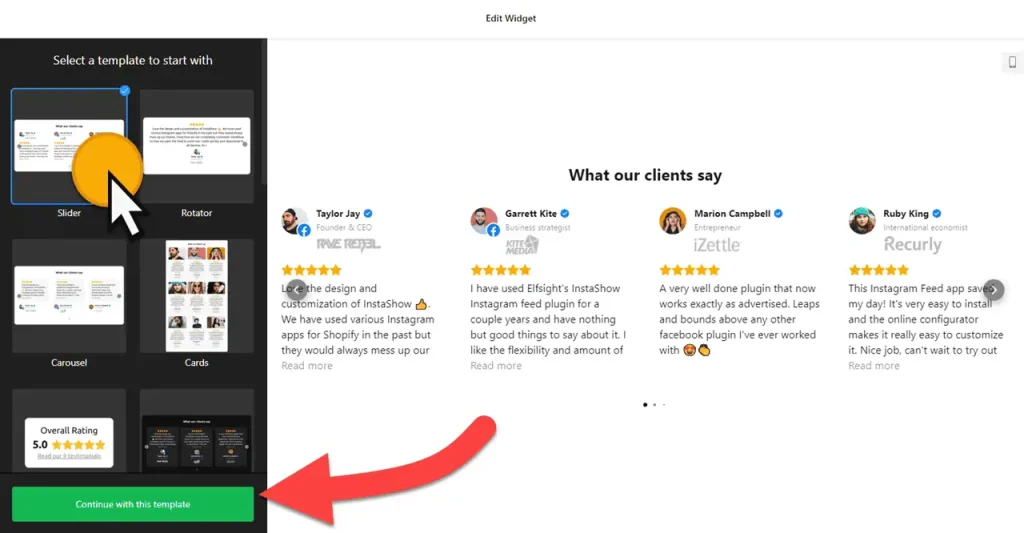
- Choose a template: Slider, Rotator, Carousel, Cards, Badge, Customer Story, List or Slider without Star Ratings.
- Add your testimonials: click “Add Testimonial” and enter the quote, star rating, customer name, caption, date and profile picture. Add photos of the product in use, or a logo for business customers, and drag testimonials into order.
- Pick a layout: a Carousel or Slider fits a home page row; Grid or Masonry suits a full page of quotes. Set a maximum width to match your theme.
- Style it: choose a card style, and set a color scheme and accent color that fit your store.
- Save it: click “Add to website for free“, sign up on the next page and copy your embed code.
2. Add it to your Shopify site
- In your Shopify admin, go to Online Store › Themes and click Customize.
- Use the page selector at the top to open the right template: the home page, the default product template, or a custom page such as About or Reviews.
- Click Add section and choose Custom Liquid.
- Paste the slider code and drag the section into position, for example under the hero banner on the home page.
- Click Save and check the slider in your store on a computer and a phone.
Where to put the Testimonials Slider widget on your Shopify site
- On your home page, under the hero banner or a featured collection, so first-time visitors see that real people buy from you.
- On product pages, below the product details. The section shows on every page using that template, so store-wide quotes about delivery and service fit best.
- On an About or Reviews page, with the Grid or Masonry layout to show many quotes at once.
- On the cart page, if your theme lets you add sections there, as a short reminder before checkout.
Do you need a paid Shopify plan?
No extra plan or app is needed. The Custom Liquid section is part of the theme editor, so the slider works on the plan your store already uses. The rule to remember is that a section added to a template appears on every page that uses it, such as all product pages for the default product template.
For the Floating Badge layout, add the Custom Liquid section to your theme’s footer area, which appears site-wide, so the badge shows on every page of your store. The widget’s free plan covers one widget with up to 200 views a month on unlimited websites, with a small Elfsight link; a busy store may need a paid widget plan, from $5 a month, billed yearly.
Testimonials Slider widget features
- Eight templates, from a simple Slider to Cards, Badge and Customer Story.
- Seven layouts, including Grid and Masonry for a reviews page and a Floating Badge for the whole store.
- Customer details: star rating, name, caption, date, profile picture, website, social profile, logo and photos.
- Testimonial details you can show or hide, such as star ratings, dates, profile photos and website links.
- Color scheme, accent color and custom CSS to match your theme.
- Schema.org markup and language settings.
Frequently asked questions
Do I need a Shopify app for the testimonials slider?
No. Paste the code into a Custom Liquid section in the theme editor. There’s nothing to install from the Shopify App Store.
Why does the slider show on every product page?
You added it to the default product template, which all products use. That works well for store-wide quotes about delivery and service. Every template works the same way: each page that uses it shows the slider.
How do I show a floating testimonials badge across my store?
Choose the Floating Badge layout, then add the Custom Liquid section to your theme’s footer area. The footer appears on every page, so the badge does too.
Can the slider show my product reviews automatically?
No. You add testimonials yourself in the builder. To pull in reviews from your Google Business Profile, use the Google Reviews widget instead.
Can I add new testimonials later?
Yes. Add or edit them in your Elfsight dashboard and save. The slider in your store updates on its own, so the Custom Liquid section stays as it is.
More Shopify widgets
- Testimonials Slider widget
All templates and features - Shopify All-in-One Reviews widget
Reviews from 50+ platforms in one feed - Shopify Google Reviews widget
Your Google Business reviews and rating - Shopify Contact Form widget
A simple contact form - Shopify Instagram Feed widget
Your latest Instagram posts and reels - How to add embed code to any website
Where to paste widget code on every website builder