
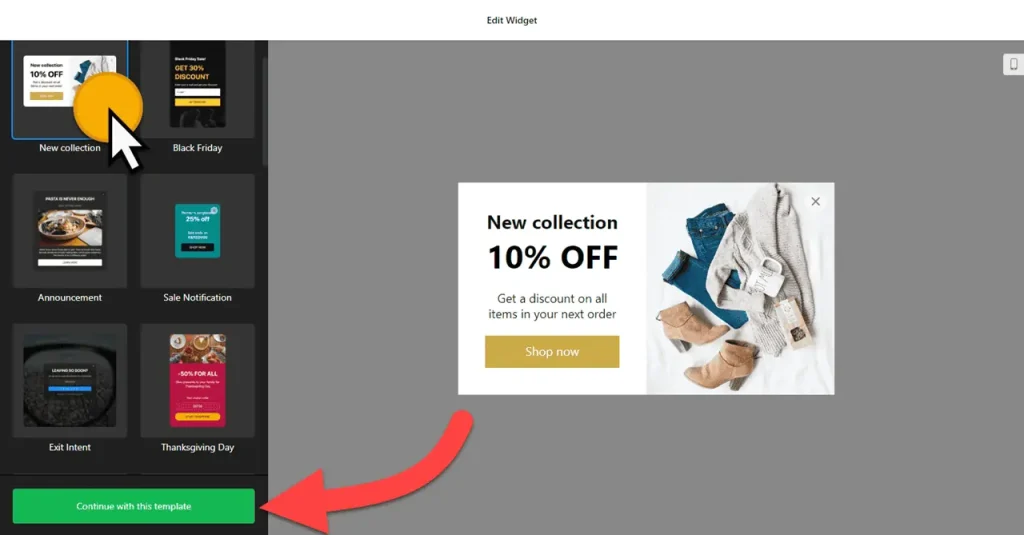
Use the builder below to create a free popup for your Webflow website. Pick a template and click “Continue with this template” to get started.
Webflow gives you full control of layout, but a popup with exit intent, frequency rules and a working form can take custom interactions and code. This builder handles that part. Marketing sites and landing pages use it for waitlist sign-ups, lead magnets, webinar registration and launch news. Match it to your design with layouts, a maximum width and custom CSS, then add it with a Code Embed or Webflow’s site-wide footer code.
How to add a Popup widget to Webflow
1. Create your widget
- Choose a template: Newsletter Subscribe, Announcement, Exit Intent, Floating Popup and Special for You are among more than 20 responsive templates.
- Add your content: describe the popup to the AI Popup Generator, or add elements yourself, such as a heading, text, form, image, video or button.
- Pick a layout: modal, left or right pane, left or right slide-in, or a top or bottom bar. Set the maximum width so it sits well in your design, and choose the close button, backdrop and reopen button.
- Set display rules and triggers: pages, devices, a schedule and frequency per visitor, opened on page load, after a time, on click, on scroll or on exit intent.
- Save it: click “Add to website for free“, sign up and copy your embed code.
2. Add it to your Webflow site
- Decide where the popup loads. For every page, use the site-wide footer code. For one landing page, use a Code Embed.
- Every page: open Site settings › Custom code, paste the popup code into Footer code and save. That puts it near the closing </body> tag, where the popup code works best.
- One page: open the page in the Designer, open the Add panel, drag a Code Embed element onto the page, paste the code and click Save & Close.
- Publish the site or open Preview. Scripts don’t render inside the Designer canvas, so you won’t see the popup there.
- On the live site, trigger the popup to test it on a computer and on your phone.
When and where to show a popup on your Webflow site
- A waitlist or early-access form on a launch landing page, opened after the visitor scrolls past the hero.
- A lead magnet, such as a guide or template, on blog and resource pages, opened by exit intent.
- A webinar or event slide-in on the homepage, with a schedule so it stops showing after the event.
- A top bar on every page for product updates or launch news, added once through the footer code.
Do you need a paid Webflow plan?
Yes. Webflow’s Code Embed element and custom code, including the site-wide footer code, require a paid site plan or workspace plan. Check your plan before you design the popup around a launch date.
If you use the footer code, the popup loads on every page, so narrow it down with the popup’s display settings: pages, devices, schedule and how often each visitor sees it. The widget’s free plan covers one widget with up to 200 views a month, with a small Elfsight link; paid widget plans start at $5 a month, billed yearly.
Popup widget features
- 20+ responsive templates, from newsletter and announcement popups to exit-intent and floating popups.
- AI Popup Generator or 14 elements, including form, coupon, timer, video, image, button and HTML embed.
- Layouts: modal, left and right pane, left and right slide-in, top and bottom bar, with a maximum width.
- Triggers: on page load, time on page, on click, on scroll and exit intent.
- Display settings for pages, devices, schedule and frequency.
- Custom CSS and JavaScript to fine-tune the look or add tracking scripts.
Frequently asked questions
Which Webflow plan do I need for a popup?
A paid site plan or workspace plan. Webflow only allows the Code Embed element and custom code, including footer code, on paid plans.
Should I use a Code Embed or the footer code?
Use Site settings › Custom code › Footer code if the popup may appear on more than one page, then choose pages in the popup’s display settings. Use a Code Embed for a popup that belongs to a single landing page.
Why can’t I see the popup in the Webflow Designer?
Webflow doesn’t run scripts on the Designer canvas. Open Preview or publish the site, then trigger the popup on the live page.
Can I match the popup to my Webflow design?
Yes. Choose the layout and maximum width, style the elements in the builder, and use custom CSS for exact fonts, colors and spacing.
Can I change the popup without republishing my Webflow site?
Yes. Edit it in your Elfsight dashboard and save. The popup on your site updates on its own, so you don’t need to touch the code or republish.
More Webflow widgets
- Popup widget
All templates and features - Webflow Countdown Timer widget
Count down to a sale or launch - Webflow Pricing Table widget
Compare plans and prices - Webflow Google Reviews widget
Your Google Business reviews and rating - Webflow Contact Form widget
A simple contact form - How to add embed code to any website
Where to paste widget code on every website builder