
Use the builder below to create a free background music player for your Webflow site. Pick a template, click “Continue with this template” and upload your tracks.
Some Webflow sites are built around a mood: a spa, a hotel, a restaurant, a photographer’s portfolio, an event or holiday campaign page. Background music can add to that feeling, as long as visitors stay in control of it. This widget gives you a small player that floats in a corner of every page or sits inside a section, with play, volume and playlist controls. It goes into Webflow through site-wide custom code or a Code Embed element.
How to add a Background Music widget to Webflow
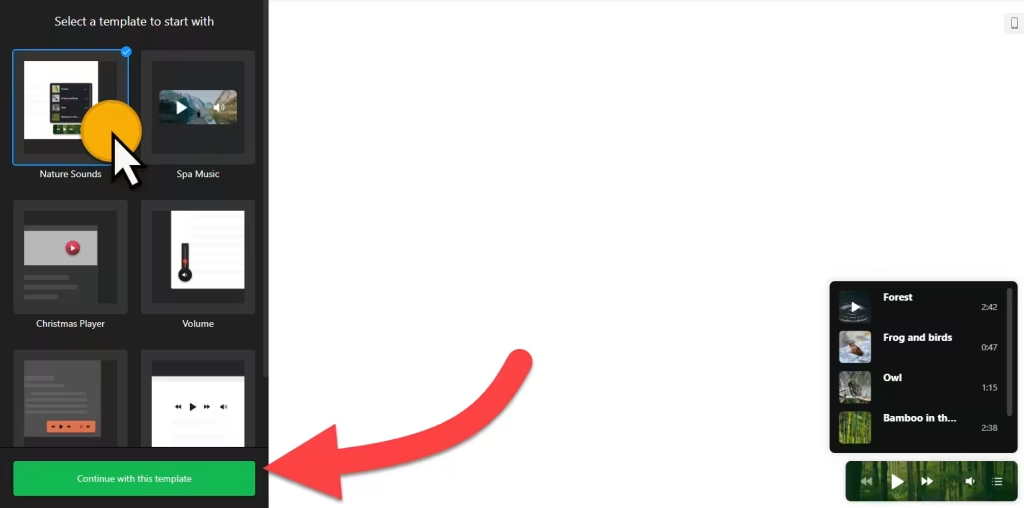
1. Create your widget
- Choose a template: Nature Sounds, Spa Music, Christmas Player, Volume, Halloween or Embeddable Player. You can change it later.
- Add your tracks: upload the music and give each track a title, artist and image. Drag tracks to set the playlist order.
- Pick the layout: floating or embed. For a floating player, choose the corner (top left, top right, bottom left or bottom right) and decide whether to show a close button.
- Set the player: turn controls on or off (previous and next, play, shuffle, loop, volume, playlist), choose whether to save the playing track and progress, and decide on autoplay. Then pick the Light, Dark or Custom color scheme.
- Save it: click “Add to website for free“, sign up on the next page and copy your embed code.
2. Add it to your Webflow site
- For a floating player on every page: in Webflow, open Site settings › Custom code, paste the code into Footer code and save.
- For an embedded player on one page: open the page in the Webflow Designer, open the Add panel and drag a Code Embed element into place.
- Paste the code into the Code Embed editor and click Save & Close. The canvas won’t show the player, because scripts don’t render inside the Designer.
- Publish the site, or open Preview, and play a track.
- Click through a few pages and check the player sits in the corner you chose, the volume and close buttons work, and it doesn’t cover your navigation on a phone.
Where to put the Background Music widget on your Webflow site
- Floating on every page of a spa, hotel or restaurant site, in a bottom corner with the close button turned on.
- On a seasonal campaign page, using the Christmas Player or Halloween template.
- Inside a section of a portfolio or about page, using the Embeddable Player so visitors press play themselves.
- On an event or wedding site, with a short playlist that sets the tone.
Do you need a paid Webflow plan?
Yes. Webflow needs a paid site plan or workspace plan before it runs site-wide custom code or the Code Embed element, and those are the two ways to add this player. On a free Webflow project, the player won’t load. The widget’s own free plan covers one widget with up to 200 views a month on unlimited websites, with a small Elfsight link. Paid widget plans start at $5 a month, billed yearly.
For the floating layout, use Site settings › Custom code › Footer code. Webflow adds that code just before the closing body tag of every page, which is where this widget’s code belongs, and the player then appears in the same corner on every page. If you only want music on one page, choose the embed layout and use a Code Embed element on that page instead.
Background Music widget features
- Six templates, including Spa Music, Nature Sounds, Christmas Player and Embeddable Player.
- Floating or embed layout, with four corner positions and an optional close button.
- Player controls: previous and next, play, shuffle, loop, volume and playlist.
- Playback options: autoplay, save the playing track and progress, and shuffle, repeat or loop by default.
- Light, Dark and Custom color schemes, custom CSS and JavaScript fields, and translatable messages.
Frequently asked questions
Do I need a paid Webflow plan for background music?
Yes. Site-wide custom code and the Code Embed element both need a paid Webflow site plan or workspace plan. Without one, Webflow won’t run the player script.
Where do I paste the background music code in Webflow?
For a floating player on every page, paste it into Site settings › Custom code › Footer code. For an embedded player on one page, add a Code Embed element there and paste it in.
Why can’t I see or hear the player in the Webflow Designer?
Scripts don’t run inside the Designer canvas. Publish the site or open Preview. If the player is still missing, check that your plan allows custom code and that you saved the code.
Can visitors turn the music off?
Yes. Keep the play and volume controls turned on in the player settings, and turn on the close button so visitors can hide the floating player.
Can I change the tracks later?
Yes. Edit the widget in your Elfsight dashboard and save. The player on your Webflow site updates on its own, so you don’t need to paste the code again.
More Webflow widgets
- Background Music widget
All templates and features - Webflow Photo Gallery widget
Image galleries with a lightbox - Webflow Before & After Slider widget
Compare two images with a slider - Webflow Audio Player widget
Play music and audio files - Webflow PDF Viewer widget
Show PDFs right on the page - How to add embed code to any website
Where to paste widget code on every website builder