
Use the builder below to create a free before and after slider for your Google Sites page. Pick a template, click “Continue with this template” and upload your photos.
Schools, clubs and nonprofits often have a before-and-after story to tell: a community garden, a park cleanup, a renovated classroom, a science experiment, an art project. A comparison slider shows both photos in one frame with a divider that visitors drag across, which says more than two photos side by side. Build it here, paste it into a Google Sites embed box, and size the box to fit.
How to add a Before & After Slider widget to Google Sites
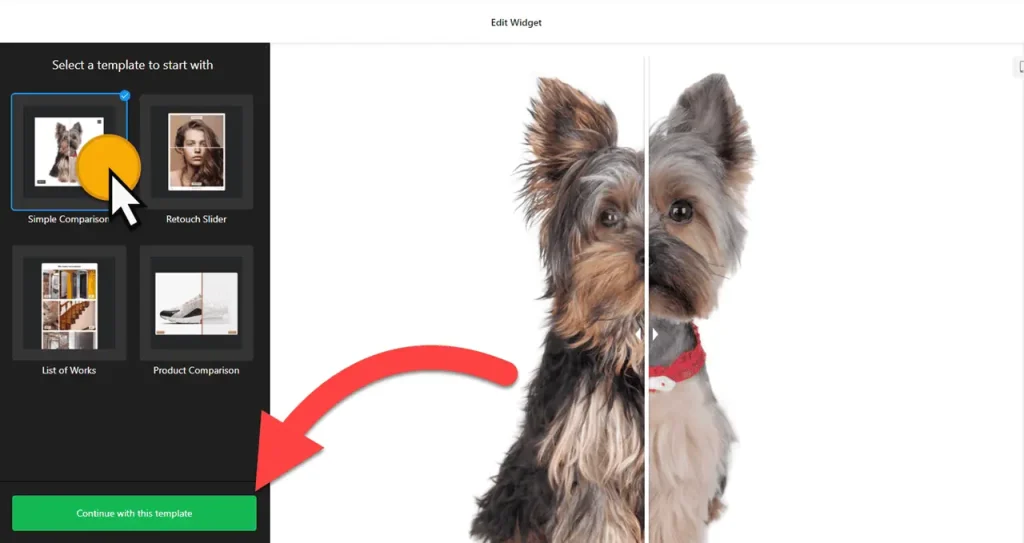
1. Create your widget
- Choose a template: Simple comparison, Retouch Slider, List of Works or Product comparison. All of them are responsive.
- Add your comparison sets: click “Add Set” and upload the before and after photos. Add labels and captions, and add more sets if you have more than one project to show.
- Pick a layout: List shows the comparisons one after another, Carousel lets visitors move through them. You can set the width in px or %.
- Adjust the settings: image ratio, slider direction, label position, divider, interaction behavior and full-screen mode. Then style the background, labels, captions and controls.
- Save it: click “Add to website for free“, sign up on the next page and copy your embed code.
2. Add it to your Google Site
- Open your site in Google Sites and go to the page where the slider should appear.
- In the Insert panel on the right, click Embed, then open the Embed code tab.
- Paste the slider code, click Next, then Insert.
- Drag the edges of the embed box until the whole slider fits, including labels and captions. A List layout with several sets needs a tall box; a Carousel usually fits in a shorter one.
- Publish the site, then drag the divider on the live page to check it works on a computer and on a phone.
Where to put the before and after slider on Google Sites
- On a nonprofit or volunteer project page: a cleanup, a garden, a building restored by volunteers.
- On a class or science fair page: experiment results, art projects or a plant growing over a term.
- On a club or team news page: a renovated clubhouse, a new pitch, new kit.
- On an internal team site: finished facilities work, or design changes from first draft to final version.
Do you need a paid Google Sites plan?
No. You don’t need a paid plan to embed code on Google Sites, so the slider works on any site. Keep in mind that Google Sites boxes every embed in its own isolated frame. The slider can only use the space inside the box you draw, and there’s no way to add code to every page at once, so add an embed box to each page that needs a slider.
The widget’s free plan covers one widget with up to 200 views a month on unlimited websites, with a small Elfsight link. One widget can hold several comparison sets, so a single slider can cover a whole project. Paid plans start at $5 a month, billed yearly.
Before & After Slider widget features
- Four responsive templates: Simple comparison, Retouch Slider, List of Works and Product comparison.
- Multiple comparison sets, each with labels and captions.
- List or Carousel layout, with the width set in px or %.
- Slider settings: image ratio, slider direction, label position, divider and interaction behavior.
- Full-screen mode, appearance controls, and custom CSS and JavaScript fields.
Frequently asked questions
Can I add a before and after slider to Google Sites for free?
Yes. The builder is free, embedding code on Google Sites doesn’t need a paid plan, and the widget’s free plan covers one widget with up to 200 views a month, with a small Elfsight link.
Why is my before and after slider cut off on Google Sites?
The embed box is too small. Click it in the Google Sites editor and drag its edges until the photos, labels and captions all fit, then publish again.
Can I show several before and after pairs on one page?
Yes. Add more comparison sets in the builder and choose the List or Carousel layout. They all stay in one widget and one embed box.
The slider doesn’t load on Google Sites. What can I try?
Check the published page, not the editor. Copy the code again straight from your Elfsight dashboard, since copying through a document can break the quotes. If a script widget still won’t load, try the widget’s iframe version where one exists.
Can I change the photos later?
Yes. Edit the widget in your Elfsight dashboard and save. The slider on your Google Sites page updates on its own, so you don’t need to paste the code again.
More Google Sites widgets
- Before & After Slider widget
All templates and features - Google Sites Photo Gallery widget
Image galleries with a lightbox - Google Sites Audio Player widget
Play music and audio files - Google Sites Background Music widget
Music that plays in the background - Google Sites PDF Viewer widget
Show PDFs right on the page - Essential Google Sites widgets
10+ widgets that work well on Google Sites