
Use the online form builder below to create a free form for your Webflow website. Select a template and click “Continue with this template” to begin.
Webflow is where many agencies, startups and SaaS teams build their landing pages, and those pages often need more than a basic form: a multistep lead form, a beta waitlist, a job application with a CV upload, an event registration. This form builder gives you those layouts without custom code. You set the font, field style and width to fit your design, then add the form with a Code Embed element.
How to add a Form Builder widget to Webflow
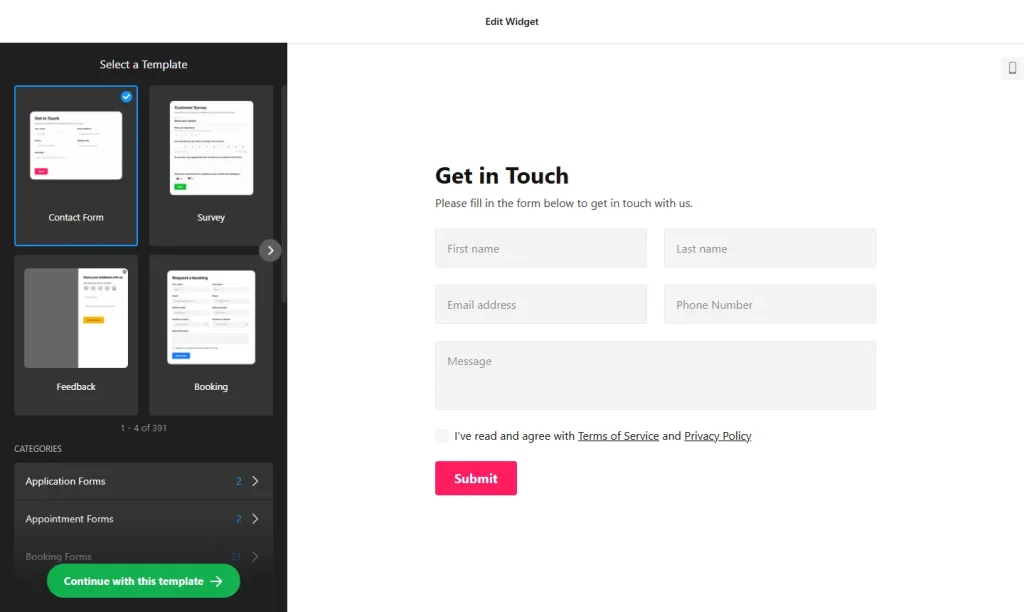
1. Create your widget
- Choose a template from categories such as Multistep forms, Application forms, Event registration forms and Newsletter forms, or generate one with AI from a short description.
- Add fields: more than 20 types, including email, text, image choice, date and time selectors, and file upload with the file types you allow. Order them however you like.
- Match your design: set the color scheme, accent color, field style, font and size, limit the form width to fit your layout, and use custom CSS for the details.
- Plan the hand-off: send entries to Google Sheets, Mailchimp or one of 6,000+ services through Zapier, and redirect to a thank-you page after submit.
- Save it: click “Add to website for free“, sign up on the next page and copy your embed code.
2. Add it to your Webflow site
- Open the page in the Webflow Designer and select the section or container where the form will sit.
- From the Add panel, drag a Code Embed element into place.
- Paste the form code and click Save & Close.
- The canvas won’t show the form, because scripts don’t render inside the Designer. Use Preview or publish to see it.
- Publish, go through every step of the form on the live site, then submit a test entry.
Where to put the Form Builder widget on your Webflow site
- On a landing page, as a multistep lead form that asks a few qualifying questions before contact details.
- On a waitlist or beta page for a product launch, connected to Mailchimp.
- On a Careers page, with an application form and a CV upload.
- On an event or webinar page, with a registration form and a redirect to a confirmation page.
Do you need a paid Webflow plan?
Yes. Webflow’s Code Embed element and custom code require a paid site plan or workspace plan, so you’ll need one before you can place the form. Everything else happens in the form builder.
For a Floating pane form across the whole site, paste the code into Site settings › Custom code › Footer code and publish. The widget’s free plan covers one widget with up to 200 views a month on unlimited websites, with a small Elfsight link; paid widget plans start at $5 a month, billed yearly.
Form Builder widget features
- Multistep, Vertical and Horizontal inline layouts, with a width limit to fit your layout.
- Design controls: color scheme, accent color, field style, font, size and custom CSS.
- AI form generation and templates grouped by use case.
- Floating pane with its own position, width and reopen button.
- Three post-submit actions: success message, redirect to a URL or hide the form.
- Zapier, Mailchimp and Google Sheets integrations, plus email notifications with CC, BCC and reply-to.
Frequently asked questions
Which Webflow plan do I need to embed the form?
A paid site plan or a workspace plan. Webflow requires one for the Code Embed element and custom code.
Why is the Code Embed empty in the Webflow Designer?
Scripts don’t render inside the Designer canvas. The form is there; open Preview or the published site to see it.
Can I build a multistep form for a Webflow landing page?
Yes. Choose the Multistep layout for an inline form, or start from a Multistep forms template, then paste the code into a Code Embed element.
How do I show a floating form on every Webflow page?
Pick the Floating pane embed type, then add the code under Site settings › Custom code › Footer code and publish the site.
Can I limit the form’s width to fit my Webflow layout?
Yes. For inline forms, set a width limit in the builder so the form matches your container, and use custom CSS for any finer adjustments.
More Webflow widgets
- Form Builder widget
All templates and features - Webflow FAQ widget
Questions and answers in an accordion - Webflow Google Reviews widget
Your Google Business reviews and rating - Webflow Contact Form widget
A simple contact form - Webflow Instagram Feed widget
Your latest Instagram posts and reels - How to add embed code to any website
Where to paste widget code on every website builder