
Most people visit a restaurant website with one of four questions: What’s on the menu? Can I get a table? Is it any good? How do I get there, and are you open? If the site answers those in a few seconds, they book or walk in. If they have to pinch-zoom a PDF or hunt for a phone number, they go back to Google and pick the place next door.
You don’t need a custom-built site to fix this. Eight small widgets, each pasted in as a few lines of code, cover everything a hungry visitor is looking for. They work on Wix, Squarespace, WordPress, Google Sites, Shopify, and Webflow, and you can build all of them for free.
In this guide
- The 8 widgets at a glance
- 1. A menu widget (not a PDF)
- 2. Online table reservations
- 3. Google reviews
- 4. A map with directions
- 5. Opening hours that are always right
- 6. An Instagram feed
- 7. Click-to-call and chat buttons
- 8. An announcement bar for specials
- Bonus: 5 more widgets worth adding
- Where to put each widget
- How to add these widgets to your website
- Frequently asked questions
- Start with your menu
The 8 widgets at a glance
| # | Widget | The question it answers | Free builder |
|---|---|---|---|
| 1 | Menu | “What do you serve, and what does it cost?” | Restaurant menu |
| 2 | Reservations | “Can I get a table on Friday at 8?” | Booking widget |
| 3 | Google reviews | “Is it actually good?” | Google reviews |
| 4 | Map | “How do I get there?” | Google Maps |
| 5 | Opening hours | “Are you open right now?” | Business hours |
| 6 | Instagram feed | “What does the food look like?” | Instagram feed |
| 7 | Call and chat buttons | “Can I just ask someone?” | Click-to-call, WhatsApp |
| 8 | Announcement bar | “Anything special going on?” | Announcement banner |
1. A menu widget (not a PDF)
The menu is the most visited part of almost every restaurant website, and it’s also where most of them let visitors down. A scanned or designed PDF looks fine on a laptop, but on a phone it means downloading a file, zooming, and scrolling sideways. Search engines also read a PDF less reliably than text on the page, so a dish people search for (“vegan ramen near me”) is easier to find when it’s on the page as text.
A restaurant menu widget shows your dishes, descriptions, and prices as real text that fits any screen. You start from a template (there are ones for cafés, family restaurants, fast food and cocktail bars), add menus and sections such as starters, mains, desserts and drinks, and give each dish a price, photo and badges. Then paste the code into your site. When prices change, you edit the widget once and every page that shows it updates.
- Tip: use item badges to mark dietary options (vegetarian, vegan, gluten-free, spicy). They are among the first things people scan for. You can also add calories and other nutrition details per dish.
- Still have a nice PDF? Keep it for catering or set menus and show it with a PDF viewer widget or a page-turning flipbook, so people can read it on the page instead of downloading it.
- Table QR codes: point a QR code at your menu page so diners in the restaurant see the same, always-current menu.
2. Online table reservations
Every booking that happens on your site is a phone call you don’t have to answer during the dinner rush, and a guest who doesn’t book through a third-party app that charges you per cover. People also book at times you’re closed: late at night, on the bus, at work.
An appointment booking widget works well as a simple table-booking form: set the time slots you take reservations for, and new bookings land in your Google Calendar. Put a “Book a table” button at the top of the homepage and again at the end of the menu, the two moments when people decide.
Already use a reservation platform? Most of them give you their own booking button or embed code. Paste it in the same way. The point is that booking should be possible without leaving your website.
3. Google reviews
Your own description of the food will always sound like marketing. A wall of real diners saying the carbonara is the best in town does not. Most of your guests have already left reviews on Google, so show them where people make the decision: on your site.
A Google reviews widget pulls reviews from your Google Business Profile and shows them as a carousel, grid or list. New reviews appear without you lifting a finger. Short on space? A Google rating badge shows just your star rating and review count, which fits neatly in a header or next to the booking button.
If your best reviews are on TripAdvisor, Facebook, OpenTable or other sites, an all-in-one reviews widget combines 50+ review platforms in one feed, and a testimonials slider is great for quotes from catering and private-event clients. For more ideas, see 9 ways to show reviews and testimonials on your website.
4. A map with directions
An address in the footer is not enough. People want to see where you are compared to where they are, and tap once to get directions. A Google Maps widget puts an interactive map on your contact or homepage that opens in the visitor’s maps app on a phone.
Tip: add one line of text next to the map about parking, the nearest train or bus stop, or which entrance to use. It answers the next question before anyone has to call.
5. Opening hours that are always right
Few things lose a customer faster than showing up to a closed door because the website was out of date. Hours are also one of the most searched details for any restaurant, so they deserve their own clear spot, not a line of small print.
A business hours widget shows your weekly schedule in a clean table, and one of its templates shows an “open now” status. Its Special days setting handles holidays and one-off closures, and you can add buttons such as Call, Directions, Menu, or OpenTable right under your hours. Keep your Google Business Profile hours in sync, so both say the same thing.
6. An Instagram feed
Food sells with photos, and you’re probably already posting them on Instagram. An Instagram feed widget shows your latest posts on your website automatically, so the site always feels current: today’s special, the new dessert, the terrace in summer. It also turns website visitors into followers.
Active on several platforms? A social feed widget combines them in one stream, and a TikTok feed works well if your kitchen videos do better there. For your own professional photos of the dining room and dishes, use a photo gallery widget.
7. Click-to-call and chat buttons
Some guests will always want to ask a person: “Do you have a high chair?”, “Can we bring a cake?”, “Is the patio open tonight?” Make that one tap away. A floating click-to-call button stays in the corner of the screen on phones and dials your number directly.
If you’d rather answer by message between orders, a WhatsApp chat button opens a chat with your business number. Customers who prefer other apps can reach you through an all-in-one chat widget that bundles WhatsApp, Messenger, Instagram, Telegram, SMS and phone calls in a single button.
8. An announcement bar for specials
Restaurants change all the time: a weekend brunch, a new seasonal menu, Christmas hours, a sold-out Valentine’s dinner. An announcement banner is a thin bar at the top of every page where you can put one short message and a link. It’s noticed without getting in the way, and you can change it in seconds.
A popup can do the same job for bigger news, but use it sparingly: a popup that blocks the menu on a phone is more annoying than helpful. Show it once per visitor, and never on the menu page.
Bonus: 5 more widgets worth adding
- Event calendar: live music, quiz nights, wine tastings, and cooking classes in one list people can check before they plan a night out.
- Newsletter sign-up: collect emails for new menus and events. A list you own is worth more than followers on any platform.
- Job board: restaurants are always hiring. A “Join our team” page with open roles saves you from posting the same ad everywhere.
- Countdown timer: build excitement for a grand opening, a new location, or a holiday menu launch.
- Contact form: for large groups, private dining, and catering requests that need more detail than a booking slot.
Where to put each widget
Order matters as much as the widgets themselves. Lay out your homepage in the order visitors ask their questions: what’s special today, can I book, what’s on the menu, is it good, where is it, and when is it open. A simple one-page layout looks like this:
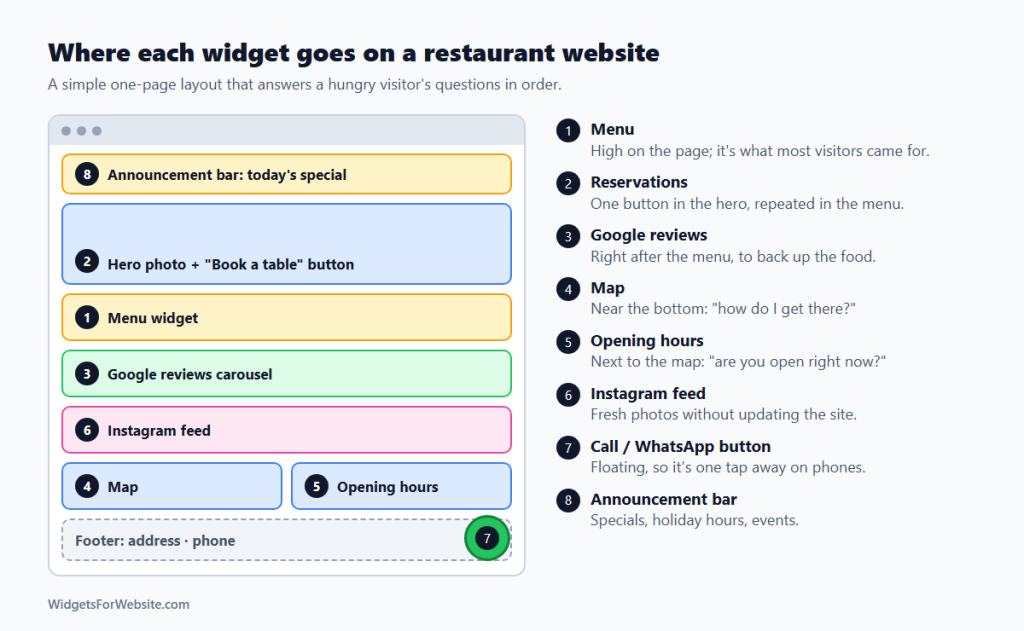
- Top of every page: announcement bar with this week’s special.
- Hero: one strong food photo and a “Book a table” button.
- Menu, high on the page, followed by a second booking button.
- Google reviews right after the menu, to back up the food.
- Instagram feed to show what’s new.
- Map and opening hours side by side near the bottom.
- Call or WhatsApp button floating in the corner on every page.
How to add these widgets to your website
Every widget above works the same way: open the builder, pick a template, customize it, and copy the embed code. Then paste the code into your website builder’s HTML or code element. Our guide on how to add embed code to any website builder shows exactly where that element is on each platform.
Platform-specific roundups: best Wix widgets, best Squarespace widgets, essential Google Sites widgets, plus step-by-step pages like Google reviews on WordPress and Instagram feed on Squarespace.
Keep it fast. Most visitors are on a phone, often on mobile data. Start with the widgets that answer the big four questions (menu, booking, reviews, location and hours), check how the page loads on your own phone, and only then add extras. Our guide do website widgets slow down your site? shows how to keep pages fast.
Frequently asked questions
Do I need all 8 widgets on my restaurant website?
No. If you only add three, make them the menu, a way to book or call, and your Google reviews. Add the map and opening hours next. The Instagram feed and announcement bar are nice to have once the basics are covered.
Should my restaurant menu be a PDF or on the page?
On the page. Text on the page is easier to read on a phone, loads faster than a PDF download, and is easier for search engines to read. Keep a PDF only for printed or set menus, and show it with a PDF viewer instead of a download link.
How do I update menu prices or opening hours later?
Edit the widget in its builder and save. The embed code on your website stays the same, so every page that shows the widget updates on its own. You don’t have to touch your website editor again.
Can I add these widgets to Wix, Squarespace, or Google Sites?
Yes. Each widget gives you an HTML embed code that works in Wix, Squarespace, WordPress, Google Sites, Shopify, and Webflow. Some platforms only allow scripts on certain plans; the embed code guide lists the limits for each one.
Will widgets slow down my restaurant website?
A handful of well-made widgets has little effect on speed. Problems start when a page stacks many heavy embeds, such as several feeds and video players at once. Stick to the widgets your guests actually use, and test your homepage on a phone after adding each one.
Start with your menu
If you do one thing today, replace the PDF with a free restaurant menu widget. It takes about ten minutes, and it’s the page your guests open most. Then work down the list, or browse the full library of 90+ free HTML widgets.
Build your first widget for free
Pick a template, customize it in your browser and paste the code into your website. The free plan covers one widget with up to 200 views a month.
Browse all 85 widgets