
Use the builder below to create a free testimonials slider for your Squarespace website. Pick a template and click “Continue with this template” to add your first testimonial.
Photographers, wedding planners, designers, coaches and studios on Squarespace win work on trust. A testimonials slider lets past clients speak for you, with their name, photo and a short quote, in a format that suits a clean, image-led site. You type in the testimonials yourself, choose a calm layout such as Cards or Customer Story, and paste the result into a Squarespace Code Block.
How to add a Testimonials Slider widget to Squarespace
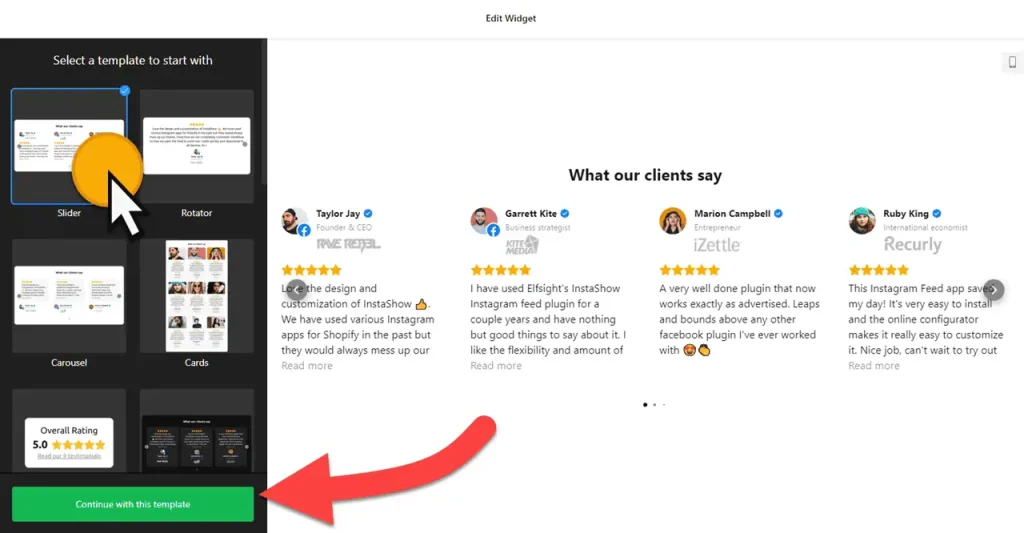
1. Create your widget
- Choose a template: Slider, Rotator, Carousel, Cards, Badge, Customer Story, List, or Slider without Star Ratings if you’d rather not show stars on a creative portfolio.
- Add your testimonials: click “Add Testimonial” and enter the client’s words, name, a caption such as “Wedding, June 2026”, the date and a profile picture. Add their website, social profile or photos from the project, and drag testimonials into the order you want.
- Pick a layout: Carousel, Grid, Masonry, List, Slider, Badge or Floating Badge, with a maximum width that fits your page.
- Style it: choose a card style and color scheme, set an accent color from your brand, and hide dates or ratings you don’t want to show.
- Save it: click “Add to website for free“, sign up on the next page and copy your embed code.
2. Add it to your Squarespace site
- Open the page in Squarespace, click Edit and find the section where the testimonials should go.
- Click an Add Block point (+) and choose Code.
- Paste the slider code, set the mode to HTML and turn off Display Source.
- Save the page and check the slider on the live site.
- Look at the page on your phone too. If the cards feel cramped, move the Code Block or change the widget’s maximum width in the builder.
Where to put the Testimonials Slider widget on your Squarespace site
- On your homepage, under your portfolio highlights, so visitors see your work and your clients’ reactions together.
- On your services or packages page, next to prices, where clients decide whether to book.
- On your inquiry or booking page, just above the form.
- On a project or gallery page, with the quote from that client and photos from the shoot or project.
Do you need a paid Squarespace plan?
Yes. The testimonials slider runs on JavaScript, and Squarespace only runs JavaScript in a Code Block on higher-tier plans: Core or above on current plans, Business or above on older ones. On a plan without JavaScript, the block stays empty and shows no error, so check your plan first if the slider doesn’t appear.
For the Floating Badge layout on every page, paste the code into Settings › Advanced › Code Injection instead of a Code Block. It has the same plan requirement. On the widget side, the free plan covers one widget with up to 200 views a month on unlimited websites, with a small Elfsight link; paid widget plans start at $5 a month, billed yearly.
Testimonials Slider widget features
- Eight templates, including Cards, Customer Story and Slider without Star Ratings.
- Seven layouts: Carousel, Grid, Masonry, List, Slider, Badge and Floating Badge, with a maximum width setting.
- Rich testimonials with a profile picture, caption, date, website, social profile, logo and photos.
- Card styles, with star ratings, dates and profile photos shown or hidden.
- Color scheme and accent color, plus a custom CSS field for fine-tuning.
- Settings for language and Schema.org markup.
Frequently asked questions
Which Squarespace plan do I need for the testimonials slider?
Core or above on current Squarespace plans, or Business or above on older ones. The slider uses JavaScript, which lower plans don’t run in Code Blocks.
Why isn’t my testimonials slider showing on Squarespace?
Usually the plan doesn’t allow JavaScript, so the Code Block stays empty. Also check that the block is set to HTML and Display Source is off, otherwise you’ll see the code instead of the slider.
Can I show a floating testimonials badge on every Squarespace page?
Yes. Choose the Floating Badge layout and paste the code into Settings › Advanced › Code Injection. This needs the same Core-or-above plan as the Code Block.
Can I hide the star ratings?
Yes. Start from the Slider without Star Ratings template, or hide the rating in the testimonial settings. That suits creative work, where a written quote often says more than stars.
Can I add new testimonials later?
Yes. Add or edit them in your Elfsight dashboard and save. The slider on your Squarespace site updates on its own, so the Code Block stays as it is.
More Squarespace widgets
- Testimonials Slider widget
All templates and features - Squarespace All-in-One Reviews widget
Reviews from 50+ platforms in one feed - Squarespace Google Reviews widget
Your Google Business reviews and rating - Squarespace Contact Form widget
A simple contact form - Squarespace Instagram Feed widget
Your latest Instagram posts and reels - 25 best Squarespace widgets
Our roundup of plugins and widgets for Squarespace