
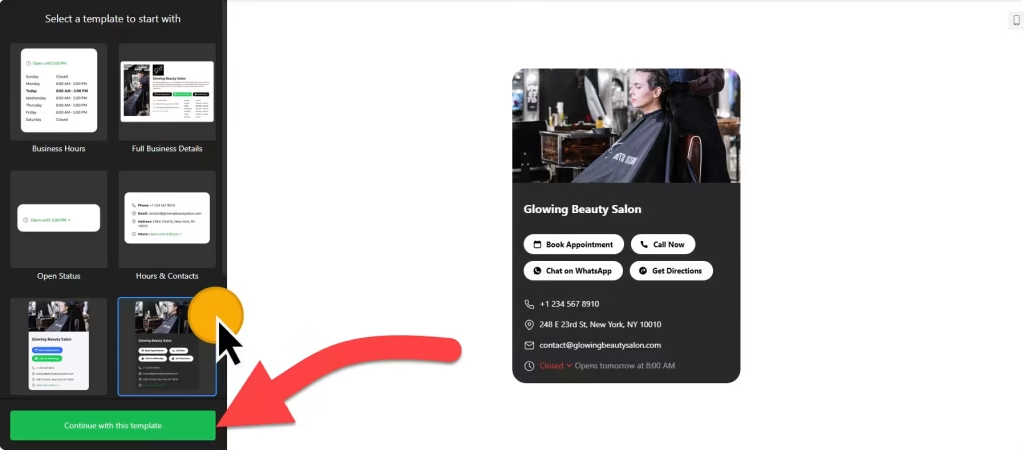
Use the builder below to create a free business hours widget for your Google Sites page. Pick a template, add your hours and click “Continue with this template“.
Google Sites is a common choice for school offices, libraries, clubs, sports teams, nonprofits and internal team sites. They all need to tell people when someone is available: office hours, opening times, drop-in sessions or a help desk schedule. A business hours widget shows the full week, special days such as term breaks, and contact details in one tidy block. Google Sites puts every embed in its own box, and an hours widget works well inside one.
How to add a Business Hours widget to Google Sites
1. Create your widget
- Choose a template: Business Hours or Open Status for a simple schedule, or Contact Info and Hours & Contacts if you want phone, email and address too.
- Add your hours: set times for each day. Use more than one time range for a morning and afternoon session.
- Add special days for holidays, term breaks and other closures.
- Set the details: add your logo and contacts, choose buttons such as Call, Message or Directions, and set the time zone, time format and language.
- Save it: click “Add to website for free“, sign up on the next page and copy your embed code.
2. Add it to your Google Site
- Open your site and go to the page where the hours should appear.
- In the Insert panel on the right, click Embed.
- Open the Embed code tab, paste the widget code and click Next, then Insert.
- Drag the edges of the embed box until the whole week and your contact details fit. Templates with a logo or photo need more height.
- Publish the site and check the page on a computer and on a phone.
Where to put the Business Hours widget on your Google Site
- On a school or department contact page: office hours, phone, email and address, with special days for term breaks and holidays.
- On a library, club or community center site, using the Open Status template so visitors can see whether you’re open.
- On a nonprofit’s Visit or Get Help page, with Call, Directions and Message buttons.
- On an internal team site, for help desk or front desk hours, with the time zone set so colleagues in other offices read them correctly.
Do you need a paid Google Sites plan?
No. Google Sites is free to use, and the Embed code option works on any site. Every embed is placed in its own isolated frame, so the widget only shows inside the box you drew. That suits an inline hours widget; just make the box big enough.
There is no way to add code to every page at once on Google Sites, so insert the embed on each page where you want the hours. If the script version ever won’t load, try the widget’s iframe version where one exists. The widget’s own free plan covers one widget with up to 200 views a month on unlimited websites, with a small Elfsight link; paid widget plans start at $5 a month, billed yearly.
Business Hours widget features
- Seven responsive templates, from a simple Business Hours list to Full Business Details.
- Several time ranges per day, for split sessions or a lunch closure.
- Special days for holidays, breaks and temporary changes.
- Contact details: phone number, email and address, with your logo.
- Buttons such as Call, Directions, Message, Share and Book.
- Time zone, time format and language settings, plus colors, fonts and borders to match your site.
Frequently asked questions
Can I add a business hours widget to Google Sites for free?
Yes. Google Sites embeds are free, and the widget’s free plan includes one widget with up to 200 views a month, with a small Elfsight branding link. Paid widget plans start at $5 a month, billed yearly.
Why are my hours cut off on Google Sites?
The embed box is smaller than the widget. Click the box in the editor and drag its edges until every day, button and contact detail fits, then publish again.
Can I show the hours on every page of my Google Site?
Not with one embed. Google Sites has no way to add code to every page at once, so insert the same code on each page where you want the hours.
How do I add holidays or term breaks?
Add them in the Special days section of the widget editor and save. The embed on your Google Site updates on its own, so you don’t need to paste the code again.
Can I show split hours, like a lunch closure?
Yes. The widget supports more than one time range per day, so a morning and an afternoon session show as two ranges.
More Google Sites widgets
- Business Hours widget
All templates and features - Google Sites Appointment Booking widget
Online booking with time slots - Google Sites Event Calendar widget
Upcoming events in a calendar or list - Google Sites Restaurant Menu widget
Your menu with prices and photos - Google Sites Blog widget
Add a simple blog to any site - Essential Google Sites widgets
10+ widgets that work well on Google Sites