
Use the builder below to create a free audio player for your Google Sites page. Pick a template, click “Continue with this template” and upload your tracks.
Teachers, choirs, school bands, language clubs and podcast groups use Google Sites to share audio with students and members. The Audio Player widget gives them a proper player with a playlist, track titles and cover images, all in one embed box. Upload your files in the builder, choose the controls, paste the code into Google Sites, and visitors can listen without leaving the page.
How to add an Audio Player widget to Google Sites
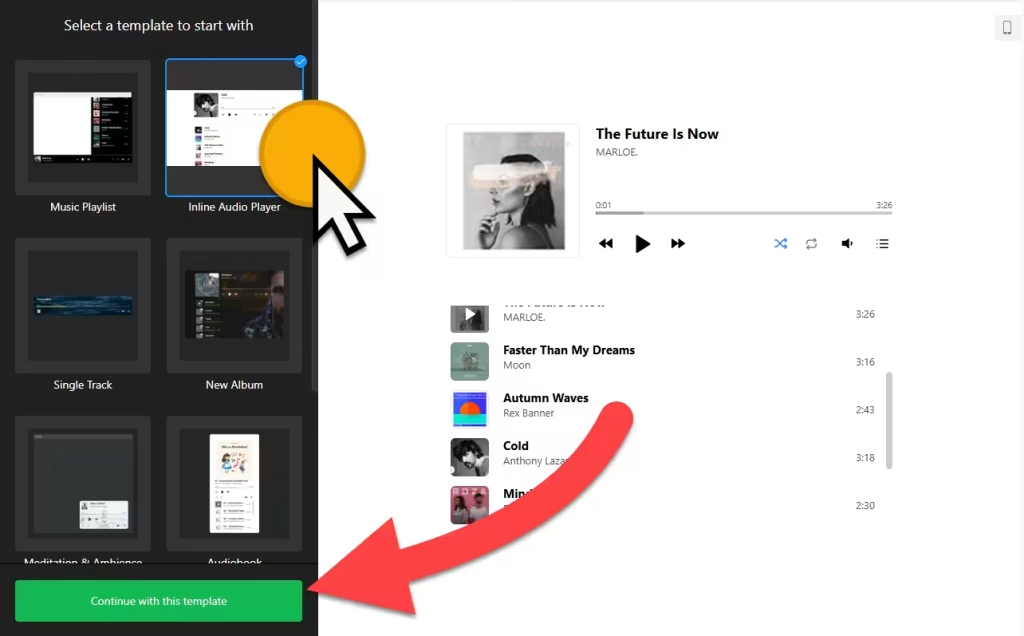
1. Create your widget
- Choose a template: Music Playlist, Inline Audio Player, Single Track, New Album, Meditation and Ambience, Audiobook or Nature Sounds.
- Add your tracks: upload your audio and give each track a title, artist and image. Drag tracks to change the order. You can also add Call-to-Action buttons that link to services such as Spotify, Apple Music, YouTube Music, SoundCloud or Bandcamp.
- Pick the embed layout: on Google Sites, choose embed rather than floating. Then turn on the controls you want: track buttons, shuffle, loop, volume, progress bar, playlist and track info.
- Set the playlist and style: show or hide the playlist by default, set its height, and choose the Light, Dark or Custom color scheme. The Message section lets you translate the player’s text.
- Save it: click “Add to website for free“, sign up on the next page and copy your embed code.
2. Add it to your Google Site
- Open your site in Google Sites and go to the page where the player should appear.
- In the Insert panel on the right, click Embed, then open the Embed code tab.
- Paste the player code, click Next, then Insert.
- Drag the edges of the embed box until the player and its playlist fit. If the playlist shows by default, give the box room for it; setting a playlist height in the builder makes the size easier to predict.
- Publish the site and play a track on the live page, on a computer and on a phone.
Where to put the audio player on Google Sites
- On a class or course page: listening exercises, language lessons or recorded lectures in one playlist.
- On a choir, band or orchestra site: practice tracks for each voice part or instrument.
- On a club or school podcast page: episodes in one player instead of a list of separate links.
- On a nonprofit or community site: recorded talks, interviews or audio stories.
Do you need a paid Google Sites plan?
No paid plan is needed to embed code on Google Sites. The limit is the frame: Google Sites boxes every embed, so the player only appears inside the box you draw, and you can’t add code to every page at once. That’s also why the floating layout isn’t a good fit here. A floating player can’t pin itself to a corner of the screen; it stays inside its box. Choose the embed layout and place the box where visitors expect to find the audio.
To use the same player on several pages, add an embed box with the same code to each page. The widget’s free plan covers one widget with up to 200 views a month on unlimited websites, with a small Elfsight link. Paid plans start at $5 a month, billed yearly.
Audio Player widget features
- Seven templates, from Music Playlist and Single Track to Audiobook and Nature Sounds.
- Track details: title, artist and image for each track, with drag-and-drop ordering.
- Call-to-Action buttons for Apple Music, Spotify, YouTube Music, SoundCloud, Amazon Music, Deezer, iTunes, Bandcamp, Google Play, Pandora and Tidal.
- Player controls: track controls, shuffle, loop, volume, progress bar and playlist, plus an option to save the playing track and progress.
- Light, Dark and Custom color schemes, with custom CSS and JavaScript fields and translatable messages.
Frequently asked questions
Can I upload my own audio files for Google Sites?
Yes. Upload them in the Tracks section of the builder and add a title, artist and image for each one. The player then shows them in your Google Sites embed box.
Why is the audio player cut off on Google Sites?
The embed box is smaller than the player and its playlist. Click the box in the Google Sites editor, drag its edges until everything fits, then publish again.
Can the player float in a corner of my Google Site?
No. Google Sites keeps every embed inside its own frame, so a floating player stays inside its box. Use the embed layout and place the box where visitors will see it.
Can I change the tracks after the player is on my site?
Yes. Edit the widget in your Elfsight dashboard and save. The player on your Google Sites page updates on its own, so you don’t need to paste the code again.
Is the audio player free?
Yes. The free plan covers one widget with up to 200 views a month on unlimited websites, with a small Elfsight branding link. Paid plans start at $5 a month, billed yearly.
More Google Sites widgets
- Audio Player widget
All templates and features - Google Sites Photo Gallery widget
Image galleries with a lightbox - Google Sites Before & After Slider widget
Compare two images with a slider - Google Sites Background Music widget
Music that plays in the background - Google Sites PDF Viewer widget
Show PDFs right on the page - Essential Google Sites widgets
10+ widgets that work well on Google Sites