
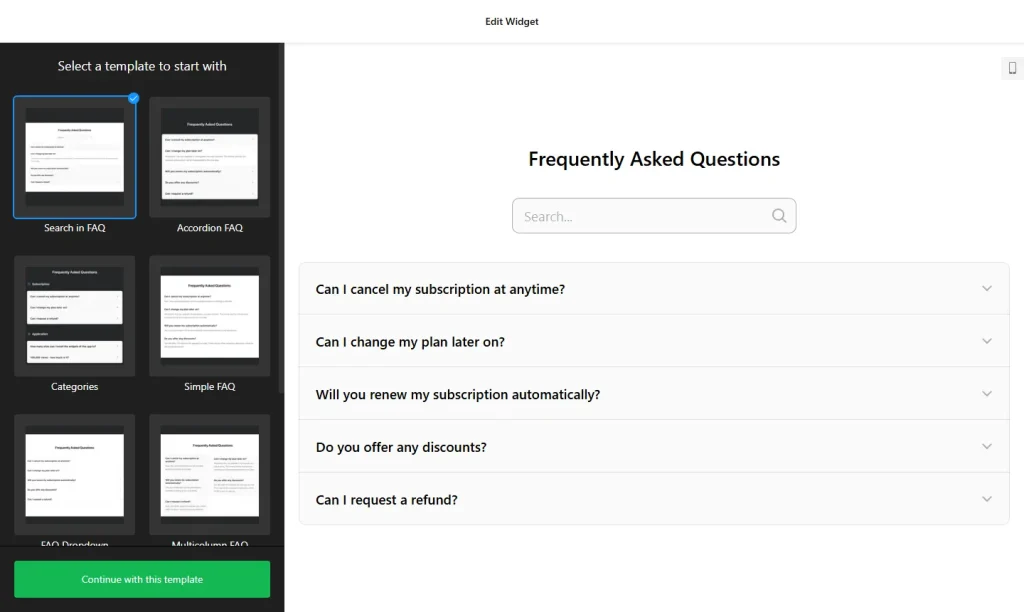
Use the builder below to create a free FAQ section for your Squarespace website. Pick a template and click “Continue with this template” to add your questions.
Photographers, designers, coaches and studios on Squarespace answer the same questions before every booking: How far ahead should I book? What’s included? How do payments work? An FAQ widget puts those answers in a clean accordion that matches your site, grouped by service or package. You build it here, then paste it into a Squarespace Code Block.
How to add an FAQ widget to Squarespace
1. Create your widget
- Choose a template: start from Categories, Collapsible FAQ, FAQ Toggle, Q&A or Knowledge Base, or start from scratch.
- Group your questions: create a category for each service or package, for example Weddings, Portraits and Workshops, each with a title and icon. Or hide the category titles for one simple list.
- Write the answers: answers support HTML, so you can link to your booking page or price guide and put key details in bold.
- Match your site: choose List, Accordion or Multicolumn, pick a cross or arrow icon, and set colors that fit your Squarespace template.
- Save it: click “Add to website for free“, sign up on the next page and copy your embed code.
2. Add it to your Squarespace site
- Open the page in Squarespace, click Edit and find the spot where the FAQ should go.
- Click an Add Block point (+) and choose Code.
- Paste the FAQ code, set the mode to HTML and turn off Display Source.
- Save the page, then open the live site and click a few questions to check the answers open.
- Look at the page on your phone too, and move the Code Block if the FAQ sits in an awkward spot on a small screen.
Where to put the FAQ widget on your Squarespace site
- On your services or packages page, under each offer, to explain what’s included, timelines and revisions.
- On your booking or inquiry page, above the form, so clients get quick answers before they get in touch.
- On a class or studio page, covering what to bring, cancellation rules and how to find you.
- On a dedicated FAQ page, with one category per service, so clients can skip to the part that applies to them.
Do you need a paid Squarespace plan?
Yes. The FAQ widget runs on JavaScript, and Squarespace only runs JavaScript in a Code Block on higher-tier plans: Core or above on current plans, Business or above on older ones. Plain HTML works on every plan, but a script widget on a lower plan shows nothing at all, with no error. If your FAQ is blank, check your plan first.
The FAQ sits inline on the page, so you don’t need Settings › Advanced › Code Injection (which has the same plan requirement anyway). On the widget side, the free plan covers one widget with up to 200 views a month on unlimited websites, with a small Elfsight link; paid widget plans start at $5 a month, billed yearly.
FAQ widget features
- Ready-made templates such as FAQ Dropdown, FAQ Page and Knowledge Base, which you can adjust to your style.
- Three layouts: List, Accordion and Multicolumn.
- Unlimited categories with their own titles and icons, to keep a long FAQ organized by service.
- HTML in answers for links, bold text and line breaks.
- Colors, styles and 30+ icons, so the FAQ fits your Squarespace design.
- Instant updates: change an answer in the builder and it changes on your site.
Frequently asked questions
Which Squarespace plan do I need for the FAQ widget?
Core or above on current Squarespace plans, or Business or above on older ones. The widget uses JavaScript, and lower plans don’t run JavaScript in Code Blocks.
Why is my FAQ blank on Squarespace?
Most often the site is on a plan that doesn’t run JavaScript, so the Code Block shows nothing. Also check that the block is set to HTML and Display Source is off, or you’ll see the code as text instead of the FAQ.
Is the FAQ widget free?
Yes. The free plan includes one widget with up to 200 views a month on unlimited websites, with a small Elfsight branding link. Paid plans start at $5 a month, billed yearly.
Will the FAQ match my Squarespace design?
You can change the colors and styles, pick icons and choose a layout in the builder, so the FAQ fits your template. Check the live page after saving to see it next to your other blocks.
Do I have to edit my Squarespace page to update answers?
No. Edit the widget in your Elfsight dashboard and save. The FAQ on your Squarespace site updates on its own, so the Code Block stays as it is.
More Squarespace widgets
- FAQ widget
All templates and features - Squarespace Form Builder widget
Any form: quotes, sign-ups, surveys - Squarespace Google Reviews widget
Your Google Business reviews and rating - Squarespace Contact Form widget
A simple contact form - Squarespace Instagram Feed widget
Your latest Instagram posts and reels - 25 best Squarespace widgets
Our roundup of plugins and widgets for Squarespace