
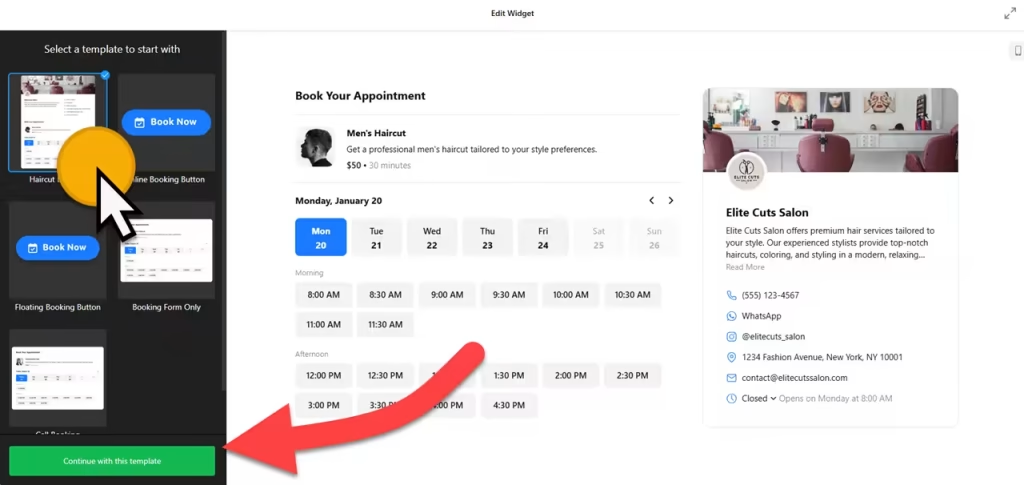
Use the builder below to create a free appointment booking widget for your Wix website. Pick a template and click “Continue with this template” to set up your services and hours.
Salons, personal trainers, tutors, therapists, repair services and other local businesses on Wix often arrange appointments by phone or message. This widget lets clients pick a service and an open time on your site instead, within the hours and booking window you set. Bookings can go to Google Calendar, and email notifications tell you and the client when one comes in. You add it with an Embed HTML element, so no extra Wix app is needed.
How to add an Appointment Booking widget to Wix
1. Create your widget
- Choose a template: for example Call Booking, Floating Booking button or Booking Form Only.
- Add your services: name, short description, image, duration and price. The price can be fixed, free, hidden or a minimum rate, in the currency you choose.
- Set your hours and business details: when people can book, the minimum and maximum advance booking time, and your contact details, website and logo.
- Pick the embed type and connect your tools: an inline form or a floating button; email notifications for you and the client; and Google Calendar, Google Sheets or Zapier.
- Save it: click “Add to website for free“, sign up on the next page and copy your embed code.
2. Add it to your Wix site
- Open your site in the Wix Editor and go to the page for bookings. A dedicated Book Now page works well; add one first if you don’t have it.
- Click Add Elements (+), then Embed Code › Popular Embeds › Embed HTML. In Wix Studio the element is called Embed code.
- Click Enter Code, make sure Code is selected, paste the booking code and click Update.
- Drag the corners of the box until the whole booking form fits, including your list of services and the time slots.
- Switch to the mobile editor and resize the box there too, so clients booking on their phones see the whole form.
- Publish your site, then make a test booking on the live page to check that the notification emails arrive.
Where to put the Appointment Booking widget on your Wix site
- On a dedicated Book Now page linked from your main menu, so the form has the page to itself.
- On your services or price list page, right under the descriptions, for visitors who have just chosen what they want.
- On your homepage, below your services section, so returning clients can book in a few clicks.
- On a contact or location page, next to your address and opening hours.
Do you need a paid Wix plan?
Not for the booking form. The Embed HTML element works on Wix’s free and premium plans, so an inline form can go on any page. The widget’s own free plan covers one widget with up to 200 views a month on unlimited websites, with a small Elfsight link; paid widget plans start at $5 a month, billed yearly.
The floating button is different. Wix runs embedded code inside its own frame, so a floating button pasted into an Embed HTML element stays inside that box instead of following visitors down the page. To show a booking button on every page, add the code under Settings › Custom Code, which Wix offers on premium plans with a connected domain.
Appointment Booking widget features
- Ready-made templates such as Call Booking, Floating Booking button and Booking Form Only.
- Two ways to embed: an inline form on the page or a floating button.
- Services with flexible pricing: duration, image and a fixed, free, hidden or minimum price in your currency.
- Working hours and booking windows, with minimum and maximum advance booking times.
- Email notifications for you and your client, which you can turn on or off.
- Integrations with Google Calendar, Google Sheets and Zapier, plus language settings and custom CSS and JavaScript.
Frequently asked questions
Is the appointment booking widget free on Wix?
Yes. The builder is free, and the free plan includes one widget with up to 200 views a month on unlimited websites, with a small Elfsight branding link. Paid plans start at $5 a month, billed yearly, for more views and no branding.
Do I need a Wix premium plan for online booking?
Not for the inline booking form, which goes into an Embed HTML element on any Wix plan. A floating booking button on every page needs Settings › Custom Code, which requires a premium plan with a connected domain.
Why is the booking form cut off on Wix?
The Embed HTML box is smaller than the form. Click the element in the Wix Editor, drag its corners until the services and time slots fit, then resize it in the mobile editor too and publish again.
Will bookings show up in my Google Calendar?
Yes, if you connect Google Calendar in the widget’s integrations. You can also send bookings to Google Sheets or connect other tools through Zapier.
Can I change my hours or prices later?
Yes. Edit the widget in your Elfsight dashboard and save. The form on your Wix site updates on its own, so you don’t need to paste the code again.
More Wix widgets
- Appointment Booking widget
All templates and features - Wix Business Hours widget
Opening hours with an open-now status - Wix Event Calendar widget
Upcoming events in a calendar or list - Wix Restaurant Menu widget
Your menu with prices and photos - Wix Google Reviews widget
Your Google Business reviews and rating - 20 best Wix widgets
Our roundup of the best apps and widgets for Wix