
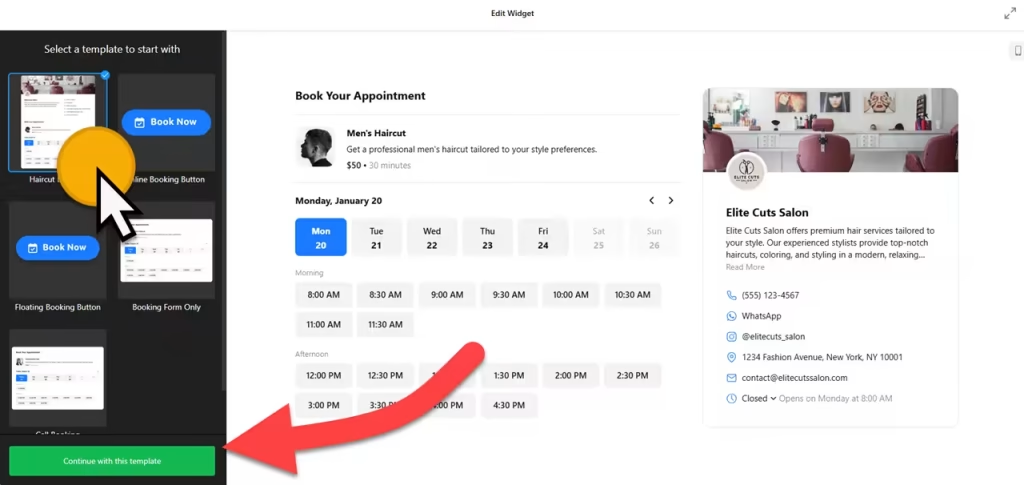
Use the builder below to create a free appointment booking widget for your Webflow website. Pick a template and click “Continue with this template” to set up your services and hours.
Many Webflow sites exist to start a conversation: a SaaS landing page that ends in “book a demo”, an agency site that asks for a discovery call, a consultant’s portfolio. This widget puts the booking step on the page itself, so visitors don’t have to leave your design to pick a time. Start from the Call Booking template, set the call length and the hours you’re available, and connect Google Calendar, Google Sheets or Zapier to send bookings where your team works. Then paste the code into a Code Embed element.
How to add an Appointment Booking widget to Webflow
1. Create your widget
- Choose a template: Call Booking for demos and discovery calls, Booking Form Only for a clean form, or Floating Booking button.
- Set up your services: for example a 30-minute demo and a 60-minute strategy call, each with a description, image, duration and price. Prices can be fixed, free, hidden or a minimum rate.
- Set your availability: your working hours, plus the minimum and maximum advance booking time.
- Connect your tools: add your logo and contact details, choose an inline form or floating button, turn on email notifications, and connect Google Calendar, Google Sheets or Zapier.
- Save it: click “Add to website for free“, sign up on the next page and copy your embed code.
2. Add it to your Webflow site
- Open the page in the Webflow Designer.
- Open the Add panel and drag a Code Embed element into the section where the form should appear, such as the end of a landing page.
- Paste the booking code and click Save & Close.
- Expect an empty box on the canvas: scripts don’t render inside the Designer. Use Preview or publish to see the form.
- Publish the site and make a test booking from the live page.
Where to put the Appointment Booking widget on your Webflow site
- At the bottom of a landing page, after the pitch, using the Call Booking template for demo or sales calls.
- On a Contact or Book a Call page for an agency or studio, with a short note on what the call covers.
- On a pricing page, for visitors who want to talk before they buy.
- As a floating button across the site, so booking is always one click away.
Do you need a paid Webflow plan?
Yes. Webflow’s Code Embed element and custom code require a paid site plan or workspace plan. That includes the footer code area you’d use for a floating booking button on every page: Site settings › Custom code › Footer code.
The widget has its own free plan: one widget, up to 200 views a month on unlimited websites, with a small Elfsight link. Paid widget plans start at $5 a month, billed yearly, for more views and no branding.
Appointment Booking widget features
- Templates such as Call Booking, Floating Booking button and Booking Form Only.
- Inline form or floating button embed types.
- Multiple services, each with its own duration, image and a fixed, free, hidden or minimum price.
- Working hours and advance booking limits so calls land when you’re available.
- Email notifications for you and the person booking.
- Google Calendar, Google Sheets and Zapier integrations, plus language settings and custom CSS and JavaScript.
Frequently asked questions
Which Webflow plan do I need for the booking widget?
A paid site plan or workspace plan. The form goes into a Code Embed element, and Webflow requires one of those plans for Code Embed and custom code.
Why can’t I see the booking form in the Webflow Designer?
Scripts don’t run inside the Designer canvas, so the Code Embed shows as an empty box while you edit. Open Preview or the published site to see the form.
How do I add a floating booking button to every Webflow page?
Choose the floating button embed type in the builder, then paste the code into Site settings › Custom code › Footer code and publish. The button then appears on every page.
Can booked calls go into our team’s tools?
Yes. Connect Google Calendar or Google Sheets in the widget’s integrations, or use Zapier to pass bookings to other apps.
Can I style the form to match my Webflow site?
Yes. Change its appearance in the builder’s customization section, and add custom CSS in the settings for anything else.
More Webflow widgets
- Appointment Booking widget
All templates and features - Webflow Business Hours widget
Opening hours with an open-now status - Webflow Event Calendar widget
Upcoming events in a calendar or list - Webflow Restaurant Menu widget
Your menu with prices and photos - Webflow Google Reviews widget
Your Google Business reviews and rating - How to add embed code to any website
Where to paste widget code on every website builder