
Use the builder below to create a free AI chatbot for your Squarespace website. Enter your website’s address and click “Create” to set up an assistant that learns from your content.
Photographers, coaches, designers, studios and consultants on Squarespace get a steady stream of the same client questions: what packages cost, how the process works, whether you travel, how soon you can start. An AI chatbot answers them from your own content, at any hour. You train it on your site, your pricing guide or welcome PDF and your common questions. Then you add it with a Code Block, or with Code Injection to cover every page.
How to add an AI Chatbot widget to Squarespace
1. Create your widget
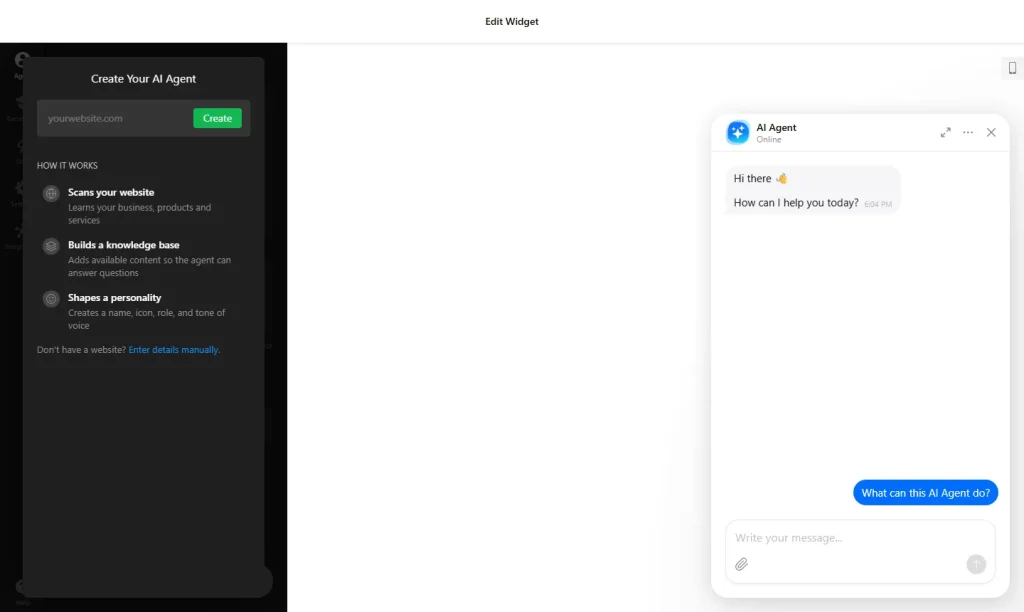
- Create your agent: enter your Squarespace site’s address and click “Create“. The builder scans the site, builds a knowledge base and gives the agent a name, icon, role and tone of voice. No site yet? Click “Enter details manually” and describe your business in a couple of lines.
- Train it with your own material: upload a pricing guide, welcome packet or FAQ document (PDF, DOCX, PPTX, TXT, JSON, HTML or MD), add common questions and answers, and write about your services.
- Set the tone in the Agent tab: choose its role, tone of voice and answer length, write a greeting with suggested questions, and add conversation rules for how to handle client questions.
- Add skills in the Skills tab: a lead form, action buttons, a follow-up message when a visitor goes quiet, handoff to a person by email, call or WhatsApp, and bookings through Calendly or Cal.com.
- Style and save it: in Settings, choose a floating bubble, floating input or embedded chat window and a theme and colors that suit your template, then click “Add to website for free“, sign up and copy your embed code.
2. Add it to your Squarespace site
- Check your plan first: JavaScript needs Core or above on current plans, or Business or above on older ones.
- Edit the page, click an Add Block point (+) and choose Code.
- Paste the chatbot code, set the mode to HTML and turn off Display Source.
- To show the chatbot on every page instead, paste the code under Settings › Advanced › Code Injection.
- Save and check the live site by asking the chatbot a real client question.
Where to put the AI Chatbot widget on your Squarespace site
- On your Services or Pricing page, where clients compare packages and ask what’s included.
- On your Contact or Inquiry page, to answer quick questions before someone fills in the form.
- On a class, workshop or booking page for studios, covering schedules, cancellations and what to bring.
- Site-wide through Code Injection, so visitors can ask from your portfolio, galleries or blog too.
Do you need a paid Squarespace plan?
Yes. Squarespace runs plain HTML in a Code Block on every plan, but JavaScript in a Code Block needs a higher-tier paid plan: Core or above on current plans, Business or above on older ones. The chatbot loads with a script, so on a plan without JavaScript the block shows nothing, and Squarespace doesn’t show an error.
Code Injection, the site-wide option, has the same requirement. The chatbot’s free plan includes 50 messages a month and 10 million characters of knowledge storage, with a small Elfsight link; the chatbot pauses when the monthly limit is reached, and paid plans include more messages.
AI Chatbot widget features
- Learns from your site: give it your URL and it works out what your business does. You can also add details manually.
- Document training: PDF, TXT, JSON, DOCX, PPTX, HTML and MD files, plus questions and answers and free text about your services.
- Agent settings: role, tone of voice, answer length and conversation rules for what it should or shouldn’t say.
- Skills: lead forms, action buttons, follow-up messages, handoff to a person, and bookings through Calendly or Cal.com.
- Replies in the visitor’s language and remembers earlier messages in the chat.
- Floating bubble, floating input or embedded chat window, with themes and colors to suit your Squarespace template.
Frequently asked questions
Which Squarespace plan do I need for the AI chatbot?
A plan that allows JavaScript: Core or above on current plans, or Business or above on older plans. This applies to both Code Blocks and Code Injection.
Why doesn’t the chatbot show on my Squarespace site?
Most often the plan doesn’t allow JavaScript, so the script is skipped without an error. Also check that the Code Block is set to HTML, that Display Source is off, and test on the live site.
Can I train the chatbot on my pricing guide or welcome PDF?
Yes. Upload PDF, DOCX, PPTX, TXT and other files in the Knowledge tab, add common questions and answers, and describe your services in text.
Can the chatbot appear on every Squarespace page?
Yes. Paste the code under Settings › Advanced › Code Injection instead of a Code Block. It needs the same plan as JavaScript in Code Blocks.
Do I need to re-paste the code after changing the chatbot?
No. Edit the chatbot in your Elfsight dashboard and save. Your Squarespace site picks up the changes on its own.
More Squarespace widgets
- AI Chatbot widget
All templates and features - Squarespace WhatsApp Chat widget
A WhatsApp chat button or bubble - Squarespace Contact Form widget
A simple contact form - Squarespace Google Reviews widget
Your Google Business reviews and rating - Squarespace Instagram Feed widget
Your latest Instagram posts and reels - 25 best Squarespace widgets
Our roundup of plugins and widgets for Squarespace