
Visitors don’t believe what you say about yourself. They believe what other customers say about you. That’s social proof: reviews, ratings, testimonials, client logos, and real results that tell a new visitor, “people like you chose this, and it worked out.”
Most businesses already have plenty of it, sitting on Google, Facebook, TripAdvisor, or in thank-you emails. The problem is that it isn’t on the website, where people decide. This guide shows 9 ways to put social proof on your site, which one fits which page, and the rules that keep it honest and effective.
In this guide
- The 9 ways at a glance
- 1. Show your Google reviews
- 2. Add a rating badge next to your buttons
- 3. Combine reviews from every platform
- 4. Feature written testimonials with names and photos
- 5. Let customers say it on video
- 6. Show the logos of clients and press
- 7. Let the numbers speak
- 8. Prove it with before-and-after results
- 9. Show customer photos and social posts
- Where to put social proof
- 7 rules for social proof that works
- How to add these widgets to your website
- Frequently asked questions
- Start with the proof you already have
The 9 ways at a glance
| # | Type of proof | Best for | Free builder |
|---|---|---|---|
| 1 | Google reviews | Local businesses and services | Google reviews |
| 2 | Rating badge | Headers, buttons, checkout | Google rating badge |
| 3 | Reviews from every platform | Businesses reviewed on several sites | All-in-one reviews |
| 4 | Written testimonials | Services, B2B, coaches, agencies | Testimonials slider |
| 5 | Video testimonials | High-price or high-trust purchases | YouTube gallery |
| 6 | Client and press logos | B2B, agencies, startups | Logo showcase |
| 7 | Numbers | Any business with a track record | Number counter |
| 8 | Before-and-after results | Renovation, beauty, design, fitness | Before-and-after slider |
| 9 | Customer photos and posts | Shops, restaurants, travel, events | Instagram feed |
1. Show your Google reviews
For most local and service businesses, Google is where the reviews already are, and Google reviews carry weight because visitors know you can’t write them yourself. A Google reviews widget pulls them from your Business Profile and shows them on your site as a carousel, grid, list, slider or review wall. New reviews appear automatically, so the section never goes stale.
Two features worth turning on: owner replies, which show that you listen, and the AI-generated summary, which sums up what customers mention most (“friendly staff, fast delivery”) for visitors who won’t read ten reviews.
Platform guides: Wix, Squarespace, Shopify, WordPress, Google Sites, Elementor, or the iframe version for builders that block scripts.
2. Add a rating badge next to your buttons
A full review carousel takes space. A badge that says ★ 4.9 from 1,240 Google reviews takes one line and can go exactly where people hesitate: under the “Book now” button, in the header, or below a checkout form.
The Google rating badge can also open the full reviews when clicked, so curious visitors can dig in without leaving the page. Choose the floating badge layout to keep it in a corner of every page.
3. Combine reviews from every platform
If your customers review you on Google, Facebook, TripAdvisor and an industry site, showing only one of them leaves proof on the table. An all-in-one reviews widget pulls from 50+ review platforms into one feed, and can group reviews by platform so visitors see where each one came from. Not sure which platform to lead with? See Google vs Facebook vs Trustpilot reviews.
Selling on a marketplace or in hospitality? There are dedicated widgets for the platforms where your buyers actually review you:
| You sell on or through | Show reviews with |
|---|---|
| Amazon | Amazon reviews widget |
| Etsy | Etsy reviews widget |
| eBay | eBay reviews widget |
| AliExpress | AliExpress reviews widget |
| Airbnb | Airbnb reviews widget |
| Booking.com | Booking.com reviews widget |
| Apple App Store | App Store reviews widget |
| Google Play | Google Play reviews widget |
4. Feature written testimonials with names and photos
Some of your best proof never makes it to a review site: a thank-you email, a LinkedIn message, a comment after a project. Ask the customer if you can quote them, then show it with a testimonials slider. Each testimonial can include a star rating, name, job title or caption, profile photo, company logo, and a link to their website or social profile.
A full name, photo, and company make a testimonial far more believable than “— J., happy customer.” For your strongest stories, the Customer Story template gives one client more room: the problem, what you did, and the result.
Platform guides: Wix, Squarespace, Shopify, Webflow, and WordPress.
5. Let customers say it on video
Video is the hardest testimonial to fake, which is exactly why it persuades. You hear the customer’s voice, see their face, and get the details a short review leaves out. It’s worth the effort for purchases where trust matters most: renovations, courses, B2B software, medical and legal services.
Upload the videos to a YouTube playlist and show them with a YouTube gallery widget. When you add a new testimonial to the playlist, it appears on your site too. Keep each video short; one to two minutes is plenty. Hosting them on Vimeo instead? Use a Vimeo gallery, or a video gallery to mix videos from several platforms.
6. Show the logos of clients and press
A row of recognizable logos says “other companies trust us” in about one second. It’s standard on B2B and agency sites for good reason. A logo showcase widget displays them as a scrolling ticker, carousel or grid, with ready-made templates such as Trust Index and Featured in Media for press mentions. Each logo can link to a case study.
Only show logos you have permission to use, and only of real clients or real press coverage. A logo of a company you once sent a quote to is not social proof.
7. Let the numbers speak
“2,500 kitchens installed.” “12 years in business.” “98% of orders shipped the same day.” Specific numbers are proof in compact form. An animated number counter makes them stand out on a homepage or About page, with an icon, prefix, and caption for each figure.
Use numbers you can back up, and keep them current. The counter can even read live values from a JSON link, so a figure like “orders delivered” can update itself.
8. Prove it with before-and-after results
For any business that changes how something looks, the result is the testimonial. A before-and-after slider lets visitors drag a handle across two photos of the same bathroom, garden, haircut, logo or website. It’s interactive, so people actually engage with it, and it shows your work instead of describing it.
Take both photos from the same angle and in similar light, and get the client’s permission before publishing photos of their home or face. Squarespace and WordPress users can follow the Squarespace and WordPress guides.
9. Show customer photos and social posts
Real customers using your product, eating at your tables, or wearing your designs are proof that looks nothing like an ad. If you share or repost customer content on Instagram, an Instagram feed widget brings it onto your website automatically. A social feed combines several networks in one stream, and a Facebook feed works well if your community is there.
Where to put social proof
The same review can be convincing on one page and invisible on another. The rule of thumb: put proof next to the moment someone decides, and match it to what they’re deciding.
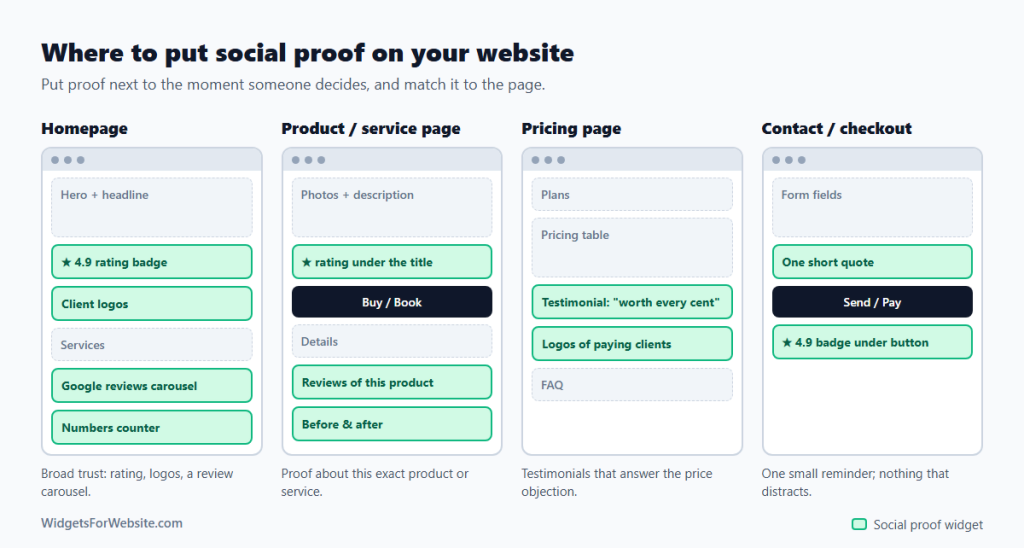
- Homepage: broad trust. A rating badge near the top, client logos, a Google reviews carousel, and a few headline numbers.
- Product or service pages: proof about that exact product or service. A star rating under the title, reviews that mention it, and before-and-after photos.
- Pricing page: testimonials that answer the price question (“it paid for itself in a month”) and logos of paying clients. See our pricing table widget for the table itself.
- Contact form or checkout: one short quote or a rating badge right next to the button. Nothing bigger, because at this point anything that distracts costs you the sale.
7 rules for social proof that works
- Specific beats generic. “They fixed our leaking roof in one afternoon” sells; “Great service!” doesn’t. When you ask for testimonials, ask what problem they had and what changed. These testimonial questions are sorted by the kind of answer each one brings.
- Real people, with permission. Use real names, photos and companies, and ask before you publish them. Privacy laws such as the GDPR may require consent to show someone’s name or photo.
- Don’t hide every negative review. A wall of only five-star reviews looks curated, and a 4.7 rating often feels more believable than a perfect 5.0. Use filters to remove spam or offensive posts, not honest criticism, and reply to the critical ones.
- Never fake it. Invented reviews, paid reviews posing as customers, and testimonials from people who don’t exist are illegal in many countries. In the US, the FTC’s rule on fake reviews and testimonials has been in force since October 2024 and allows fines per violation. In the EU, businesses must tell consumers whether and how they check that reviews come from real customers.
- Keep it fresh. A testimonial dated 2019 raises the question of what happened since. Widgets connected to Google or other platforms update on their own; review manual testimonials every few months.
- Match the proof to the visitor. A restaurant guest wants Google reviews and food photos; a company buying software wants logos and case studies. For ideas by industry, see 8 website widgets every restaurant needs.
- Don’t overload the page. Three strong pieces of proof in the right places beat ten widgets fighting for attention, and every embed adds a little to load time.
How to add these widgets to your website
Each widget above works the same way: pick a template in the builder, connect your review source or add your testimonials, customize the look, and copy the embed code. Then paste it into your website builder’s HTML or code element. Our guide on how to add embed code to any website builder shows where that is on Wix, Squarespace, Shopify, Webflow, WordPress and Google Sites.
Frequently asked questions
What’s the difference between reviews and testimonials?
Reviews are posted by customers on an independent platform such as Google, Facebook or TripAdvisor, which makes them harder to fake and more credible. Testimonials are quotes you collect yourself and choose to show. Use both: reviews for credibility, testimonials for detailed stories that answer specific doubts.
Should I show negative reviews on my website?
You don’t have to feature them, but avoid filtering out everything below five stars. A few honest, critical reviews with a calm reply from you make the rest more believable. Filter out spam and abuse, not fair criticism.
Will a reviews widget give me star ratings in Google search?
Usually not for reviews of your business as a whole. Since 2019, Google doesn’t show review stars in search results for reviews a business displays about itself on its own website. Product pages can still qualify for review snippets in some cases, so keep the widget’s Schema.org markup option on, but treat stars in search as a bonus, not the goal.
Do I need permission to use a customer’s testimonial?
Yes, ask first, especially if you show their full name, photo or company. A short “Can we quote you on our website?” email is enough, and keep the reply. This guide on how to ask a customer for a testimonial has wording you can copy. Reviews shown through a widget that pulls from a public platform like Google are already public, but the platform’s own terms still apply.
Do review widgets update automatically?
Widgets connected to a platform, such as Google reviews, the all-in-one reviews widget or the Instagram feed, pick up new content on their own. Testimonials you add by hand stay as they are until you edit them in the widget builder; the embed code on your site never needs to change.
Start with the proof you already have
You don’t need to collect anything new to begin. If you have Google reviews, add a free Google reviews widget to your homepage and a rating badge next to your main button today. Then work through the list, or browse all 90+ free HTML widgets.
Build your first widget for free
Pick a template, customize it in your browser and paste the code into your website. The free plan covers one widget with up to 200 views a month.
Browse all 85 widgets