
Use the widget builder below to create your Testimonials Slider widget for free. Select a template and click “Continue with this template” button to get started.
Step-by-step guides: Wix Squarespace WordPress Shopify Webflow Google Sites
How to use the Customer Testimonials Slider Generator
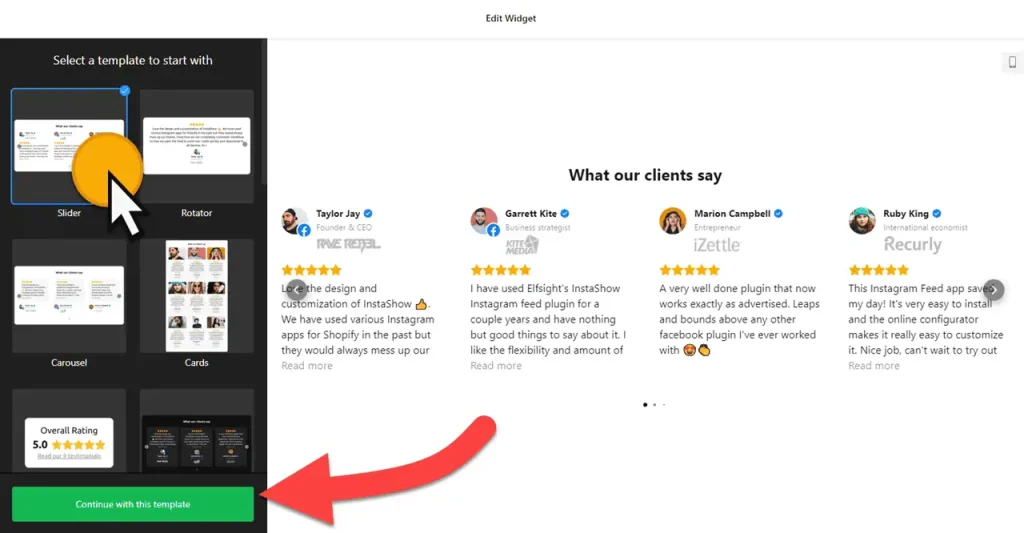
- Choose a template: Select a preferred template and click the “Continue with this template” button. Some available templates are Slider, Rotator, Carousel, Cards, Badge, Customer Story, List, and Slider without Star Ratings.
- Add testimonials: Click on “Add Testimonial” to add your customer testimonial. You can include a star rating, the reviewer’s name, a caption, the date reviewed, the reviewer’s profile picture, their social profile URL, website URL, and logo, as well as add relevant photos. Order testimonials by dragging and dropping their placement on the list. No testimonials yet? Start with questions to ask your customers.
- Layout settings: You can choose a different layout for your customer testimonials slider. There are seven options: Carousel, Grid, Masonry, List, Slider, Badge, and Floating Badge. You can also customize the layout and set the maximum width for the widget.
- Testimonial settings: Select a testimonial card style and control the visibility of items in the testimonial, such as star rating and dates, in this section.
- Change appearance: Select a color scheme and accent color to customize the appearance of the testimonials slider’s elements. If any customization is unavailable on the editing panel, use the custom CSS field.
- Settings include language, Schema.org markups, and custom JavaScript.
- Once you’ve customized the customer testimonials widget, click the “Add to website for free” button. This will allow you to add a customer testimonials carousel to your website at no cost. You will also need to register to save your changes.
The Customer Testimonial Slider’s HTML embed code
Insert the embed code into your website’s template, theme, or HTML source code editor where you want the testimonials slider to appear.
How to manage your testimonial widgets
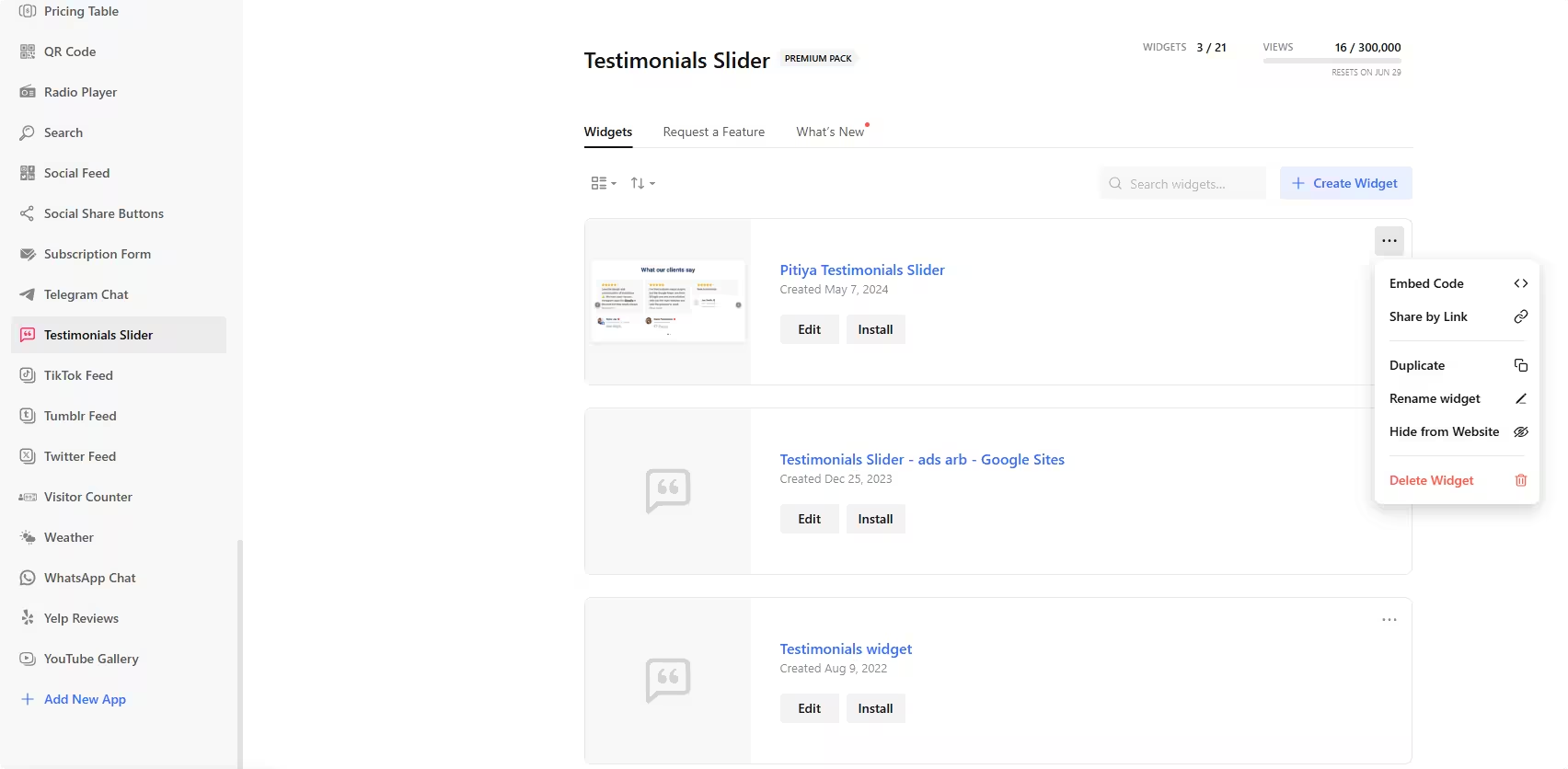
Once you have created your testimonial widget for your website, you can easily manage it on your account. In your dashboard, search for the “Testimonial Slider” app under the list of apps. As you can see from the following screenshot, you can create more customer review widgets, edit existing ones, and get HTML embed code.
More review widgets
- All-in-One Reviews widget
Reviews from 50+ platforms in one feed - Google Reviews widget
Your Google Business reviews and rating - Facebook Reviews widget
Recommendations from your Facebook Page - Yelp Reviews widget
Yelp reviews with star ratings - Tripadvisor Reviews widget
Guest reviews for hotels and restaurants - Airbnb Reviews widget
Guest reviews from your Airbnb listings