
Use the widget builder below to create your free website translator widget. Select a template and click “Continue with this template” to get started.
Add a language switcher that translates your website into 100+ languages. No coding needed, and visitors can change the language with one click.
How to use the Website Translator widget builder
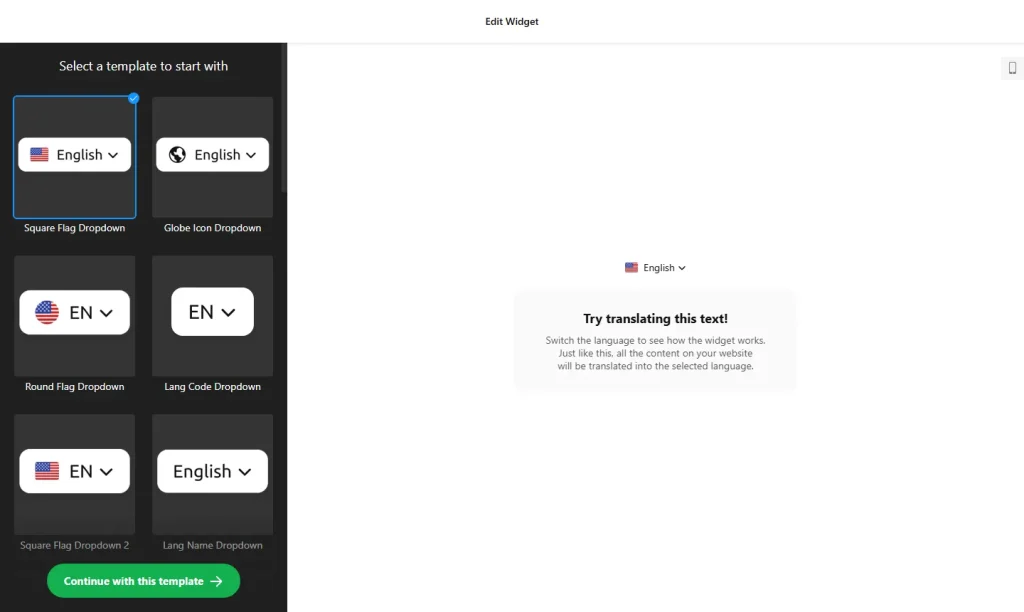
- Choose a template: Pick a language switcher design in the builder above and click “Continue with this template”. You can change the style later.
- Select languages: Choose which languages visitors can switch to. More than 100 languages are supported.
- Choose the position: Place the switcher inline in a section of your page or show it as a floating button that stays visible while visitors scroll.
- Pick a style and size: Select one of 22 predefined switcher styles and one of three sizes, then adjust colors and fonts to match your brand.
- Exclude text from translation: Mark page elements or words that must stay in the original language, such as your brand name or product names.
- Adjust the settings: Connect Google Analytics to track language changes, and use the custom CSS and JavaScript fields if you need advanced tweaks.
- Save your widget: Click “Add to website for free” and sign up on the next page to save your widget.
- Copy the embed code: Paste it into your website, ideally on every page, so visitors can switch languages wherever they are.
Key features of the Website Translator widget
- 100+ languages: Offer your content in all popular languages from a single switcher.
- Context-aware translation: Google’s translation engine translates the meaning of sentences, so idioms and common phrases still make sense.
- Whole-site coverage: Pages, menu items, notifications, blog articles and checkout pages can all be translated.
- Remembers each visitor’s choice: Once a visitor picks a language, the widget keeps it as they browse.
- Translation exclusions: Keep chosen elements and words in the original language. Email addresses are never changed.
- Flexible design: 22 switcher styles, three sizes, inline or floating placement, and custom colors and fonts.
- Page-speed friendly: The widget uses lazy loading and works on desktop, tablet and phone screens.
- Google Analytics events: Track when visitors open the language list and when they change the language.
When to use a website translator widget
People are more likely to stay, ask questions and buy when they can read your content in their own language. A translator widget is a quick way to welcome international visitors without building and maintaining a separate website for each language. It works well for:
- Online stores that ship to other countries
- Hotels, tour operators and other travel businesses
- Local businesses in areas where several languages are spoken
- Schools, nonprofits and community groups with international members
Good to know: the widget translates your content for visitors who choose a language. If you need your pages to rank in search results in other languages, separate language versions of those pages are the more reliable approach. Many sites use both: translated pages for their main markets and the widget for everyone else. Automatic translation can also make mistakes, so have a native speaker check important pages such as terms of sale.
How to add the Website Translator widget to your website
After you save the widget, Elfsight gives you a short embed code. Paste it into a custom HTML or embed block, or into your site-wide header or footer code so the switcher appears on every page. It works on WordPress, Wix, Squarespace, Shopify, Webflow, Google Sites and any other website that accepts custom HTML. For step-by-step instructions for each platform, see our guide on how to add embed code to any website builder.
Visitors notice the switcher most easily in the header, next to the main menu, or as a floating button in a bottom corner of the screen.
How to manage your Website Translator widget
Log in to your Elfsight dashboard to edit your widget at any time, for example to add a language or update your exclusions. Changes go live automatically, so you don’t need to replace the embed code on your website. From the dashboard you can also create more widgets, copy the embed code again and see how many views your widget has used this month.
Frequently asked questions
Is the website translator widget free?
Yes. Elfsight’s free plan includes one widget with up to 200 views per month on unlimited websites, with a small Elfsight branding link. Paid plans start at $5 per month (billed yearly) and add more views and remove the branding.
How many languages does the website translator support?
More than 100. You choose which languages appear in the language switcher on your website.
Which translation engine does the widget use?
It uses Google’s translation engine, which looks at the context of each sentence so idioms and phrases keep their meaning instead of being translated word for word.
Can I keep some text in the original language?
Yes. You can exclude specific page elements or text fragments, such as brand or product names, from translation. Email addresses are never changed.
Will the translated versions of my pages rank in Google?
Don’t rely on the widget for multilingual SEO. It translates your content for visitors who pick a language. If you need pages to rank in other languages, separate language versions of those pages are the more reliable approach.
More widgets for your website
- AI Chatbot widget
Answer visitor questions 24/7 - Cookie Consent widget
Show a cookie notice and collect consent - Announcement Bar widget
Share news and offers at the top of your site - How to add widgets to Wix websites
- Accessibility widget
Let visitors adjust text size, colors and spacing - FAQ widget
Answer common questions in an accordion