
Use the widget builder below to create your free accessibility widget. Select a template and click “Continue with this template” to get started.
Add an accessibility toolbar that lets visitors adjust text size, colors, spacing and more to suit their needs. No coding needed.
How to use the Accessibility widget builder
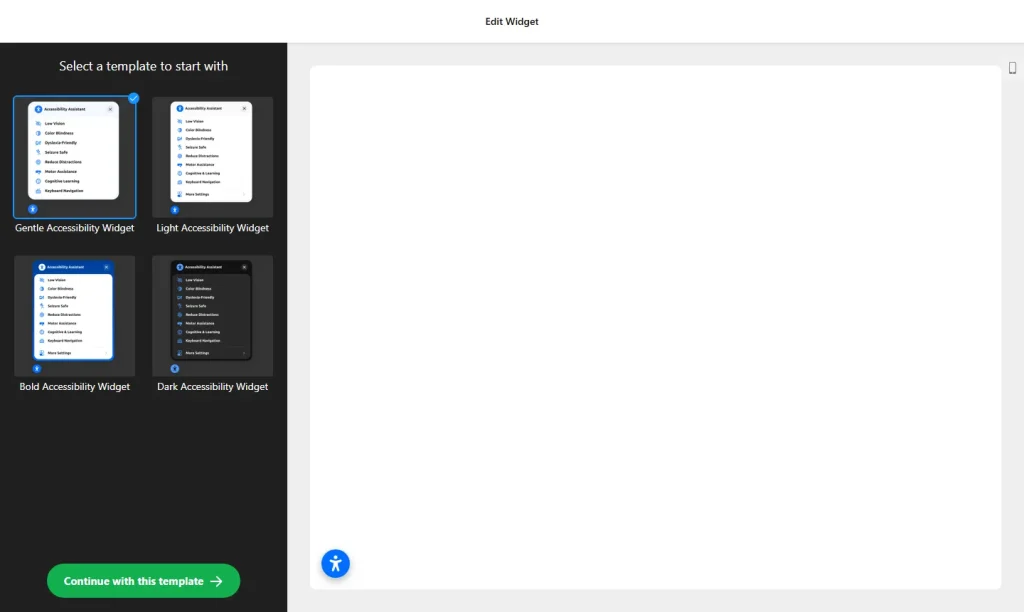
- Choose a template: Pick a design in the builder above and click “Continue with this template”. You can change the settings later.
- Choose accessibility modes: Turn on the preset modes you want to offer, such as Low Vision, Color Blindness, Dyslexia-Friendly and Seizure Safe. Each mode applies several adjustments at once.
- Select tools: Decide which individual adjustments visitors can use, like text size, line spacing, readable fonts and color filters.
- Set languages: Choose the languages the toolbar should use, so international visitors can understand it.
- Style the button: Customize the accessibility button and choose where it sits on the screen.
- Run the accessibility check: Enter your website URL in the builder to scan your page. You get a score, recommendations and a report you can download.
- Save your widget: Click “Add to website for free” and sign up on the next page to save your widget.
- Copy the embed code: Paste it into your website so the toolbar appears on every page you want.
Key features of the Accessibility widget
- 8 preset modes: One-click profiles like Low Vision, Color Blindness, Dyslexia-Friendly and Seizure Safe that apply several adjustments together.
- Text adjustments: Visitors can increase text size, adjust line spacing and switch to high-contrast or dyslexia-friendly fonts.
- Color filters: Grayscale, inverted colors, saturation filters and high-contrast modes, with active settings clearly shown.
- Keyboard navigation support: Helps people who browse without a mouse move through your pages.
- Built-in accessibility check: A Lighthouse-based scan shows your page’s accessibility score and recommendations, with a downloadable report.
- Score badge: Optionally display your accessibility score inside the toolbar.
- Remembers preferences: Selected modes and settings can be saved with cookies, so returning visitors don’t have to set them again.
- Localized toolbar: The widget is localized for 76 countries, so visitors can use it in their own language.
Who benefits from an accessibility widget?
Many visitors find standard websites hard to read or use: people with low vision or color blindness, people with dyslexia, older visitors, and anyone who navigates with a keyboard. An accessibility toolbar lets each visitor change how your site looks to fit their needs, instead of leaving. It is a good addition for:
- Local businesses, clinics and service providers with a broad audience
- Online stores that want more visitors to complete their purchase
- Schools, non-profits and community organizations
- Agencies that want to offer clients an easy accessibility upgrade
Important: An accessibility widget helps visitors, but it does not make a website compliant with WCAG, the ADA or the European Accessibility Act on its own. Compliance also depends on your site’s code and content, for example alt text on images, clear headings, labeled form fields, enough color contrast in your design and menus that work with a keyboard. Use the built-in check to find issues, fix them on your site, and treat the widget as an extra layer of support rather than a replacement.
How to add the Accessibility widget to your website
After you save the widget, Elfsight gives you a short embed code. Because the toolbar should be available on every page, the best place for it is your site-wide footer or header code area. It works on WordPress, Wix, Squarespace, Shopify, Webflow, Google Sites and any other website that accepts custom HTML. For step-by-step instructions for each platform, see our guide on how to add embed code to any website builder.
Since the widget can remember visitor preferences with cookies, check that your cookie consent banner and privacy policy cover it.
How to manage your Accessibility widget
Log in to your Elfsight dashboard to edit your widget at any time. Changes go live automatically, so you don’t need to replace the embed code on your website. From the dashboard you can also create more widgets, copy the embed code again and see how many views your widget has used this month.
Frequently asked questions
Is the accessibility widget free?
Yes. Elfsight’s free plan includes one widget with up to 200 views per month on unlimited websites, with a small Elfsight branding link. Paid plans start at $5 per month (billed yearly) and add more views and remove the branding.
Does an accessibility widget make my website ADA or WCAG compliant?
Not on its own. The widget gives visitors tools to adjust your site, but compliance also depends on your code and content, such as alt text, headings, form labels, color contrast and keyboard-friendly menus. Use the built-in check to find issues and fix them on your site.
Which accessibility modes are included?
The toolbar includes 8 preset modes, such as Low Vision, Color Blindness, Dyslexia-Friendly and Seizure Safe. Each mode applies several adjustments at once.
How does the accessibility check work?
Enter your website URL in the builder and it runs a Lighthouse-based scan of your page. You get an accessibility score, recommendations and a report you can download.
Are visitor preferences saved?
Yes. Selected modes and settings can be saved with cookies, so they are restored when the visitor comes back.
More widgets to improve your website
- Cookie Consent widget
Tell visitors how your site uses cookies - Back to Top button
Help visitors return to the top of long pages - Age Verification widget
Add an age gate to restricted content - How to add custom HTML or embed code to any website builder
- Website Translator widget
Let visitors read your site in their language - FAQ widget
Answer common questions in an accordion