
Use the widget builder below to create your free PayPal button. Select a template and click “Continue with this template” to get started.
Let visitors pay for a product, start a subscription or send a donation through PayPal, right from your website. No coding needed.
How to use the PayPal Button generator
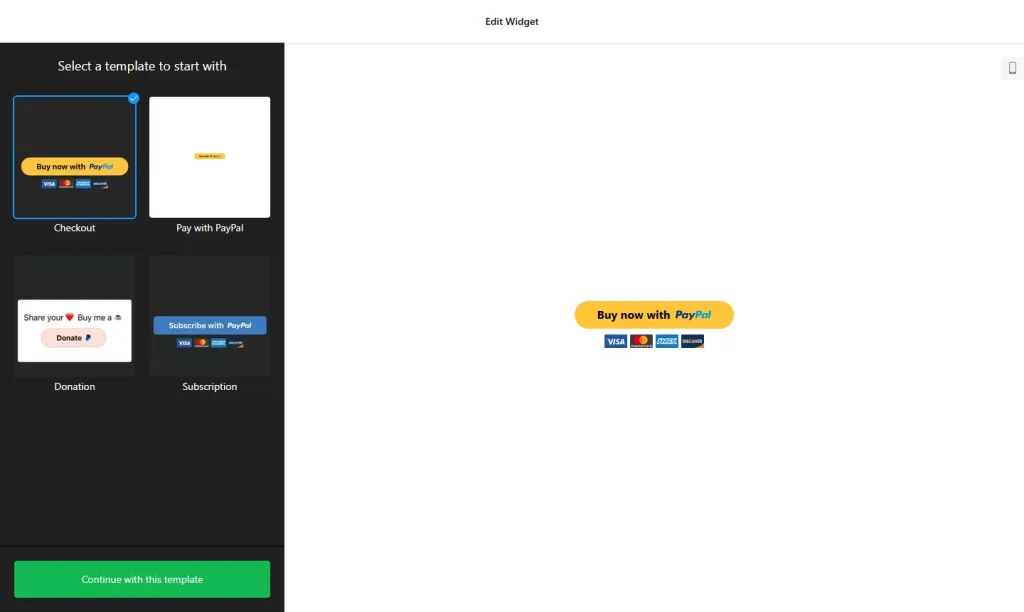
- Choose a template: Pick a design in the builder above and click “Continue with this template”. You can change the button type and style later.
- Pick the payment type: Choose a one-time payment, a subscription with its billing period, or a donation.
- Add the item details: Set the item name and price. You can also add tax and shipping as a fixed amount or a percentage, and both are included in the PayPal checkout total.
- Set the currency and language: Choose the country and language of your audience and the currency for your prices, tax and shipping.
- Add a thank-you page: Enter a redirect URL so buyers land on your own confirmation page after a successful payment.
- Style the button: Adjust the size, width, shape, colors, border and corner radius, edit the button text, and show or hide card icons under the button.
- Save your widget: Click “Add to website for free” and sign up on the next page to save your widget.
- Copy the embed code: Paste it into your website where you want the PayPal button to appear.
Key features of the PayPal Button widget
- Three button types: Accept one-time purchases, recurring subscriptions or donations, each with its own settings.
- Flexible donations: Set a fixed donation amount, or choose the Optional donation type so donors can enter their own amount.
- Tax and shipping: Add them as fixed amounts or percentages, and PayPal includes them in the total at checkout.
- Currencies and languages: Choose the currency and language that match your audience for every button type.
- Redirect after payment: Send buyers to a thank-you or confirmation page of your choice.
- Card icons: Show Visa, Mastercard, American Express and Discover icons under the button to reassure buyers, or hide them.
- Custom design: Change the button text, size, shape and colors, including the color of the PayPal icon, so it matches your website.
When to use a PayPal button on your website
A PayPal button lets people pay you without a full online store or a long checkout form. Most shoppers already know PayPal, so they can pay in a few clicks, and the money goes to your PayPal account. It works well for:
- Selling a single product, ebook, course or service from a landing page
- Memberships, classes and other subscription fees
- Donations for non-profits, creators and community projects
- Deposits, event tickets and booking fees
Good to know: PayPal processes every payment, so PayPal’s own terms and any transaction fees apply. Check them in your PayPal account before you start selling. If you offer several plans, show them side by side with the Pricing Table widget first, then add a PayPal button for each plan.
How to add the PayPal button to your website
After you save the widget, Elfsight gives you a short embed code. Paste it into a custom HTML or embed block where you want the button to show. It works on WordPress, Wix, Squarespace, Shopify, Webflow, Google Sites and any other website that accepts custom HTML. For step-by-step instructions for each platform, see our guide on how to add embed code to any website builder.
Good places for a PayPal button are your product or service pages, your pricing page, a dedicated donation page, and the end of blog posts if you accept tips.
How to manage your PayPal Button widget
Log in to your Elfsight dashboard to edit your widget at any time, for example to change a price, the currency or the button style. Changes go live automatically, so you don’t need to replace the embed code on your website. From the dashboard you can also create more widgets, copy the embed code again and see how many views your widget has used this month.
Frequently asked questions
Is the PayPal button generator free?
Yes. Elfsight’s free plan includes one widget with up to 200 views per month on unlimited websites, with a small Elfsight branding link. Paid plans start at $5 per month (billed yearly) and add more views and remove the branding.
What types of payments can I accept with the PayPal button?
You can create buttons for one-time purchases, recurring subscriptions or donations, and pick the type that fits your product or fundraiser.
Can I add tax and shipping to the payment?
Yes. Tax and shipping can be set as fixed amounts or percentages, and they are added to the total at PayPal checkout.
Can donors choose their own donation amount?
Yes. Choose the Optional donation type and visitors can enter their own amount. You can also set a fixed donation amount instead.
Can I send buyers to a thank-you page after they pay?
Yes. Add a redirect URL and buyers are sent to your own thank-you or confirmation page after a successful payment.
More widgets for selling online
- Pricing Table widget
Compare your plans and prices side by side - Button widget
Create custom call-to-action buttons - Calculator widget
Let visitors estimate a price before they buy - Sales Notification popup
Show recent purchases as social proof