
Use the widget builder below to create your free timeline widget. Select a template and click “Continue with this template” to get started.
Show your company history, project milestones or event plan as a vertical or horizontal timeline. Add dates, images and buttons to each step. No coding needed.
How to use the Timeline widget builder
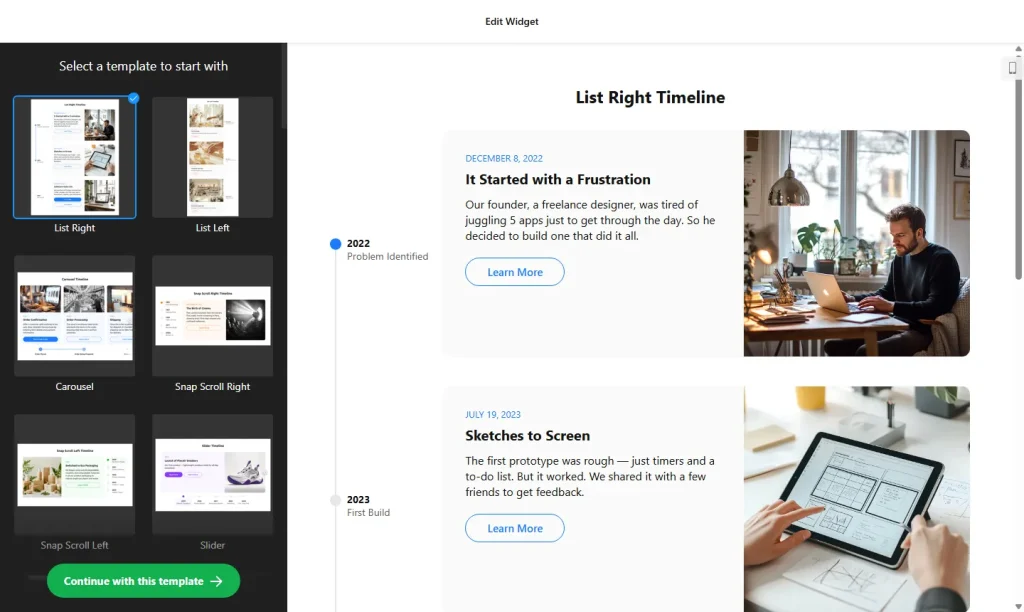
- Choose a template: Pick a design in the builder above, such as History Timeline, Milestone Timeline, Horizontal Timeline, Progress Tracker or Travel Itinerary, and click “Continue with this template”. You can also start from scratch.
- Add your events: Add a step for each milestone and give it a title, date, description and image. Add as many events as you need and arrange them in order.
- Set the date format: Show just the year, a full date or a date range, depending on how detailed your story is.
- Choose the layout: Arrange events vertically, which works well on phones, or horizontally across the page.
- Add buttons: Give an event a button that opens another page or a popup with more details.
- Style the timeline: Use the color scheme generator (pick your brand color and light or dark mode) or set titles, background, icons, markers and dates one by one.
- Save your widget: Click “Add to website for free” and sign up on the next page to save your widget.
- Copy the embed code: Paste it into your website where you want the timeline to appear.
Key features of the Timeline widget
- Vertical and horizontal layouts: Choose the direction that fits your page and the length of your story.
- Rich events: Each event can include a title, description, date, image and button, so you don’t need separate embeds.
- Flexible dates: Use a year, a full date or a range for each event.
- Icons and markers: Pick icons, marker shapes and colors to make important moments stand out.
- Scroll animations: Events can appear one by one as visitors scroll, which keeps long timelines easy to follow.
- Ready-made templates: Start from templates for company history, milestones, progress tracking, travel plans and more.
- Live editor: See every change right away in the builder before you add the widget to your site.
When to use a timeline on your website
A timeline turns a list of dates into a story visitors can follow at a glance. It helps people understand how long you’ve been around, what you’ve achieved and what comes next. Common uses:
- Company history and milestones on your About page
- Project phases, product roadmaps and progress updates
- Event programs, wedding days and travel itineraries
- Schools, non-profits and personal portfolios showing key moments
Tip: Keep each event short: a date, a clear title and one or two sentences. If a milestone needs more explanation, add a button that links to a page with the full story.
How to add the Timeline widget to your website
After you save the widget, Elfsight gives you a short embed code. Paste it into a custom HTML or embed block where you want the timeline to show. It works on WordPress, Wix, Squarespace, Shopify, Webflow, Google Sites and any other website that accepts custom HTML. For step-by-step instructions for each platform, see our guide on how to add embed code to any website builder.
A timeline usually fits best on your About page, a project or case study page, or the landing page for an event. On long pages, turn on the scroll animations so events appear one by one, and use the vertical layout if most of your visitors are on phones, since it fits small screens best.
How to manage your Timeline widget
Log in to your Elfsight dashboard to edit your widget at any time, for example to add a new milestone. Changes go live automatically, so you don’t need to replace the embed code on your website. From the dashboard you can also create more widgets, copy the embed code again and see how many views your widget has used this month.
Frequently asked questions
Is the timeline widget free?
Yes. Elfsight’s free plan includes one widget with up to 200 views per month on unlimited websites, with a small Elfsight branding link. Paid plans start at $5 per month (billed yearly) and add more views and remove the branding.
Can I make a horizontal timeline?
Yes. You can choose a vertical or a horizontal layout and arrange your events in chronological order.
What can each timeline event include?
Each event can have a title, description, date, image and button. You can also choose its icon, marker shape and colors.
Can I use different date formats?
Yes. Each event can show just the year, a full date or a date range.
Can timeline events link to other pages?
Yes. Add a button to an event that opens an external URL or a popup with more details.
More widgets for your About page
- Team Showcase widget
Introduce the people behind your business - Number Counter widget
Show key numbers with an animated counter - Event Calendar widget
List your upcoming events in a calendar - Logo Showcase widget
Show the logos of your clients and partners