
Use the widget builder below to create your free social media icons widget. Select a template and click “Continue with this template” to get started.
Link your Instagram, Facebook, X, YouTube, LinkedIn, TikTok and other profiles with stylish icons. No API keys or logins needed, just your profile links.
How to use the Social Media Icons widget builder
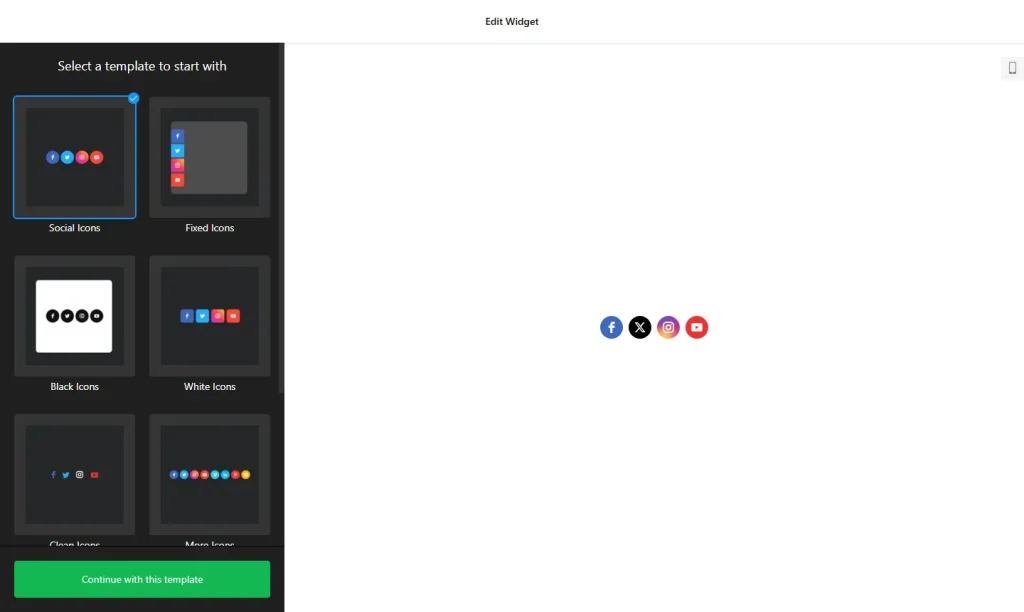
- Choose a template: Pick a design in the builder above that matches your website and click “Continue with this template”.
- Add your profiles: Choose the networks you use from more than 50 platforms and paste the link to each public profile.
- Reorder or hide icons: Drag icons into the order you want, so your most important channels come first, and switch off any you don’t need.
- Choose the layout: Place icons inline in your content or make them float at the edge of the screen. Arrange them horizontally, vertically or in a grid.
- Adjust size and shape: Set the icon size, shape, padding and corner radius.
- Style the icons: Pick one of five predefined styles, change the icon, background and hover colors, and choose a hover animation.
- Save your widget: Click “Add to website for free” and sign up on the next page to save your widget.
- Copy the embed code: Paste it into your website where you want the icons to appear.
Key features of the Social Media Icons widget
- 50+ networks: Icons for Facebook, Instagram, X, YouTube, LinkedIn, TikTok, popular messaging apps and more.
- Unlimited icons: Add as many profiles as you need and reorder them any time.
- Inline or floating: Put icons in a header, footer or content block, or keep them visible on the screen edge while visitors scroll.
- Flexible arrangement: Show icons in a row, a column or a grid.
- Five styles and hover effects: Choose a style, your own colors, corner radius and a hover animation.
- No API keys: Icons link to your public profile URLs, so there’s nothing to connect or authorize.
Where to use social media icons
Social icons give visitors a quick way to follow you or get in touch on the platforms they already use. Popular places for them are:
- Your website header or footer, so they appear on every page
- Your contact page, as an extra way to reach you
- Floating at the side of long pages, so they stay visible while visitors scroll
- Author bios, landing pages and “link in bio” style pages
Tip: Only show the networks where you post regularly. Social icons send people to your profiles. If you want visitors to share your page with their friends instead, use share buttons.
How to add the Social Media Icons widget to your website
After you save the widget, Elfsight gives you a short embed code. Paste it into a custom HTML or embed block where you want the icons to show. For icons on every page, use your site-wide header or footer area. It works on WordPress, Wix, Squarespace, Shopify, Webflow, Google Sites and any other website that accepts custom HTML. For step-by-step instructions for each platform, see our guide on how to add embed code to any website builder. If you choose the floating layout, check your site on a phone afterwards to make sure the icons don’t cover your menu, chat button or other floating elements.
How to manage your Social Media Icons widget
Log in to your Elfsight dashboard to edit your widget at any time, for example to add a new profile or change a link. Changes go live automatically, so you don’t need to replace the embed code on your website. From the dashboard you can also create more widgets, copy the embed code again and see how many views your widget has used this month.
Frequently asked questions
Is the social media icons widget free?
Yes. Elfsight’s free plan includes one widget with up to 200 views per month on unlimited websites, with a small Elfsight branding link. Paid plans start at $5 per month (billed yearly) and add more views and remove the branding.
Which social networks are supported?
More than 50, including Facebook, Instagram, X, YouTube, LinkedIn, TikTok and popular messaging apps. You can add as many icons as you need.
Do I need API keys or to log in to my social accounts?
No. The icons simply link to your public profile URLs, so there is nothing to connect or authorize.
Can the icons stay visible while visitors scroll?
Yes. The floating layout keeps the icons fixed at the edge of the screen. The inline layout places them inside your content instead.
Can I choose which icons appear and in what order?
Yes. Turn individual icons on or off and drag them into any order, so your most important channels come first.
More social media widgets
- Social Feed widget
Show posts from several social networks in one feed - Instagram Feed widget
Display your latest Instagram posts - Facebook Feed widget
Embed posts from your Facebook Page - All-in-One Chat widget
Let visitors message you on WhatsApp, Messenger, Telegram and more - Social Share Buttons
Let visitors share your pages on social media