
Use the widget builder below to create your free social share buttons. Select a template and click “Continue with this template” to get started.
Let visitors share your pages, products and posts on Facebook, LinkedIn, X, Pinterest, WhatsApp and 40+ other networks in one click. No coding needed.
How to use the Social Share Buttons builder
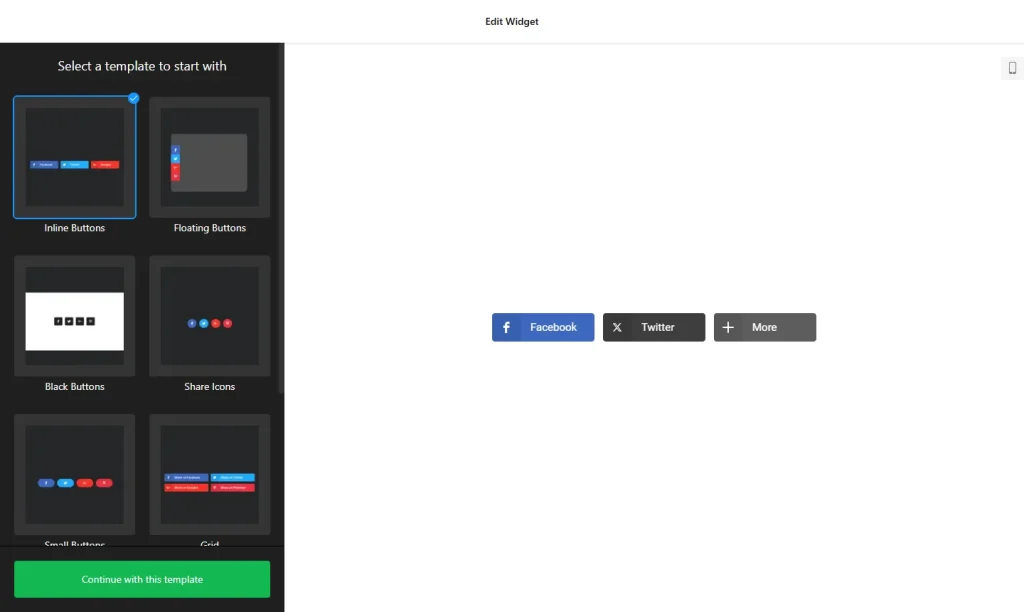
- Choose a template: Pick a design in the builder above, such as LinkedIn Share Button, Pinterest Share Button, WhatsApp Share Button, Email Share Button or Floating Buttons, and click “Continue with this template”.
- Pick your networks: Choose from more than 40 predefined platforms and drag the buttons into the order you want.
- Choose the layout: Place the buttons inline in your content or make them float as visitors scroll. Set the number of columns and the space between buttons.
- Design the buttons: Pick one of three button shapes, show an icon, text or both, and write your own button text.
- Set sharing options: Add a “Copy link” button, choose a specific URL to share instead of the current page, put extra networks behind a “More” button, and hide buttons on mobile if needed.
- Style the buttons: Choose one of three ready styles, set your own colors and pick an animation.
- Save your widget: Click “Add to website for free” and sign up on the next page to save your widget.
- Copy the embed code: Paste it into your website where you want the share buttons to appear.
Key features of the Social Share Buttons widget
- 40+ networks: Share buttons for Facebook, X (Twitter), LinkedIn, Pinterest, email and more, added and reordered with drag and drop.
- Messenger sharing: Buttons for WhatsApp, Telegram, Viber and Facebook Messenger open the native apps on mobile devices.
- Copy link: Visitors can copy the page URL with one click to paste it into a private chat.
- Custom share URL: Share a specific link, such as a campaign or landing page, instead of the current page.
- Inline or floating: Place buttons inside your content or keep them on screen while visitors scroll.
- “More” menu: Keep the main buttons tidy and tuck extra networks into an expandable menu.
- Hide on mobile: Save space on small screens with a built-in toggle.
Where to use share buttons
Share buttons make it easy for visitors to pass your content on to friends, colleagues and followers. Each share puts your page in front of new people. They work best on:
- Blog posts, guides and recipes
- Product pages, so shoppers can ask friends for an opinion
- Event, webinar and job pages that you want to spread
- Long articles, using floating buttons that stay visible while reading
Tip: Show the handful of networks your audience actually uses and put the rest behind the “More” button. Share buttons help visitors share your page. If you want them to follow your profiles instead, use social media icons.
How to add share buttons to your website
After you save the widget, Elfsight gives you a short embed code. Paste it into a custom HTML or embed block where you want the buttons to show, for example at the top or bottom of your posts. It works on WordPress, Wix, Squarespace, Shopify, Webflow, Google Sites and any other website that accepts custom HTML. For step-by-step instructions for each platform, see our guide on how to add embed code to any website builder. If you use floating buttons, check your pages on a phone afterwards, and turn on hide on mobile if the buttons cover your content or other floating elements.
How to manage your Social Share Buttons widget
Log in to your Elfsight dashboard to edit your widget at any time, for example to add a network or change the button style. Changes go live automatically, so you don’t need to replace the embed code on your website. From the dashboard you can also create more widgets, copy the embed code again and see how many views your widget has used this month.
Frequently asked questions
Are the social share buttons free?
Yes. Elfsight’s free plan includes one widget with up to 200 views per month on unlimited websites, with a small Elfsight branding link. Paid plans start at $5 per month (billed yearly) and add more views and remove the branding.
Which networks can visitors share to?
More than 40, including Facebook, X (Twitter), LinkedIn and Pinterest, plus email and messaging apps such as WhatsApp, Telegram, Viber and Facebook Messenger.
Can visitors copy the page link instead of sharing it?
Yes. A Copy link button copies the page URL in one click, which is handy for private chats and messaging apps.
Can I share a different URL than the current page?
Yes. You can set a specific link in the settings, for example a campaign or landing page.
Can I hide the share buttons on mobile?
Yes. A built-in hide on mobile option saves space on smaller screens.
More social media widgets
- Social Feed widget
Show posts from several social networks in one feed - Blog widget
Add a blog section to any website - Pinterest widget
Display your Pinterest boards and pins - WhatsApp Chat widget
Let visitors message you on WhatsApp - Social Media Icons widget
Link visitors to your social profiles - Comments widget
Let visitors discuss your content