
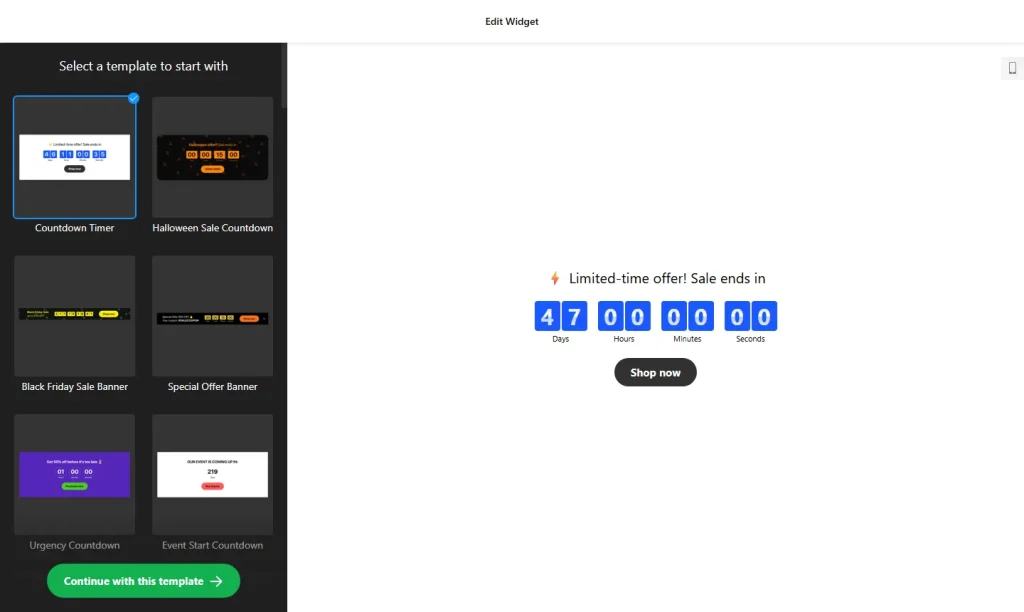
Use the builder below to create a free countdown timer for your Wix website. Pick a template, set your date and click “Continue with this template“.
A countdown gives Wix visitors a clear reason to act now: a sale that ends at midnight, a course that opens on Monday, an event that starts in three days. You set the date once, choose how the timer looks, and add it to any Wix page with an Embed HTML element. No app from the Wix App Market is needed.
How to add a Countdown Timer widget to Wix
1. Create your widget
- Choose a template: start from one such as Special Offer Banner, Urgency Countdown, Event Start Countdown, Evergreen Timer or Launch Countdown.
- Pick the countdown type: a start-to-finish timer with fixed dates and a time zone, a remaining-time counter for each visitor, or a start-to-finish number counter.
- Choose what happens at zero: hide the timer, show a message, or send visitors to another page. You can also add a call-to-action button under the clock.
- Style it: choose a clock type or holiday theme, then set the animation, font and size.
- Save it: click “Add to website for free“, sign up on the next page and copy your embed code.
2. Add it to your Wix site
- Open your site in the Wix Editor and go to the page where the countdown should appear.
- Click Add Elements (+), then Embed Code › Popular Embeds › Embed HTML. In Wix Studio the element is called Embed code.
- Click Enter Code, make sure Code is selected, paste the countdown code and click Update.
- Drag the corners of the box until the whole timer is visible, including the button if you added one.
- Switch to the mobile editor and resize the box there too. Wix embed boxes don’t resize on their own, so the mobile view needs its own size.
- Publish your site and check the countdown on the live page and on your phone.
Where to put the Countdown Timer widget on your Wix site
- At the top of your homepage during a sale, so every visitor sees the deadline first.
- On a product or service page, next to the price or booking button the offer applies to.
- On an event or launch page, counting down to the start time.
- On a coming-soon page while you finish a new site or product, with a button to join your mailing list.
Do you need a paid Wix plan?
No. The Embed HTML element works on Wix’s free and premium plans, so an inline countdown can go on any page. The widget’s own free plan covers one widget with up to 200 views a month, with a small Elfsight link; paid widget plans start at $5 a month, billed yearly.
The floating top and bottom banner positions are different. Wix runs embedded code inside its own frame, so a timer pasted into an Embed HTML element stays inside that box. To pin a countdown bar to every page, add the code under Settings › Custom Code, which Wix offers on premium plans with a connected domain.
Countdown Timer widget features
- Three countdown types: fixed start and end dates, a personal timer for each visitor, or a number counter.
- Four positions: inline on the page, a static top banner, or a floating banner at the top or bottom.
- End-of-countdown actions: hide the timer, show a message or redirect to a URL.
- Call-to-action button under the clock, for example “Shop the sale”.
- Holiday themes and clock styles, with animation, font and size settings and custom CSS for anything else.
Frequently asked questions
Is the countdown timer free on Wix?
Yes. The builder is free, and the free plan includes one widget with up to 200 views a month on unlimited websites, with a small Elfsight branding link. Paid plans start at $5 a month, billed yearly, for more views and no branding.
Do I need a Wix premium plan to add the countdown?
Not for an inline timer. The Embed HTML element works on free Wix sites. Only site-wide custom code, which you would use for a floating countdown bar on every page, needs a premium plan with a connected domain.
Why is my countdown cut off on Wix?
The Embed HTML box is too small. Click the element in the Wix Editor and drag its corners until the whole timer and any button fit, then publish again.
Can the timer restart for each visitor?
Yes. Choose the remaining-time counter type, which runs a separate countdown for each visitor, for example a 24-hour offer that starts on their first visit.
Can I change the date after adding the timer to Wix?
Yes. Edit the widget in your Elfsight dashboard and save. The countdown on your Wix site updates on its own, so you don’t need to paste the code again.
More Wix widgets
- Countdown Timer widget
All templates and features - Wix Popup widget
Offers, sign-ups and announcements - Wix Pricing Table widget
Compare plans and prices - Wix Google Reviews widget
Your Google Business reviews and rating - Wix Contact Form widget
A simple contact form - 20 best Wix widgets
Our roundup of the best apps and widgets for Wix