
Use the builder below to create a free photo gallery for your WordPress website. Pick a template, click “Continue with this template” and upload your photos.
WordPress has plenty of gallery plugins, but each one is another plugin to install, update and keep compatible with your theme. This gallery is built in your browser and added with a single Custom HTML block, so it works the same in a travel blog post, on a business site’s projects page or next to your WooCommerce shop. Choose from six layouts, set what happens when someone clicks a photo, and add a watermark if you need one.
How to add a Photo Gallery widget to WordPress
1. Create your widget
- Choose a template: Traveler suits blog posts, Product Seller suits shops, and Photo Shoots and Wedding Photographer suit portfolios. Click “Continue with this template“.
- Upload your photos in the widget editor.
- Pick a layout: Carousel, Grid, Vertical Masonry, Horizontal Masonry, Slider or Panoramic.
- Adjust the settings: the click action, photo protection, a watermark, and the font, background, heading, photo and popup styles.
- Save it: click “Add to website for free“, sign up and copy your embed code.
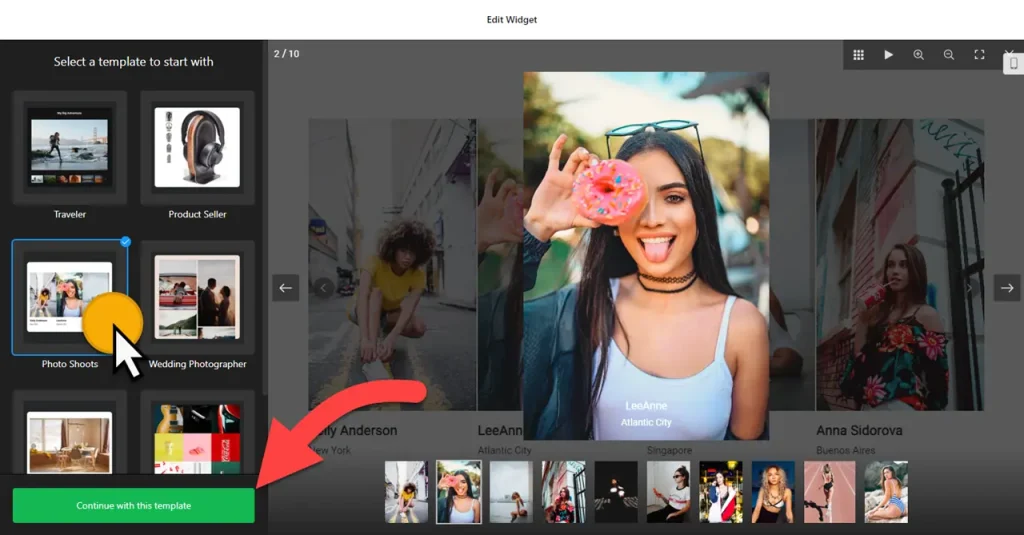
2. Add it to your WordPress site
- Open the page or post in the WordPress block editor.
- Click the block inserter (+) where the gallery should go and add a Custom HTML block.
- Paste the gallery code, then click Preview inside the block to check it.
- Click Update or Publish and view the live page.
- Using Elementor? Drag in the HTML widget and paste the code there. In the classic editor, paste it into the Text tab, not Visual.
Where to put the Photo Gallery widget on your WordPress site
- Inside a blog post, between paragraphs, to show photos from a trip, a recipe or a project without breaking up the text.
- On a projects or portfolio page of a business site, one gallery per type of work.
- Next to your WooCommerce shop, on a lookbook or “in use” page that shows products in real settings.
- On an about or venue page, with photos of your premises, team or past events.
Do you need a paid WordPress plan?
On self-hosted WordPress (WordPress.org), no. Scripts work out of the box, so the Custom HTML block shows the gallery without a plugin. On WordPress.com, script tags only work on plans that allow plugins. On other WordPress.com plans the script is removed when you save, and the gallery won’t appear.
If you use a performance plugin that delays or combines JavaScript, exclude the widget script if the gallery loads late or not at all, and clear the cache after adding it. The widget’s free plan covers one widget with up to 200 views a month on unlimited websites, with a small Elfsight link; paid widget plans start at $5 a month, billed yearly.
Photo Gallery widget features
- Six layouts: Carousel, Grid, Vertical Masonry, Horizontal Masonry, Slider and Panoramic.
- Templates such as Traveler, Product Seller, Photo Shoots and Wedding Photographer.
- Click actions and popup styles for opening photos.
- Photo protection and watermark options.
- Style settings for font, background, heading and photos, plus custom CSS and JavaScript for your own tracking code.
- No plugin to update: edits in your Elfsight dashboard appear on your site automatically.
Frequently asked questions
Do I need a plugin to add the photo gallery to WordPress?
Not on self-hosted WordPress. Paste the code into a Custom HTML block and it works. On WordPress.com you need a plan that allows plugins, because other plans remove script tags.
Why isn’t my gallery showing on WordPress?
Check that you used a Custom HTML block, not a paragraph or the Visual tab. On WordPress.com, check your plan. If you use a caching or performance plugin, exclude the widget script from delayed JavaScript and clear the cache.
Does the gallery work with Elementor?
Yes. Drag the HTML widget into your Elementor layout and paste the gallery code. It also works in the classic editor’s Text tab.
Can I use the same gallery in several posts?
Yes. Paste the same code into each post or page. Every view counts toward your plan’s monthly limit, which is 200 views on the free plan.
Do I need to paste the code again after adding photos?
No. Add or remove photos in your Elfsight dashboard and save. The gallery on your WordPress site updates automatically.
More WordPress widgets
- Photo Gallery widget
All templates and features - WordPress Before & After Slider widget
Compare two images with a slider - WordPress Audio Player widget
Play music and audio files - WordPress Background Music widget
Music that plays in the background - WordPress PDF Viewer widget
Show PDFs right on the page - How to add embed code to any website
Where to paste widget code on every website builder