
Use the builder below to create a free event calendar for your WordPress website. Pick a template, click “Continue with this template” and add your events.
WordPress runs blogs, business sites, club and community sites, and WooCommerce stores, and many of them need a place to list events. This calendar does that without installing an events plugin or managing event posts in your dashboard. Build it here, add events by hand or sync them from Google Calendar, and paste the code into a Custom HTML block. It works in the block editor, Elementor and the classic editor.
How to add an Event Calendar widget to WordPress
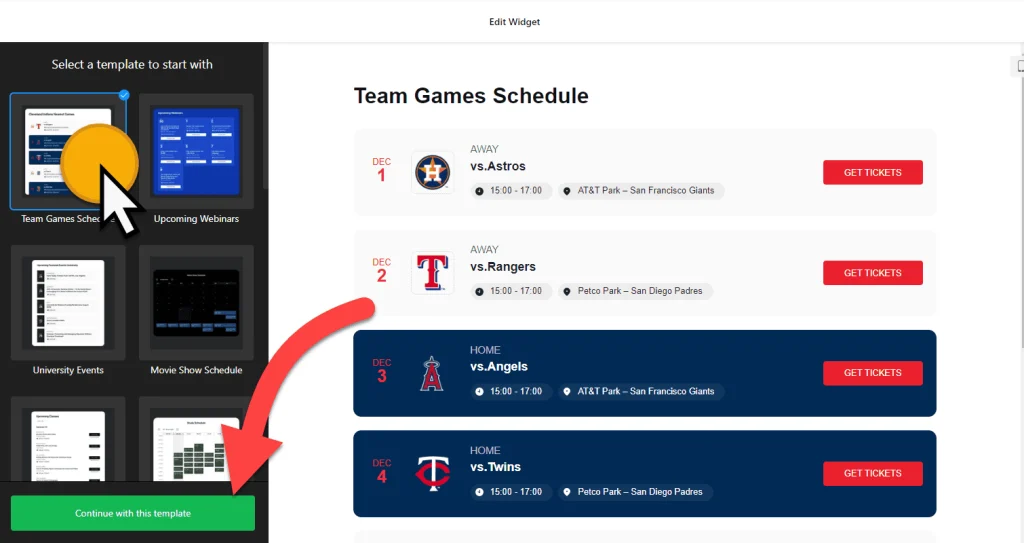
1. Create your widget
- Choose a template: start from one of 17, such as Upcoming Webinars, Club Events, Convention Center, Movie Show Schedule or Slider Exhibition.
- Add your events: enter them by hand or connect Google Calendar so they sync automatically. Each event can include a description, image, video, file attachment and call-to-action button.
- Organize them: add event types, hosts and venues so readers can find what interests them.
- Set the layout and look: choose List, Grid, Masonry, Slider, Month, Week or Day, set the maximum width, font and background, and choose whether to show past events.
- Save it: click “Add to website for free“, sign up on the next page and copy your embed code.
2. Add it to your WordPress site
- Edit the page or post where the calendar should appear.
- In the block editor, click the block inserter (+) and add a Custom HTML block.
- Paste the calendar code, then switch to Preview inside the block to check it.
- Using Elementor? Drag in the HTML widget and paste the code there. In the classic editor, paste into the Text tab, not Visual.
- Click Update or Publish and check the calendar on the live page.
- If it loads late or not at all, check your caching or performance plugin and exclude the widget script from any setting that delays or combines JavaScript.
Where to put the Event Calendar widget on your WordPress site
- On an Events page with a Month or List layout, linked from your main menu.
- In a blog post announcing a season, tour or webinar series, so readers see every date in one place.
- On your homepage or a landing page, with a Slider of the next few events.
- On a WooCommerce store, on a page listing in-store events, workshops or launch days.
- On a club, school or community site, showing meetings and regular sessions in a Week view.
Do you need a paid WordPress plan?
On self-hosted WordPress (WordPress.org), no. It accepts the widget script out of the box, with no plugin needed. On WordPress.com, script tags only work on plans that allow plugins; on other plans WordPress removes them when you save, so the calendar can’t load.
The widget has its own free plan: one widget, up to 200 views a month on unlimited websites, with a small Elfsight link. Paid widget plans start at $5 a month, billed yearly, for more views and no branding.
Event Calendar widget features
- 17 responsive templates for webinars, clubs, conventions, show schedules and exhibitions.
- Seven layouts: List, Grid, Masonry, Slider, Month, Week and Day.
- Google Calendar sync, or add and edit events by hand.
- Rich event details: descriptions, images, call-to-action buttons, videos and file attachments.
- Event types, hosts and venues for busy schedules.
- Display settings: click actions, which elements show, language, past events and custom CSS.
Frequently asked questions
Do I need an events plugin for this calendar?
No. The calendar runs from a short embed code, so you paste it into a Custom HTML block instead of installing an events plugin. Your events are managed in the Elfsight dashboard or synced from Google Calendar.
Does the event calendar work on WordPress.com?
Yes, on WordPress.com plans that allow plugins. On other WordPress.com plans, script tags are removed when you save, so the calendar can’t load. Self-hosted WordPress needs no special plan.
Why isn’t my event calendar showing in WordPress?
Make sure you used a Custom HTML block, or the Text tab in the classic editor, not a Paragraph block or the Visual tab. If it still doesn’t load, exclude the widget script from your performance plugin’s delay or combine JavaScript settings.
Is the event calendar free?
Yes. The builder is free, and the free plan includes one widget with up to 200 views a month on unlimited websites, with a small Elfsight branding link. Paid plans start at $5 a month, billed yearly.
How do I add events after the calendar is live?
Add or edit events in your Elfsight dashboard, or in the Google Calendar you connected. The calendar on your WordPress site updates on its own, so you don’t need to edit the page again.
More WordPress widgets
- Event Calendar widget
All templates and features - WordPress Appointment Booking widget
Online booking with time slots - WordPress Business Hours widget
Opening hours with an open-now status - WordPress Restaurant Menu widget
Your menu with prices and photos - WordPress Google Reviews widget
Your Google Business reviews and rating - How to add embed code to any website
Where to paste widget code on every website builder