
Use the builder below to create a free photo gallery for your Shopify store. Pick a template, click “Continue with this template” and upload your photos.
Your product images already sit in each product’s media. A gallery is for the photos around them: lifestyle shots, a seasonal lookbook, your workshop, or the product in real use. It helps shoppers picture what they are buying. Build the gallery in your browser, then add it to your home page, product pages or a custom page with a Custom Liquid section in the theme editor. No Shopify app is needed.
How to add a Photo Gallery widget to Shopify
1. Create your widget
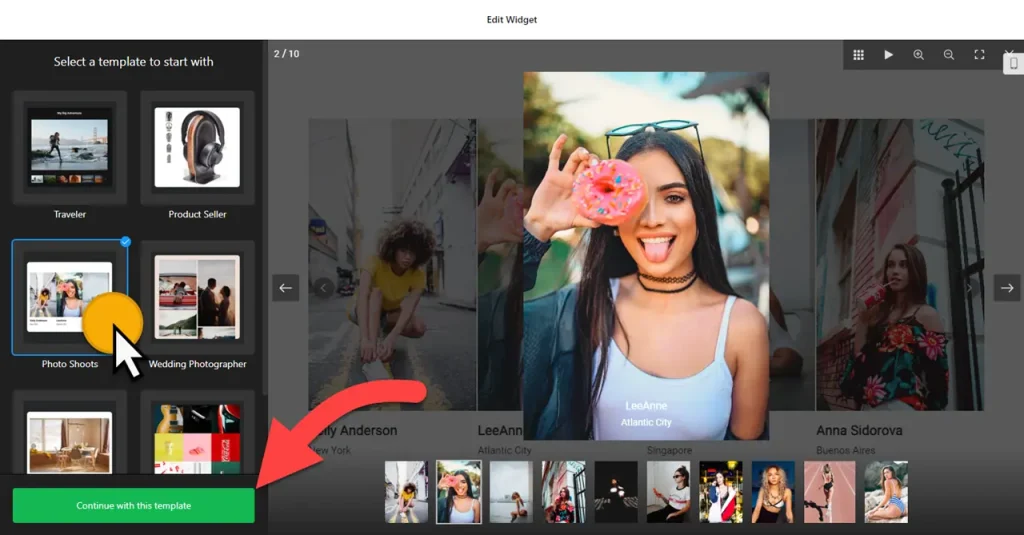
- Choose a template: Product Seller is a good starting point for a store. Click “Continue with this template“.
- Upload your photos: lifestyle, lookbook or behind-the-scenes images work best here.
- Pick a layout: Carousel or Slider for a compact strip on a product page, Grid or Masonry for a full lookbook page.
- Adjust the settings: the click action, photo protection, a watermark, and the font, background, heading, photo and popup styles.
- Save it: click “Add to website for free“, sign up and copy your embed code.
2. Add it to your Shopify site
- In your Shopify admin, go to Online Store › Themes and click Customize.
- Use the page selector at the top to open the template for the gallery: the home page, a product template or a custom page such as a lookbook.
- Click Add section and choose Custom Liquid.
- Paste the gallery code into the Liquid code box and drag the section into position, for example below the main product section.
- Click Save, then open a live page that uses that template and check the photos on desktop and mobile.
Where to put the Photo Gallery widget on your Shopify site
- On the home page, between your featured collections, with lifestyle photos that set the mood of the brand.
- On a product template, below the main product section, showing the product in use. Remember it appears on every product that uses the template.
- On a collection template, above or below the product grid, as a mood board for that range.
- On a custom lookbook or about page, with a Grid or Masonry layout and your full set of photos.
Do you need a paid Shopify plan?
No upgrade or app is needed. The gallery goes in through a Custom Liquid section in the theme editor you already use. Menu names can change slightly as Shopify updates the theme editor, but the section is added the same way.
Keep templates in mind: a section added to a template shows on every page that uses it, so a gallery on the default product template appears on all your product pages. If the photos only fit one product, use a template that only that product uses. The widget’s free plan covers one widget and up to 200 views a month, with a small Elfsight link. Product pages can pass 200 views quickly, so check your traffic; paid plans start at $5 a month, billed yearly.
Photo Gallery widget features
- Six layouts: Carousel, Grid, Vertical Masonry, Horizontal Masonry, Slider and Panoramic.
- Product Seller template and others such as Traveler, Photo Shoots and Wedding Photographer.
- Click actions and popup styles for viewing photos larger.
- Photo protection and watermark settings for your own product photography.
- Font, background, heading and photo styles, plus custom CSS and JavaScript for your own tracking code.
Frequently asked questions
Where will the gallery show on my Shopify store?
On every page that uses the template you added it to. A gallery on the home page shows once; a gallery on the default product template shows on all products that use that template.
Do I need a Shopify app for the photo gallery?
No. Add a Custom Liquid section in the theme editor and paste the gallery code. There is nothing to install from the Shopify App Store.
Can I show different photos on different products?
Each gallery widget shows one set of photos. For different photos per product, create a separate gallery for each and place it on a template only those products use. The free plan includes one widget, so more galleries need a paid plan.
Can I change the photos for a new season?
Yes. Replace the photos in your Elfsight dashboard and save. Your store updates automatically, so you don’t need to open the theme editor again.
Is the photo gallery free?
Yes. The free plan includes one widget with up to 200 views a month, with a small Elfsight branding link. Paid plans start at $5 a month, billed yearly.
More Shopify widgets
- Photo Gallery widget
All templates and features - Shopify Before & After Slider widget
Compare two images with a slider - Shopify Audio Player widget
Play music and audio files - Shopify Google Reviews widget
Your Google Business reviews and rating - Shopify Contact Form widget
A simple contact form - How to add embed code to any website
Where to paste widget code on every website builder