
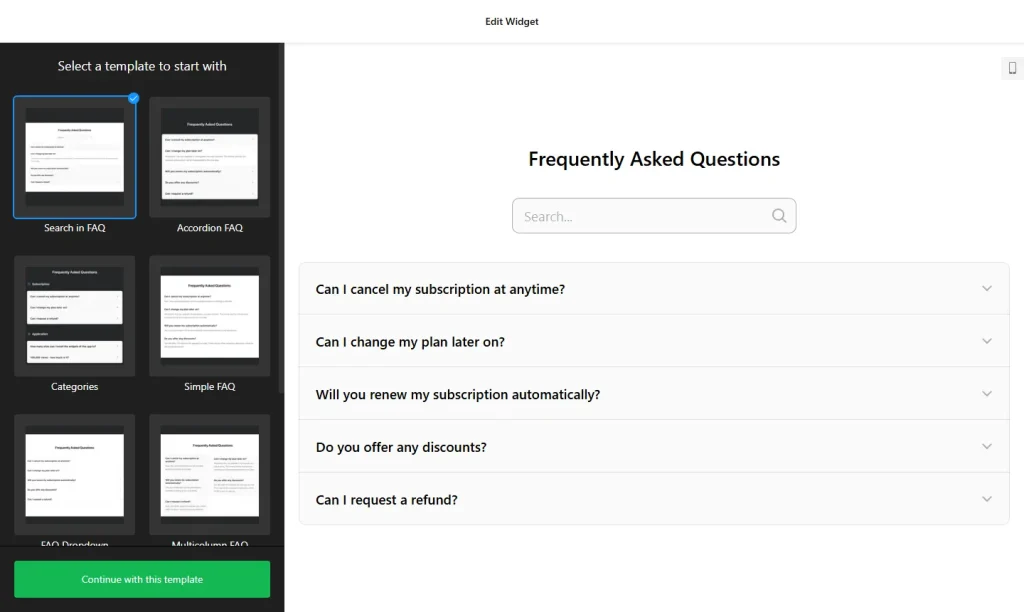
Use the builder below to create a free FAQ widget for your Webflow site. Pick a template and click “Continue with this template” to add your questions.
Webflow gives you full control over design, but building an accordion FAQ by hand takes time, and every change to an answer means opening the Designer and publishing again. An FAQ widget gives your landing pages and marketing site a ready-made accordion that you style to match. Once it’s in place, anyone on your team can change the questions in the builder.
How to add an FAQ widget to Webflow
1. Create your widget
- Choose a template: start from Categories, Collapsible FAQ, FAQ Toggle, Q&A or Knowledge Base, or start from scratch.
- Add categories and questions: group them by topic, such as Pricing, Billing and Security, each with a title and icon, or hide the titles for one list.
- Pick a layout: Accordion for a compact block under a pricing section, or Multicolumn to fill a wide section.
- Match your design: set colors and styles and choose a cross or arrow icon to fit your brand.
- Save it: click “Add to website for free“, sign up on the next page and copy your embed code.
2. Add it to your Webflow site
- Open the page in the Webflow Designer.
- Open the Add panel and drag a Code Embed element where the FAQ should appear, for example into a section below your pricing.
- Paste the FAQ code and click Save & Close.
- Don’t worry if the FAQ doesn’t appear on the canvas. Scripts don’t render inside the Designer, so use Preview or publish to see it.
- Publish the site and check the FAQ on the live page at desktop, tablet and phone widths.
Where to put the FAQ widget on your Webflow site
- Under your pricing table on a SaaS or service site, to answer billing, trial and plan questions.
- At the end of a landing page, just before the final call to action, to clear up the last doubts.
- On a product or feature page, with a category for each feature.
- On a help page, using the Knowledge Base template to keep many questions organized.
Do you need a paid Webflow plan?
Yes. The Code Embed element and custom code in Webflow require a paid site plan or workspace plan. Without one, you can’t paste the widget code, so upgrade the site or workspace before you add the FAQ.
The FAQ sits inline on the page, so you don’t need Site settings › Custom code › Footer code. The widget’s own free plan covers one widget with up to 200 views a month on unlimited websites, with a small Elfsight link; paid widget plans start at $5 a month, billed yearly. A high-traffic landing page may need a paid widget plan.
FAQ widget features
- Three layouts: List, Accordion and Multicolumn.
- Ready-made templates like FAQ Dropdown, FAQ Page and Knowledge Base, which you can restyle.
- Unlimited categories with titles and icons, or one plain list.
- HTML in answers, for links to docs or sign-up pages and bold text.
- Colors, styles and 30+ icons to match a custom design.
- Instant updates: edit an answer in the builder without opening the Designer or publishing again.
Frequently asked questions
Which Webflow plan do I need for the FAQ widget?
A paid site plan or workspace plan. Webflow only allows the Code Embed element and custom code on paid plans.
Why can’t I see the FAQ in the Webflow Designer?
Scripts don’t run inside the Designer canvas. Click Preview or publish the site to see the FAQ working.
Can I style the FAQ to match my Webflow design?
Yes. In the builder you can change colors and styles, choose a layout and pick icons. Then check it on the published page next to your own sections.
Can my team update answers without using the Designer?
Yes. Edit the widget in your Elfsight dashboard and save. The FAQ on your Webflow site updates automatically, with no need to publish the site again.
Is the FAQ widget free?
Yes. The free plan includes one widget with up to 200 views a month on unlimited websites, with a small Elfsight branding link. Paid plans start at $5 a month, billed yearly.
More Webflow widgets
- FAQ widget
All templates and features - Webflow Form Builder widget
Any form: quotes, sign-ups, surveys - Webflow Google Reviews widget
Your Google Business reviews and rating - Webflow Contact Form widget
A simple contact form - Webflow Instagram Feed widget
Your latest Instagram posts and reels - How to add embed code to any website
Where to paste widget code on every website builder