
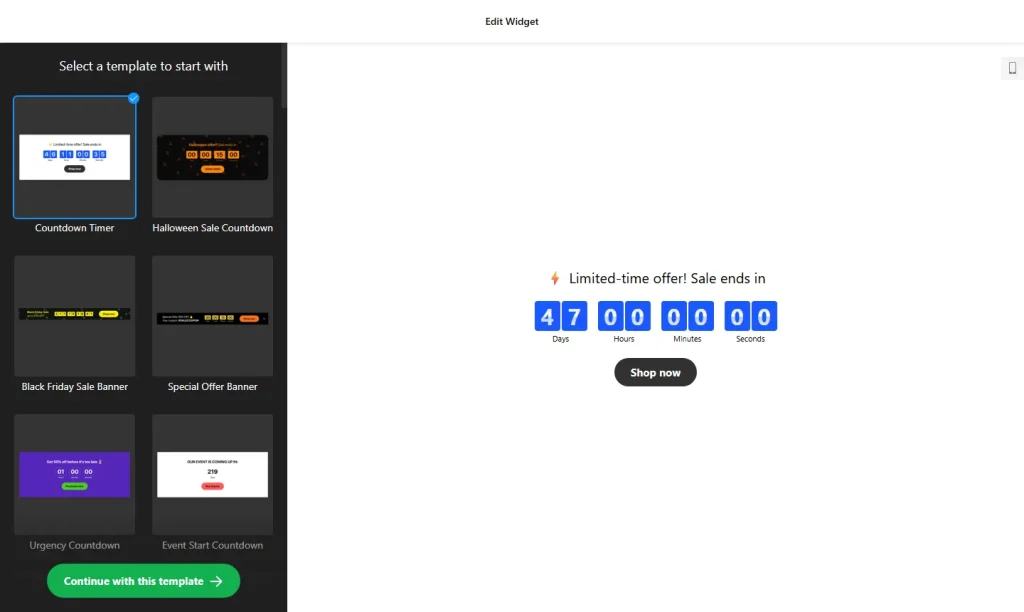
Use the builder below to create a free countdown timer for your Shopify store. Pick a template, set your date and click “Continue with this template“.
On a Shopify store, a countdown works best right next to the offer: a flash sale on the home page, a limited drop on a product page, or a holiday shipping cut-off. Instead of installing another app, you build the timer in your browser and paste the code into a Custom Liquid section in the theme editor. Add it to a template once and every page using that template shows the timer.
How to add a Countdown Timer widget to Shopify
1. Create your widget
- Choose a template: Special Offer Banner and Urgency Countdown suit sales, Launch Countdown suits a product drop, and Evergreen Timer and 5 Minute Countdown Timer suit short offers.
- Set the timer: for a sale, pick the start-to-finish timer and enter the start time, end time and time zone your sale runs in. The remaining-time counter gives each shopper their own timer instead.
- Choose the position: use “Install To Required Position” for a timer inside a section of your template, or a static or floating banner for a store-wide sale bar.
- Set the end action and button: hide the timer, show a message such as “This sale has ended”, or redirect to a collection. Add a call-to-action button like “Shop the sale”.
- Style and save: choose a clock type or holiday theme, set the animation, font and size, then click “Add to website for free“, sign up and copy your embed code.
2. Add it to your Shopify site
- In your Shopify admin, go to Online Store › Themes and click Customize.
- Use the page selector at the top to open the template where the timer belongs: the home page, a product page or a custom page.
- Click Add section and choose Custom Liquid.
- Paste the countdown code into the Liquid code box, then drag the section into position, for example above a featured collection or below the product details.
- Click Save and view your store to check the timer on a computer and on your phone.
Where to put the Countdown Timer widget on your Shopify site
- On the home page, near the top, during a store-wide sale or Black Friday week.
- On the product template for a limited drop or pre-order window. Remember that a section on the default product template shows on every product page.
- On a sale page or collection, so shoppers see the deadline while they browse the discounted items.
- As a store-wide banner for a holiday shipping cut-off, such as the last day to order for delivery before a holiday.
Do you need a paid Shopify plan?
No plan upgrade or extra app is needed. The timer goes into a Custom Liquid section in the theme editor, and you can move or remove it like any other section. The widget’s own free plan covers one widget with up to 200 views a month, with a small Elfsight link. A busy home page can use 200 views quickly, so check your traffic; paid widget plans start at $5 a month, billed yearly.
For a countdown bar on every page, pick the static or floating top or bottom banner in the builder and add the Custom Liquid section to the theme’s footer area, which appears site-wide. You only paste the code once, and the bar follows shoppers from the home page to the product pages.
Countdown Timer widget features
- Three countdown types: start-to-finish dates with a time zone, a remaining-time counter per visitor, or a number counter.
- Four positions: inline in a section, a static top banner, or a floating banner at the top or bottom.
- End-of-sale actions: hide the timer, show a message or redirect to a URL.
- Call-to-action button under the clock to send shoppers to the offer.
- Holiday themes and clock types, with animation, font and size controls and custom CSS for finer styling.
Frequently asked questions
Do I need a Shopify app for a countdown timer?
No. Paste the embed code into a Custom Liquid section in the theme editor. There’s nothing to install from the Shopify App Store.
Why does the countdown show on all my product pages?
Because the section was added to the default product template, and every product page that uses that template shows it. Add the section to a template used only by the products in the offer, or remove it when the sale ends.
Can I show one countdown bar across my whole Shopify store?
Yes. Choose a top or bottom banner position in the builder and add the Custom Liquid section to your theme’s footer area. The footer appears on every page, so the bar does too.
What happens when the sale timer reaches zero?
You choose: the timer can hide itself, show a message, or redirect shoppers to another page, such as your new arrivals collection.
Is the countdown timer free for Shopify?
Yes. The free plan includes one widget with up to 200 views a month on unlimited websites, with a small Elfsight link. Paid plans start at $5 a month, billed yearly, for more views and no branding.
More Shopify widgets
- Countdown Timer widget
All templates and features - Shopify Popup widget
Offers, sign-ups and announcements - Shopify Google Reviews widget
Your Google Business reviews and rating - Shopify Contact Form widget
A simple contact form - Shopify Instagram Feed widget
Your latest Instagram posts and reels - How to add embed code to any website
Where to paste widget code on every website builder