
Use the builder below to create a free Facebook feed for your Webflow website. Pick a template and click “Continue with this template” to connect your Facebook Page.
Webflow sites are usually designed with care, and a Facebook feed should fit that design rather than look like something pasted in. Build the feed here, pick a template and set its width, height and visible elements to match your layout, then drop it into a Code Embed element. It suits marketing sites and landing pages that want recent posts from a brand’s Facebook Page without copying them into the Webflow CMS by hand.
How to add a Facebook Feed widget to Webflow
1. Create your widget
- Choose a template: Medium Widgets, Small Widgets, Large Widgets, Facebook Posts, Facebook Videos or Full-Width Posts. Full-Width Posts works well in a wide section of a landing page.
- Connect your Facebook Page: sign in with your Facebook account and pick the Page you manage, so the widget can fetch its posts.
- Adjust the layout: set the width and height and hide elements you don’t need, so the feed follows your site’s spacing and style.
- Save it: click “Add to website for free“, sign up on the next page and copy your embed code.
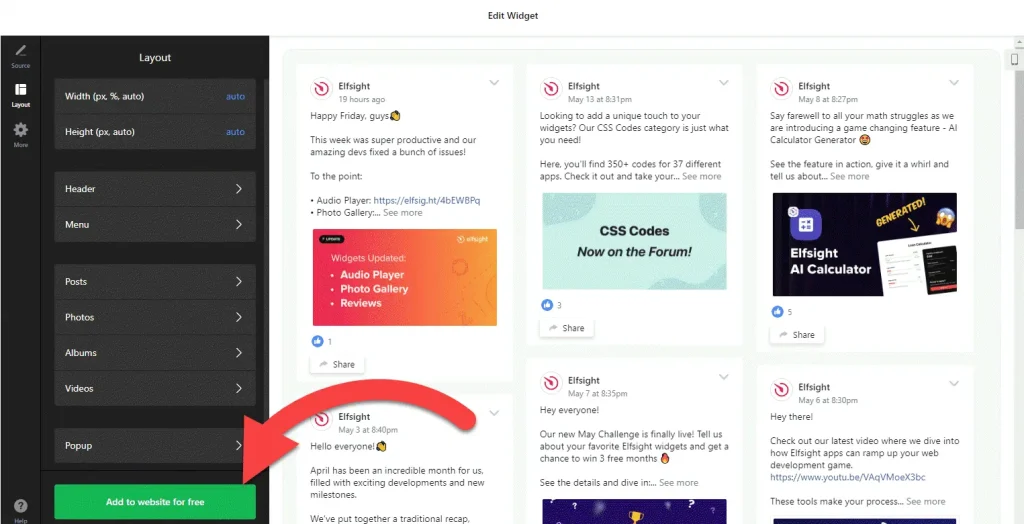
2. Add it to your Webflow site
- Open the page in the Webflow Designer.
- Open the Add panel and drag a Code Embed element into the section where the feed should appear.
- Paste the Facebook feed code and click Save & Close.
- Expect an empty box on the canvas. Scripts don’t render inside the Designer, so this is normal.
- Publish the site, or open Preview, to see the feed, and check it on desktop, tablet and phone sizes.
Where to put the Facebook Feed widget on your Webflow site
- On a landing page, near the end and just before the final call to action, to show the brand is active.
- On the homepage, in its own section with a heading such as “Latest from Facebook”.
- On a News, Press or Community page that collects the updates you share on Facebook.
- On an event or campaign page, using the Facebook Videos template for recaps and teasers.
Do you need a paid Webflow plan?
Yes. In Webflow, the Code Embed element and custom code require a paid site plan or workspace plan. Without one you can’t add the feed’s code to a page. Webflow also offers site-wide code under Site settings › Custom code › Footer code, but that’s meant for code that loads on every page; a feed belongs in a Code Embed element on the page where you want it.
The widget’s own free plan covers one widget with up to 200 views a month on unlimited websites, with a small Elfsight link. Paid widget plans start at $5 a month, billed yearly, if a busy landing page needs more views or you want to remove the link.
Facebook Feed widget features
- Six templates: Medium Widgets, Small Widgets, Large Widgets, Facebook Posts, Facebook Videos and Full-Width Posts.
- Posts from your own Page: connect the Facebook Page you manage and the widget fetches its posts for you.
- A video template for brands that share more clips than photos.
- Layout settings: set the width and height and choose which elements are visible.
- One dashboard to create more Facebook feeds, edit existing ones and copy the embed code again.
Frequently asked questions
Which Webflow plan do I need for the Facebook feed?
A paid site plan or workspace plan, because Webflow requires one for the Code Embed element and custom code. The widget itself has a free plan.
Why can’t I see the Facebook feed in the Webflow Designer?
Scripts don’t run inside the Designer canvas, so the Code Embed shows as an empty box. Open Preview or publish the site to see the posts.
Can I make the feed match my Webflow design?
Yes. In the builder, pick the template that fits your layout, set the width and height and choose which elements show. The Code Embed element only holds the code, so place it in the section where the feed should sit.
Do I need to republish Webflow when I change the feed?
Not for widget changes. Edit the widget in your Elfsight dashboard and save, and the published site updates on its own. You only republish when you move or remove the Code Embed element.
Is the Facebook feed widget free?
Yes. The free plan includes one widget with up to 200 views a month on unlimited websites, with a small Elfsight branding link. Paid plans start at $5 a month, billed yearly.
More Webflow widgets
- Facebook Feed widget
All templates and features - Webflow Instagram Feed widget
Your latest Instagram posts and reels - Webflow TikTok Feed widget
Your TikTok videos in a grid or slider - Webflow YouTube Gallery widget
Videos from a YouTube channel or playlist - Webflow LinkedIn Feed widget
Company posts from LinkedIn - How to add embed code to any website
Where to paste widget code on every website builder