
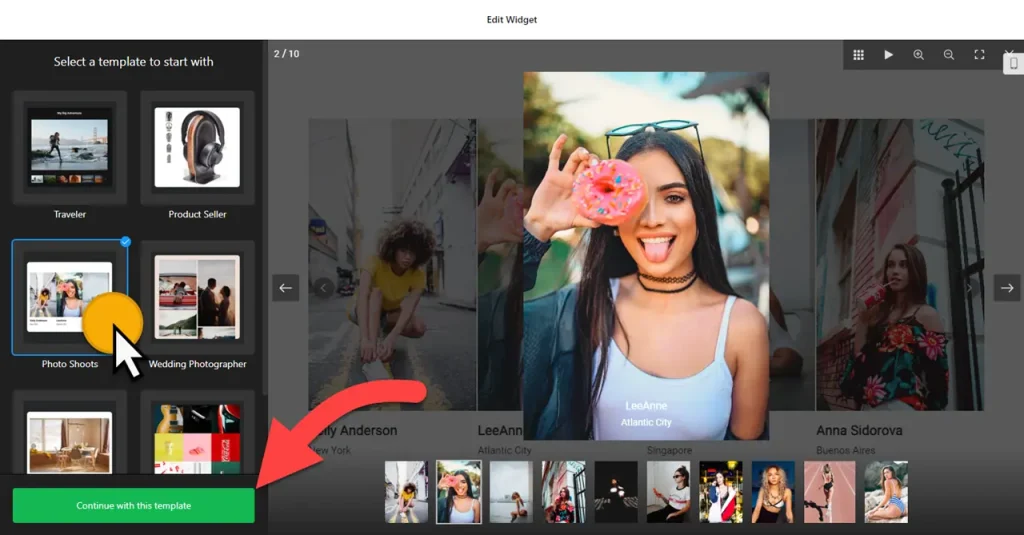
Use the builder below to create a free photo gallery for your Webflow website. Pick a template, click “Continue with this template” and upload your photos.
Webflow sites are usually built with care for layout and type, and a gallery should hold up to the same standard. This one gives you six layouts, a popup when someone clicks a photo, and style settings for the font, background, heading and photos, with custom CSS for the details. It’s useful when you want a ready gallery for a landing page or case study without building one from scratch. Add it with a Code Embed element.
How to add a Photo Gallery widget to Webflow
1. Create your widget
- Choose a template: start from Traveler, Product Seller, Photo Shoots or Wedding Photographer and click “Continue with this template“.
- Upload your photos in the widget editor.
- Pick a layout: Carousel, Grid, Vertical Masonry, Horizontal Masonry, Slider or Panoramic.
- Match your design: set the font, background, heading, photo and popup styles. Use custom CSS for anything the settings don’t cover.
- Save it: click “Add to website for free“, sign up and copy your embed code.
2. Add it to your Webflow site
- Open the page in the Webflow Designer.
- Open the Add panel and drag a Code Embed element to where the gallery should appear, for example inside a section’s container.
- Paste the gallery code and click Save & Close.
- Open Preview or publish the site to see the gallery. Scripts don’t render inside the Designer canvas, so an empty-looking embed there is normal.
- Check the published page at desktop, tablet and phone widths and click a few photos to test the popup.
Where to put the Photo Gallery widget on your Webflow site
- On a case study page, showing the finished project after the written brief.
- On a product or event landing page, as a Carousel or Slider that keeps the page short.
- On your homepage, as a short Carousel between the services section and testimonials, so visitors see real work without a long scroll.
- On a portfolio page, using Grid or Masonry to show a full body of work.
- On an about or careers page, with photos of your office and team.
Do you need a paid Webflow plan?
Yes. Webflow’s Code Embed element and custom code require a paid site plan or workspace plan. On a site without one, you can’t add the gallery code. If you’re still building on a free plan, set up the gallery now and add it when you upgrade the site.
The gallery sits in one place on a page, so you don’t need site-wide code under Site settings › Custom code › Footer code. The widget’s own free plan covers one widget with up to 200 views a month on unlimited websites, with a small Elfsight link; paid widget plans start at $5 a month, billed yearly.
Photo Gallery widget features
- Six layouts: Carousel, Grid, Vertical Masonry, Horizontal Masonry, Slider and Panoramic.
- Style settings for font, background, heading, photos and popup.
- Custom CSS and JavaScript to fine-tune the look and add your own tracking code.
- Click actions for what happens when a photo is clicked.
- Photo protection and watermark options.
Frequently asked questions
Do I need a paid Webflow plan for the photo gallery?
Yes. The Code Embed element requires a paid site plan or workspace plan. Once your site has one, paste the gallery code into a Code Embed element and publish.
Why can’t I see the gallery in the Webflow Designer?
Scripts don’t run inside the Designer canvas. Open Preview or publish the site to see the gallery.
Can I match the gallery to my Webflow design?
Yes. Set the font, background, heading, photo and popup styles in the builder, then use custom CSS for finer details such as spacing or hover effects.
Do I have to republish Webflow after changing photos?
No. Edit the gallery in your Elfsight dashboard and save. The change appears on your live Webflow site without touching the Code Embed or republishing.
Is the photo gallery free?
Yes. The free plan includes one widget with up to 200 views a month on unlimited websites, with a small Elfsight branding link. Paid plans start at $5 a month, billed yearly.
More Webflow widgets
- Photo Gallery widget
All templates and features - Webflow Before & After Slider widget
Compare two images with a slider - Webflow Audio Player widget
Play music and audio files - Webflow Background Music widget
Music that plays in the background - Webflow PDF Viewer widget
Show PDFs right on the page - How to add embed code to any website
Where to paste widget code on every website builder