
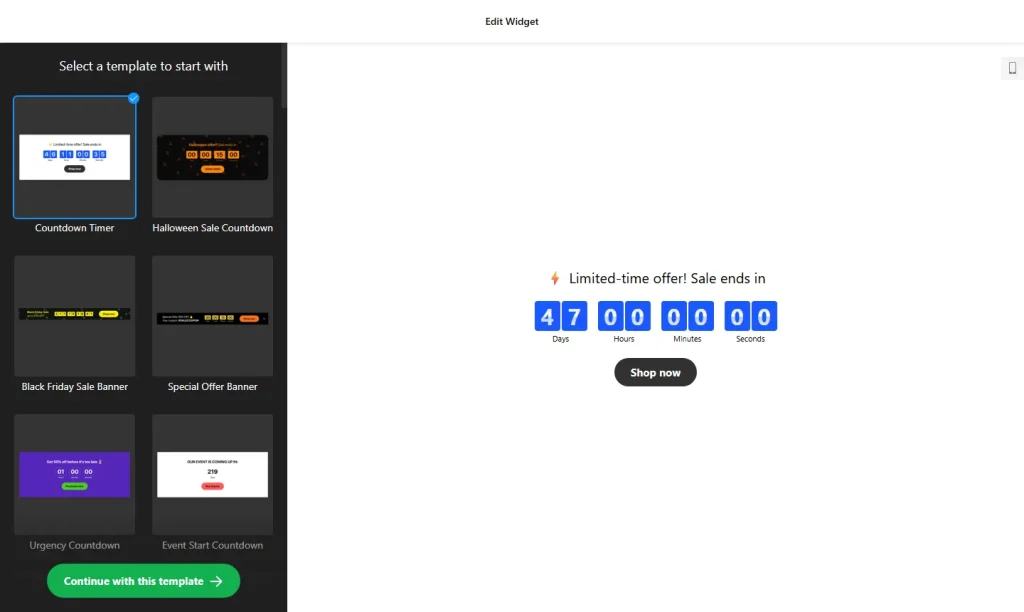
Use the builder below to create a free countdown timer for your Google Sites website. Pick a template, set your date and click “Continue with this template“.
Google Sites is a common choice for schools, clubs, sports teams, nonprofits and internal company sites, and many of those sites revolve around dates: the first day of term, a fundraiser deadline, a tournament, an application window. Instead of updating a “days left” line by hand, add a timer that counts down on its own. You build it in your browser and paste the code into an embed box on any Google Sites page.
How to add a Countdown Timer widget to Google Sites
1. Create your widget
- Choose a template: Event Start Countdown and Countdown timer work well for school and club events; Launch Countdown suits an opening or a new program.
- Set the timer: pick the start-to-finish timer and enter the start time, end time and time zone. This is the right type for a fixed date that everyone counts down to together.
- Keep the position inline: choose “Install To Required Position”. The banner positions are made to stick to the browser window, which Google Sites doesn’t allow.
- Decide what happens at zero: hide the timer, show a message such as “Registration is closed”, or redirect to another page. Add a button like “Sign up” or “Donate” if you want one.
- Style and save: choose a clock type or holiday theme, set the animation, font and size, then click “Add to website for free“, sign up and copy your embed code.
2. Add it to your Google Site
- Open your site in Google Sites and go to the page where the countdown should appear.
- In the Insert panel on the right, click Embed.
- Open the Embed code tab, paste the countdown code, click Next and then Insert.
- Drag the edges of the embed box until the whole timer fits, including the button if you added one. A box that’s too small cuts the timer off.
- Publish the site and check the countdown on the live page, on a computer and on a phone.
Where to put the Countdown Timer widget on your Google Site
- On a school or class homepage, counting down to exams, the start of term, a trip or graduation.
- On a club or team site, counting down to the next match, a tournament or the registration deadline.
- On a nonprofit fundraiser page, showing how long the appeal runs, with a button to the donation page.
- On an internal company or project site, counting down to a launch, a deadline or an all-hands event.
Do you need a paid Google Sites plan?
No paid plan is involved on the Google Sites side. What matters is the box: Google Sites puts every embed in its own isolated frame, and there’s no way to add code to every page at once. So use the inline position and size the box to fit. The static and floating banner positions would only show inside that box, not across the top of the page. To show the timer on several pages, add an embed box to each one.
The widget’s own free plan covers one widget with up to 200 views a month on unlimited websites, with a small Elfsight link. Paid widget plans start at $5 a month, billed yearly, for more views and no branding.
Countdown Timer widget features
- Three countdown types: start-to-finish dates with a time zone, a per-visitor timer, or a number counter.
- End-of-countdown actions: hide the timer, show a message or redirect to a URL.
- Optional call-to-action button under the clock, for sign-ups, tickets or donations.
- Holiday themes and clock types, with animation, font and size settings.
- Custom CSS for colors and spacing that match your school or club.
Frequently asked questions
Can I add a countdown timer to Google Sites?
Yes. Build the timer, copy the embed code, then use Insert › Embed › Embed code on your Google Sites page and drag the box so the whole timer fits.
Why is my countdown cut off on Google Sites?
The embed box is too small. Click the box in the Google Sites editor, drag its edges until the full timer and button are visible, then publish again.
Can I show a floating countdown banner on Google Sites?
No. Google Sites keeps every embed inside its own frame, so a floating banner can’t stick to the top or bottom of the window. Use the inline position and place the box near the top of the page instead.
Can I put the countdown on every page of my Google Site?
Google Sites has no site-wide code area, so add an embed box with the same code to each page. If you change the timer later, all of them update together.
Can I change the date after adding the timer?
Yes. Edit the widget in your Elfsight dashboard and save. The countdown on your Google Site updates on its own, so you don’t need to paste the code again.
More Google Sites widgets
- Countdown Timer widget
All templates and features - Google Sites Pricing Table widget
Compare plans and prices - Google Sites Google Reviews widget
Your Google Business reviews and rating - Google Sites Contact Form widget
A simple contact form - Google Sites Instagram Feed widget
Your latest Instagram posts and reels - Essential Google Sites widgets
10+ widgets that work well on Google Sites