
Use the builder below to create a free WhatsApp chat widget for your Webflow site. Pick a template, click “Continue with this template” and add your WhatsApp number.
A Webflow landing page does its job when a visitor takes the next step, and for many people sending a quick WhatsApp message is easier than filling in a form or booking a call. This widget adds a WhatsApp button or a floating chat bubble that starts a conversation with your number, with a welcome message and opening hours you control. Put the bubble on every page with Webflow’s site-wide custom code, or place a button inside one section with a Code Embed element.
How to add a WhatsApp Chat widget to Webflow
1. Create your widget
- Choose a template: there are 10 responsive designs. Pick one and click “Continue with this template“.
- Add your WhatsApp number with the country code and without + or 00 in front. If you use a WhatsApp Business account, you can use its short link instead.
- Write the chat: edit the chat bubble, the header and the welcome message. The message can include links and custom styles.
- Set where and when it appears: under Position, choose Embed Bubble for an inline button or Floating Bubble for a chat bubble. Then set display conditions, open-chat triggers, your open and closed hours, and colors that match your site.
- Save it: click “Add to website for free“, sign up on the next page and copy your embed code.
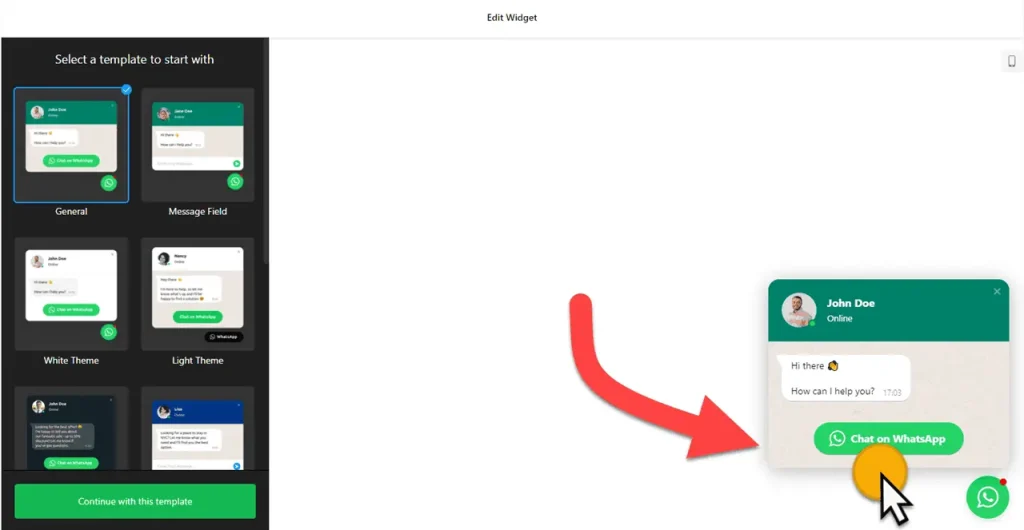
2. Add it to your Webflow site
- For a floating bubble on every page: in Webflow, open Site settings › Custom code, paste the code into Footer code and save.
- For a button in one spot: open the page in the Webflow Designer, open the Add panel and drag a Code Embed element where the button should go, such as your contact section.
- Paste the code into the Code Embed editor and click Save & Close. The canvas won’t show the button, because scripts don’t render inside the Designer.
- Publish the site, or open Preview, and click the button to check that it opens a chat with the right number.
- Open a few pages on your phone and make sure the bubble doesn’t cover your menu button, a cookie banner or another fixed element.
Where to put the WhatsApp Chat widget on your Webflow site
- Floating on every page of a service business or agency site, so a question is always one tap away.
- On landing pages for ads, as a floating bubble next to the main sign-up or booking button.
- Inline on your contact page, as an Embed Bubble button beside your email address and form.
- Below a pricing table, with a welcome message like “Not sure which plan fits? Ask us here.”
- Only where it helps: use the display settings to hide the bubble on pages that don’t need it, such as legal pages.
Do you need a paid Webflow plan?
Yes. Webflow needs a paid site plan or workspace plan before it will run the Code Embed element or site-wide custom code, and those are the two ways this widget gets onto your pages. On a free Webflow project, the button won’t appear. The widget’s own free plan covers one widget with up to 200 views a month on unlimited websites, with a small Elfsight link. Paid widget plans start at $5 a month, billed yearly.
A floating bubble belongs in Site settings › Custom code › Footer code. Webflow adds that code just before the closing body tag of every page, which is exactly where a floating chat widget should load. To keep the bubble off certain pages, or show it only at certain times or on certain devices, change the widget’s display settings rather than removing the code.
WhatsApp Chat widget features
- 10 responsive templates you can change without code.
- Two positions: Embed Bubble for an inline button, or Floating Bubble for a chat bubble over the page.
- Custom chat window: bubble, header and welcome message, with links and custom styles.
- Display conditions and triggers: choose the pages, times and devices, and when the chat opens.
- Schedule: set your open and closed days and hours.
- Appearance settings to match your brand colors.
Frequently asked questions
Do I need a paid Webflow plan for the WhatsApp chat widget?
Yes. The Code Embed element and site-wide custom code both need a paid Webflow site plan or workspace plan. Without one, Webflow won’t run the widget script.
Where do I paste the WhatsApp code in Webflow?
For a floating chat bubble on every page, paste it into Site settings › Custom code › Footer code. For an inline button in one section, add a Code Embed element on that page and paste it there.
Why can’t I see the WhatsApp button in the Webflow Designer?
Scripts don’t run inside the Designer canvas. Publish or preview the site to see the button. If it’s missing on the live site, check that your plan allows custom code and that you saved the code.
Can I set opening hours for the WhatsApp chat?
Yes. Set your open and closed days and hours in the widget’s schedule. The display settings also let you choose the pages, times and devices where the chat appears.
Can I change my number or message later?
Yes. Edit the widget in your Elfsight dashboard and save. Your Webflow site picks up the change on its own, so you don’t need to paste the code again.
More Webflow widgets
- WhatsApp Chat widget
All templates and features - Webflow AI Chatbot widget
Answers questions using your own content - Webflow Contact Form widget
A simple contact form - Webflow Google Reviews widget
Your Google Business reviews and rating - Webflow Instagram Feed widget
Your latest Instagram posts and reels - How to add embed code to any website
Where to paste widget code on every website builder