
Use the builder below to create a free photo gallery for your Google Sites page. Pick a template, click “Continue with this template” and upload your photos.
Schools, clubs, sports teams and nonprofits build on Google Sites because it’s quick to set up and easy to share, and photos are a big part of what they post. Think of the school trip, the season’s final match, the volunteer day or the office party on an internal site. This gallery shows those photos in a carousel, grid or slider, with a larger view on click. You add it with an Embed code box, the same way you add other embeds on Google Sites.
How to add a Photo Gallery widget to Google Sites
1. Create your widget
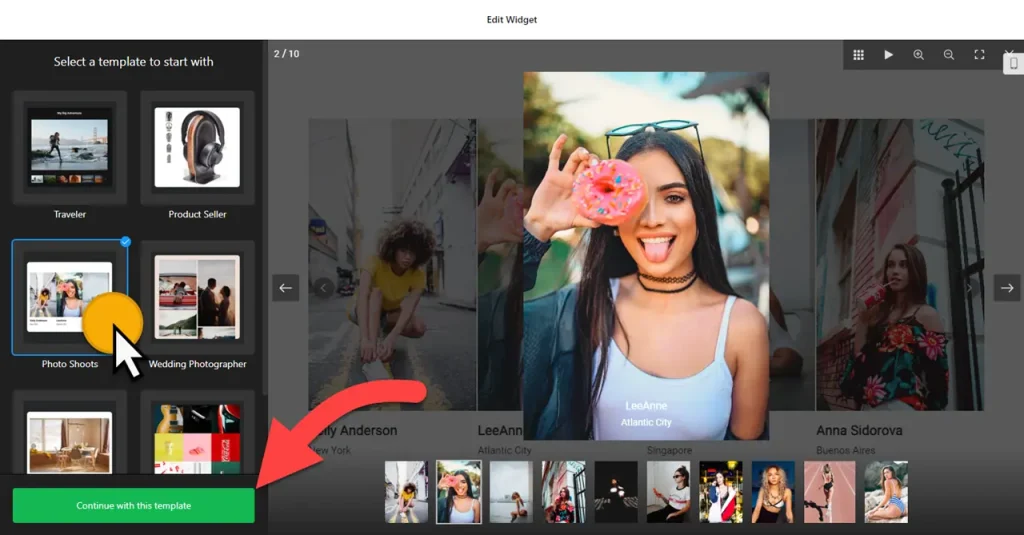
- Choose a template: Traveler or Photo Shoots work well for event photos. Click “Continue with this template“.
- Upload your photos in the widget editor.
- Pick a layout: Carousel or Slider are the easiest to fit on Google Sites, because they stay the same height however many photos you add.
- Adjust the settings: the click action, photo protection, a watermark, and the font, background, heading, photo and popup styles.
- Save it: click “Add to website for free“, sign up and copy your embed code.
2. Add it to your Google Site
- Open your site in Google Sites and go to the page for the gallery.
- In the Insert panel on the right, click Embed.
- Open the Embed code tab, paste the gallery code, click Next and then Insert.
- Drag the edges of the embed box so the whole gallery fits, including the heading and arrows or the last row of photos.
- Publish the site and check the page on a computer and a phone.
Where to put the Photo Gallery widget on your Google Site
- On a school or class page, with photos from trips, sports day or the school play.
- On a club or team page, showing the season, the trophies and the people.
- On a nonprofit’s “what we do” page, with photos from events and volunteer days.
- On an internal company site, as a gallery from the last team event or office move.
Do you need a paid Google Sites plan?
There’s no Google Sites plan to upgrade. The limit on Google Sites is technical: every embed sits in its own isolated box. The gallery and its popup stay inside that box, so when someone clicks a photo, the larger view opens within the box, not over the page. Make the box big enough for that, or choose a different click action. Google Sites also has no way to add code to every page at once, so add an embed on each page where you want a gallery.
If the gallery doesn’t load, check that the code was pasted in the Embed code tab and the box is large enough. If a script widget still won’t load, the widget’s iframe version (where one exists) is the usual fix. The widget’s free plan covers one widget with up to 200 views a month on unlimited websites, with a small Elfsight link; paid plans start at $5 a month, billed yearly.
Photo Gallery widget features
- Six layouts: Carousel, Grid, Vertical Masonry, Horizontal Masonry, Slider and Panoramic.
- Templates such as Traveler, Product Seller, Photo Shoots and Wedding Photographer.
- Click actions and popup styles for viewing photos larger.
- Photo protection and watermark settings.
- One dashboard to add new photos after each event without editing your Google Site.
Frequently asked questions
Why is my photo gallery cut off on Google Sites?
The embed box is smaller than the gallery. Click the box and drag its edges until the whole gallery fits. A Carousel or Slider layout keeps a fixed height, which makes the box easier to size.
Why does a clicked photo open inside the box instead of full screen?
Google Sites puts every embed in its own isolated frame, so the popup can’t open over the rest of the page. Make the box larger, or change the click action in the gallery settings.
Can I add new photos after each event?
Yes. Upload them in your Elfsight dashboard and save. The gallery on your Google Site updates on its own, so you don’t need to edit the embed. With a Grid or Masonry layout, check the box is still tall enough.
Can the gallery appear on every page of my Google Site?
Not automatically. Google Sites can’t add code to every page at once. Insert an embed on each page where you want it; the same code works on each page.
Is it free for a school or club site?
Yes. The free plan includes one widget with up to 200 views a month, with a small Elfsight branding link. Paid plans start at $5 a month, billed yearly, if your site gets more visits.
More Google Sites widgets
- Photo Gallery widget
All templates and features - Google Sites Before & After Slider widget
Compare two images with a slider - Google Sites Audio Player widget
Play music and audio files - Google Sites Background Music widget
Music that plays in the background - Google Sites PDF Viewer widget
Show PDFs right on the page - Essential Google Sites widgets
10+ widgets that work well on Google Sites